A landlord, an accountant or a job portal asks for "one PDF," and you have five separate files sitting in your Downloads folder. If you send all five anyway, you'll probably get a polite reply asking for a single file. You can avoid that back-and-forth in a few minutes.
This is how to merge PDF files into one without paying or signing up. Open our free Merge PDF tool, add your files, put them in order and click Merge PDF. The combined file downloads straight to your device, with no watermark on the pages.
The tool runs inside your web browser, so your files never leave your phone or computer. That matters when the papers include your Social Security number, bank details or a signed lease. If you'd rather use what's already on your device, iPhone and Mac have built-in options too, and we cover those below.
| Quick answer | Details |
|---|---|
| What you need | Two or more PDF files and a web browser (phone or computer) |
| Time | Mostly the time it takes you to add and order your files |
| Cost | Free, no account, no daily cap |
| Result | One clean PDF, in the order you chose, with only the pages you picked |
How to merge PDF files into one with our free tool
The process has five short steps. Each one is a single action, and the button names match what you'll see on the page.
Step 1: Add two or more PDF files
Go to the Merge PDF page. Drag your files onto the upload area, or click it to choose files from your folders.
A PDF (Portable Document Format) is a file type that looks the same on every phone and computer. That's why forms and contracts so often come as PDFs.
Step 2: Put the files in the right order
Move each file up or down until the list matches the order you want in the final document. The file at the top becomes the first pages. Read the list once from top to bottom before you go on, because fixing the order now is much easier than fixing it after you've sent the file.
Step 3: Pick pages (optional)
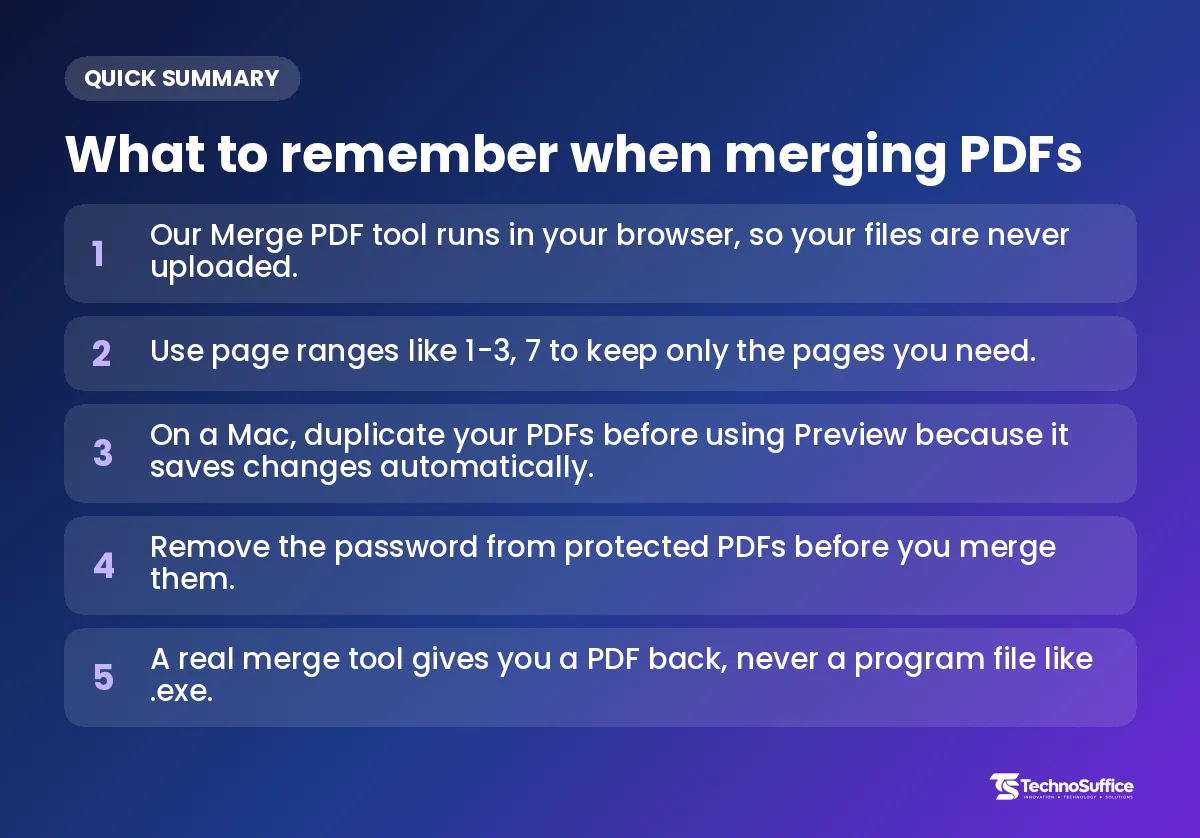
For each file, you can type a page range. A page range is a short way to say which pages to keep. Leave it empty, and the whole file goes in.
1-3, 7keeps pages 1, 2, 3 and 7.1-3, 6, 9-10keeps pages 1, 2, 3, 6, 9 and 10.4keeps only page 4. This is handy when a long contract has one signed page you need.
Step 4: Click Merge PDF and download
Press the Merge PDF button. Your combined file downloads to your device's usual download folder.
Step 5: Check the file and give it a clear name
Open the new PDF and scroll through it once, checking the page count and the order. Then rename it so you and the person receiving it can find it later, for example 2026-Lease-Application.pdf. Keep your original files until you're sure the merged one is right.
How does merging in your browser keep your files private?
The work happens on your own device, not on a remote server. Our tool processes the files in your browser, so they're never uploaded anywhere.
Many online tools work differently. They send your file to their server, join it there and send it back. That can be fine with a company you trust, but you're still handing a copy of your tax forms, ID scan or invoices to someone else, and you can't see what happens to it afterward.
With a browser-based tool, your own computer or phone does the joining. That comes with one honest limit: very large jobs depend on your device's memory. A few short files are easy, while a stack that adds up to hundreds of megabytes (MB, a measure of file size) may run slowly on an older phone.
How do I combine PDF files on iPhone, Mac, Windows or Android?
The browser tool works the same way on every device. iPhone and Mac also have free built-in options, and each one has a catch you'll want to know before you start.
Combine PDF on iPhone
The simplest option is to open our Merge PDF page in Safari and follow the steps above. When you tap to add files, your iPhone lets you pick from the Files app, where saved documents live.
You can also merge inside the Files app itself. Several how-to guides describe these steps:
- Open the Files app and go to the folder with your PDFs.
- Tap Select and choose the files.
- Tap the More button (three dots), then Create PDF.
The new file appears in the same folder, and your originals stay there too, so you can delete them by hand if you don't need them. The catch is order. Guides report that the Files app joins files in alphabetical order by name, not in the order you tapped them, so rename them first with 1-, 2-, 3- at the start.
Merge PDF on Mac
You can merge PDF on Mac with Preview, the free app that opens PDFs and pictures. According to Apple's Preview guide for combining PDFs, the steps go like this:
- Open the PDFs in Preview.
- Choose View > Thumbnails to show the thumbnails sidebar (a column of small page pictures).
- Drag page thumbnails from one PDF's sidebar into the other's.
Preview is also the easiest way to merge PDF files in between pages. Drop a thumbnail between two pages, and it lands there instead of at the end. To add a whole PDF, drag its icon from the Finder (the Mac's file browser) into the open sidebar, and Command-click to pick pages that aren't next to each other.
The catch: Apple notes that Preview saves changes automatically. If you merge straight into your original file, that original changes too. To stay safe, use File > Duplicate on each PDF first and work on the copies.
Windows and Android
Windows has no built-in way to merge PDFs, as HP's guide to combining PDFs points out, so you need an app or an online tool. Open our Merge PDF page in Edge or Chrome and follow the same steps as above, with nothing to install.
On Android, open the tool in Chrome. When you tap to add files, your phone shows its file picker, and you can choose PDFs from Downloads, Google Drive or anywhere else you keep them.
Which method should you use?
For private papers, or when you're not sure, the browser tool is the safe default. If you're weighing the best way to combine multiple PDF files into one, this table matches each method to a situation.
| Your situation | Best method | Watch out for |
|---|---|---|
| Private files (taxes, IDs, contracts) on any device | Our browser-based Merge PDF tool | Check the order before you click Merge PDF |
| Need only some pages from each file | Our tool with page ranges | Type ranges like 1-3, 7 with commas between parts |
| Mac, a few pages, or one file inserted mid-document | Preview | It saves automatically, so duplicate your files first |
| iPhone, two or three files already in Files | Files app > Create PDF | Files are joined by name, so rename them first |
| Windows or Android | Our tool in your browser | No built-in merge option on Windows |
| Password-protected PDFs | Remove the password first, then merge | Many merge tools, including Adobe Acrobat's Combine Files, can't join protected files |
| A very large batch of files | Our tool on a computer | Large jobs depend on your device's memory |
Plenty of people search for the best app to combine PDF files into one. For most everyday jobs, though, the options above get it done without installing anything.
Can you merge PDF online free without a watermark or sign-up?
Yes. Our tool is free, needs no account, has no daily cap and adds no watermark (a logo or text stamped on your pages). Not every free tool works that way, so it helps to know the usual catches before you pick one.
Typical free-tool limits to watch for
- Watermarks: HP reports a free desktop tool that adds a small watermark to every page of combined PDFs. If you need to merge PDF without watermark marks, check a sample before you send anything official.
- Merge caps: HP also mentions a free web tool that allows only one merge per hour.
- Sign-in walls: be wary of a tool that asks you to create an account before it lets you download your own file.
- File, page and size caps: many free tools limit how many files, pages or megabytes you can merge at once.
Our Merge PDF tool has no fixed size limit. The real limit is your device's memory, and that only comes into play with very large files.
A safety checklist before you use any free PDF site
Fake tools are a real risk. In March 2025, the FBI's Denver office warned that criminals run free online document tools, including ones that claim to combine files into one PDF. The FBI Denver warning about fake file converter sites (CBS News Colorado) explains that the tool may work, but the file can carry hidden malware (harmful software that steals data or locks your files).
These sites can also pull personal data from the files you upload. A few quick checks keep you on the safe side:
- PDF in, PDF out. A merge tool should give you a PDF. If it hands you a program file such as
.exe,.bator.scr, don't open it. Delete it. - No surprise installs. A basic merge shouldn't need a browser extension or a download.
- No odd pop-ups. Leave sites that flash warnings or push you to other pages.
- No sign-up for a simple job. Joining two files shouldn't need your email address.
- Browser processing for private files. If the file never leaves your device, no copy sits on someone else's server.
Common mistakes when you combine PDF files, and how to fix them
Most problems come from protected files, the wrong order or a final file that's too big. The table below lists each mistake with a simple fix.
| Mistake | What happens | Fix |
|---|---|---|
| Merging a password-protected PDF | The merge won't work with that file | Open it in your PDF reader, remove the password (you'll need to know it), save it, then merge |
| Wrong order | The cover letter ends up after the references | Check the file list top to bottom before clicking Merge PDF |
| File too big to email | The email bounces or won't attach | Run the merged file through our Compress PDF tool |
| Sideways scanned pages | Pages from a scanner (a picture of a paper page) appear turned | Fix them with our Rotate PDF tool and save |
| Overwriting the original in Preview | Your original file changes for good | Use File > Duplicate before you start |
| iPhone Files app order is off | Files join by name, not tap order | Rename with 1-, 2-, 3- first |
| Trying to merge photos | JPG images aren't PDFs, so a PDF merger won't take them | Turn them into PDFs with our JPG to PDF converter, then merge |
Adobe notes that merging many PDFs can produce quite a large file. That's why compressing the final file is such a common last step.
Pro tips for a clean result
- Merge first, then compress. It's one step instead of several, and you're less likely to mix files up.
- Before you merge, add up the pages you expect. Then compare that number with the final file.
- Need to move a single page after merging? Our Organize PDF Pages tool lets you rearrange pages without starting over. Split PDF on the same site pulls pages out into new files.
- Put a date and a plain description in the file name. It saves the receiver time.
Real-life examples: when one PDF beats five
Any time someone asks for "one file," merging saves you a follow-up email. These are the jobs where it helps most:
- Tax season: join your W-2s, 1099s and receipts into one PDF for your accountant, in the order they asked for.
- Job applications: many online forms allow only one upload. Combine your resume, cover letter and references, with the cover letter first.
- Rental applications: pay stubs, a photo ID scan and reference letters in one file look organized and are easy for a landlord to forward.
- School and financial-aid forms: use page ranges to keep only the signed pages from each form, and send one clean document.
- Freelance invoices: send a client a month of invoices as a single PDF, named by month and year.
Merge your PDFs now
Some businesses merge PDFs all day: intake forms, signed agreements, client paperwork. If that sounds like your week, a simple online form or client portal can replace much of that manual work. Our web development team builds custom web apps like these for clients worldwide, backed by more than 10 years of experience and 491+ projects delivered.
Every project gets a dedicated team and project manager, weekly demos so you always know where things stand, and a fixed quote with milestones after a free discovery call. SEO and performance are built in from day one, and post-launch maintenance keeps your site updated and secure. Request a Free Quote and tell us which paperwork you'd like to stop handling by hand.
For today's job, open our free Merge PDF tool, add your files and click Merge PDF. It's free, private and watermark-free. If the result is too large, compress it, and if a page is sideways, rotate it.
Frequently Asked Questions
How do I merge PDF files into one for free?
Use a free browser tool like our Merge PDF. Add two or more PDFs, put them in order, set page ranges if you want, and click Merge PDF. The file downloads with no sign-up and no watermark.
How do I merge PDF files into one on iPhone?
Open our Merge PDF tool in Safari, or use the Files app. In Files, tap Select, choose your PDFs, tap the three-dot More button and pick Create PDF. Rename the files with 1-, 2-, 3- first, because guides report that the app joins them by name.
How do I merge PDF files into one on Mac?
Use Preview or our browser tool. In Preview, open the PDFs, choose View > Thumbnails and drag pages between the sidebars. Duplicate your files first, since Preview saves changes automatically.
How do I merge PDF files into one on Windows?
Use an online tool, because Windows has no built-in merge option. Open our Merge PDF page in Edge or Chrome and follow the same steps. Nothing needs to be installed.
Are my files uploaded when I use the Merge PDF tool?
No. The tool processes files in your browser, so they stay on your computer or phone. That makes it a good fit for contracts, invoices and personal documents.
Can I merge password-protected PDFs?
Not until you remove the password. Open each protected PDF in your PDF reader, remove the password (you'll need to know it), save it, and then merge.
Is there a limit on how many PDFs I can merge?
There's no fixed limit and no daily cap, so you can merge as many files as your device can handle. Very large jobs, in the hundreds of megabytes, depend on your device's memory.