Admin
Admin
Want to remove background noise from audio for free? The fastest way is to use a free online noise remover. You upload your file (or record right in the browser), and AI takes out the hum, hiss and fan noise in a few seconds. If you want more control, free apps like Audacity can do it too.
In this guide, you'll learn five easy ways to clean up voice recordings, podcasts, voice notes and videos. You'll also see which method works best for each type of noise, plus simple tips to stop noise before you hit record.
Quick Answer: Which Method Should You Use?
Not sure where to start? Use this table to pick the right method in 10 seconds.
| Method | Best for | Skill level | Cost |
|---|---|---|---|
| Free online AI noise remover | Voice notes, podcasts, interviews, quick fixes | Beginner | Free |
| Audacity | Full control over steady noise like hiss and hum | Intermediate | Free |
| iPhone Voice Memos | Recordings made on an iPhone | Beginner | Free |
| Video editors (like CapCut) | Cleaning the sound inside a video | Beginner | Free plan |
| FFmpeg | Cleaning many files at once | Advanced | Free |
If you just want clean audio fast, start with Method 1.
What Counts as Background Noise?
Background noise is any sound you don't want in your recording. It hides your voice and makes people stop listening. Before you fix it, it helps to know what kind of noise you have, because some types are much easier to remove than others.
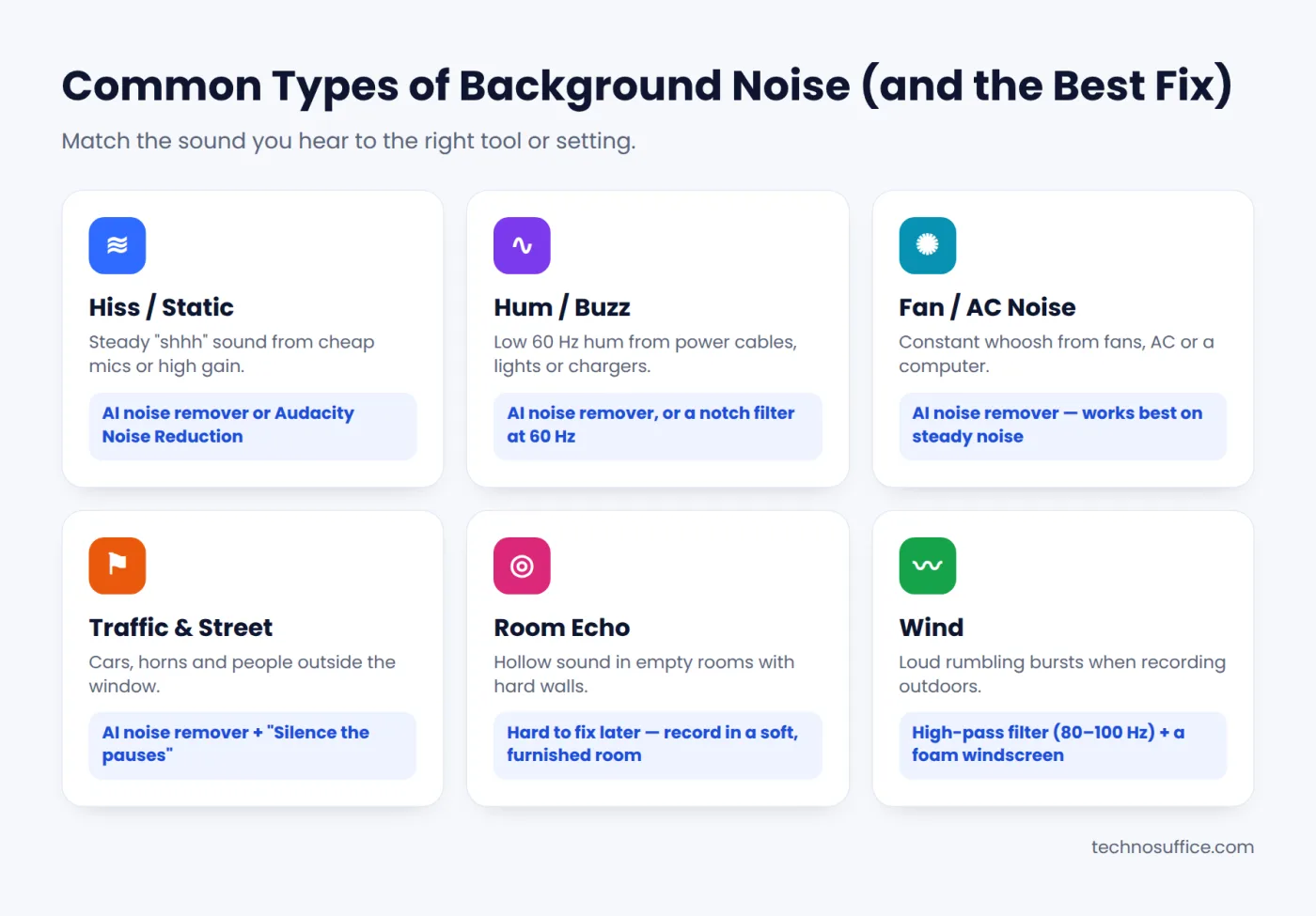 Hiss, hum and fan noise are the easiest to remove. Echo is the hardest.
- Steady noise (hiss, hum, fans, AC) stays the same the whole time. This is the easiest to remove.
- Changing noise (traffic, dogs, people talking) comes and goes. AI tools handle this much better than older filters.
- Echo comes from the room itself. It's very hard to fix later, so it's best to prevent it.
Method 1: Use a Free Online AI Noise Remover (Fastest)
An online AI noise remover is the easiest option. There's nothing to install, and you don't need any audio skills. The AI is trained to tell the difference between a human voice and noise, so it keeps your voice and removes the rest.
Our free Audio Noise Remover works right in your browser. Your file is not uploaded to any server. It's processed on your own device, so it stays private.
How to remove background noise online (step by step)
- Open the Audio Noise Remover on your phone or computer.
- Tap Record to record your voice, or drop in an audio or video file (MP3, WAV, M4A, OGG, WebM or MP4).
- Wait a few seconds while the AI removes the noise.
- Play the Before and After versions to hear the difference.
- Fine-tune if needed:
- Noise removal slider: lower it to 70–80% if the voice sounds a little robotic.
- Silence the pauses: makes the gaps between words fully quiet.
- Boost volume: makes quiet recordings louder.
- Click Download clean WAV.
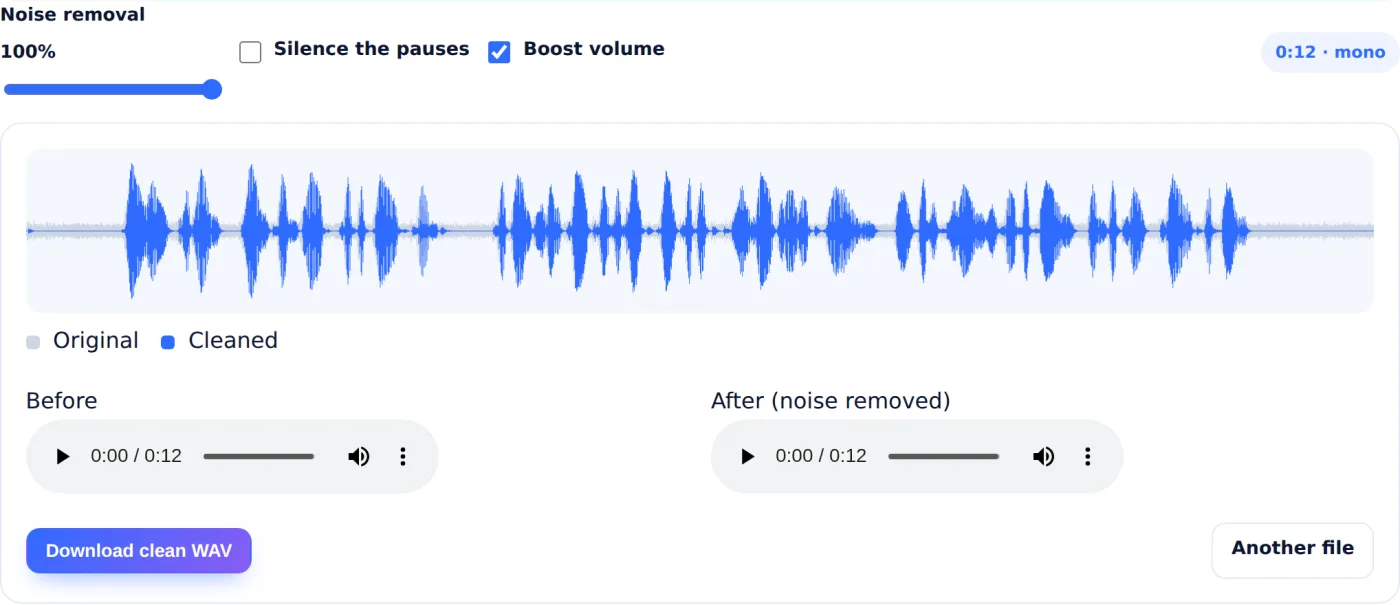 A real test: a voice recording with fan noise and electrical hum. Gray is the original, blue is the cleaned audio. The noise between words is gone.
In our test, a 12-second voice clip with fan noise and a 60 Hz hum was cleaned in about 3 seconds. The constant noise between words disappeared, and the voice stayed clear.
Good to know: This tool is made for speech. It works great for podcasts, voice-overs, lectures, interviews and voice notes. It's not made for music, because it may treat instruments as noise.
Method 2: Remove Noise in Audacity (Free Desktop App)
Audacity is a free, open-source audio editor for Windows, Mac and Linux. Its Noise Reduction effect gives you more control. It works best on steady noise like hiss, hum and fans.
Step 1: Get a noise profile
- Open your audio file in Audacity.
- Find a part where there's only noise and no talking. One or two seconds is enough.
- Select that part by clicking and dragging over it.
- Go to Effect > Noise Removal and Repair > Noise Reduction.
- Click Get Noise Profile. Audacity now "learns" what your noise sounds like.
Step 2: Apply noise reduction
- Press Ctrl + A (or Cmd + A on Mac) to select the whole track.
- Open Noise Reduction again.
- Start with the default settings: Noise reduction 12 dB, Sensitivity 6, Frequency smoothing 3.
- Click Preview to listen.
- Click OK to apply it, then export your file.
Tip: Don't push the noise reduction too high. Values above about 15–20 dB can make the voice sound watery or metallic. It's better to remove a little less noise and keep the voice natural. You can learn more about each setting in the official Audacity manual.
Method 3: Clean Up Recordings on Your iPhone
If you record with the iPhone Voice Memos app, there's a built-in fix called Enhance Recording. It lowers background noise and room echo with one tap.
- Open Voice Memos and tap your recording.
- Tap the three dots (…) and choose Edit Recording.
- Tap the magic wand icon to turn on Enhance Recording.
- Tap Done.
It's quick, but you can't control how strong it is. If the result still has noise, export the memo and run it through an online noise remover.
On Android, recorder apps are different on every phone. Some have a "noise reduction" or "clear voice" option in their settings. If yours doesn't, the online tool works in Chrome on any Android phone.
Method 4: Remove Background Noise from a Video
Got noise in a video? You have two easy options.
Option A: Use your video editor. Many free editors have a noise reduction switch. For example, in CapCut you select the clip, open Audio and turn on Reduce noise.
Option B: Clean the audio separately. This often gives better results:
- Drop your MP4 into the Audio Noise Remover. It reads the sound from the video.
- Download the clean WAV file.
- In your video editor, mute the original sound and add the clean WAV in its place.
Want captions too? After cleaning, run the audio through our free Speech to Text tool. Clean audio gives much more accurate transcripts and subtitles.
Method 5: Batch Clean Many Files with FFmpeg (Advanced)
If you have dozens of files, cleaning them one by one takes forever. FFmpeg is a free command-line tool with a built-in noise filter called afftdn.
Here's a simple command:
ffmpeg -i input.wav -af "afftdn=nf=-25" output.wav
The nf value is the noise floor in dB. Try numbers between -20 and -30, and test on one file before you run a whole folder. This method is powerful, but it's not as smart as AI with changing noise like traffic or chatter.
Common Problems (and How to Fix Them)
| Problem | Why it happens | Fix |
|---|---|---|
| Voice sounds robotic or watery | Too much noise removal | Lower the strength to 70–80% and try again |
| Noise is still there between words | Noise is loud or keeps changing | Turn on "Silence the pauses" or use a noise gate |
| Audio is too quiet after cleaning | Noise removal lowers overall level | Use "Boost volume" or normalize the audio |
| Hollow, echoey sound | Room echo, not noise | Re-record in a smaller room with soft things around |
| Music sounds strange | Speech tools treat music as noise | Use these tools on voice only, then add music after |
How to Prevent Background Noise Before You Record
The best noise removal is the noise you never record. These simple habits make a big difference:
- Pick a quiet, soft room. Rooms with curtains, a bed, a couch or a closet full of clothes have less echo.
- Turn off noisy things. Fans, AC, fridges and phone chargers can all add hum.
- Get close to the mic. About 4–8 inches (10–20 cm) away. Your voice gets louder and the room gets quieter.
- Keep your levels in check. Aim for peaks around -12 to -6 dB so you don't clip or add hiss.
- Record 5 seconds of silence first. It gives tools like Audacity a clean noise sample to work with.
- Use a windscreen outdoors. A cheap foam cover cuts most wind noise.
Frequently Asked Questions
Can I remove background noise from audio for free?
Yes. Free online tools like our Audio Noise Remover clean voice recordings in seconds with no sign-up. Free apps like Audacity and FFmpeg also work if you want more control.
Is it safe to use an online noise remover?
It depends on the tool. Many online tools upload your file to their servers. Our tool processes audio on your own device, so your recording never leaves your phone or computer. That makes it a good choice for private calls, interviews or meetings.
Why does my voice sound robotic after removing noise?
This happens when noise removal is set too strong and it starts cutting parts of your voice. Lower the strength a bit, or mix in some of the original sound. A little leftover noise sounds much better than a robotic voice.
What's the difference between noise reduction and a noise gate?
Noise reduction removes noise all the time, even while you talk. A noise gate only mutes the audio when you stop talking. Many people use both: noise reduction first, then a gate to make pauses fully silent.
Can I remove background noise from a video?
Yes. Upload the video to a noise remover that accepts MP4 files, download the clean audio, and replace the original sound in your video editor. Some editors, like CapCut, also have a built-in "Reduce noise" option.
Does noise removal work on music?
Most noise removers, including ours, are built for speech. On music they may remove parts of the instruments. For songs, it's better to use music-focused tools or clean only the vocal track.
Final Thoughts
Removing background noise doesn't have to cost money or take hours. For most people, a free online AI tool is the fastest fix. Upload your file, compare before and after, and download clean audio in seconds. If you need more control, Audacity is a great free choice, and FFmpeg handles big batches.
Ready to try it? Open the free Audio Noise Remover and clean your first recording now. You can find more free tools for audio, images and PDFs on our free tools page.