

A social media content calendar is a simple plan that shows what you'll post, where, and when. To create one, set one or two goals, pick the platforms your customers use, choose 3–5 content themes, then fill a spreadsheet with dates, captions, images and links. Plan a month at a time, make posts in batches, and check the results every month.
That's the short version. Below is the full process, the exact columns we put in a calendar, a sample week, a holiday list for the US shopping season, and the mistakes that make most small business calendars fall apart by week three. We also tested two of our free tools on a sample post, so you'll see real numbers from that.
Quick Answer: What Goes in a Social Media Content Calendar
| Column | What you write | Example |
|---|---|---|
| Date and time | When the post goes live, in your customers' time zone | Tue, Nov 3, 11:30 a.m. CT |
| Platform | Where it goes | Instagram, Facebook |
| Content pillar | Which theme the post belongs to | Educate |
| Format | Post type | Carousel, Reel, story, text post |
| Caption | The final text, including hashtags | "Tip Tuesday: how to freeze bread…" |
| Visual | A link to the image or video file | Google Drive link |
| Link + UTM | The page you send people to, with tracking | /menu?utm_source=instagram |
| Status | Where the post is in your process | Idea → Draft → Approved → Scheduled → Live |
| Owner | Who is responsible | Sarah |
| Results | Numbers after one week | Reach, saves, clicks |
Why a Content Calendar Beats Posting on the Fly
Most small businesses post when they remember. Then a busy week hits, the page goes quiet for a month, and the next post is a rushed sale. A calendar fixes that by moving the hard thinking to one planning session instead of every single day.
It also helps in ways you only notice later. You catch typos and wrong prices before they go live. You spot that you've posted four sales in a row and nothing useful. You get your Black Friday posts ready in October, not on the Thursday night before. And when a teammate or an agency helps, everyone can see the same plan.
A calendar is not the same as a full social media strategy. The strategy says who you're talking to and why. The calendar is the day-to-day plan that puts that strategy into action.
How to Create a Social Media Content Calendar in 8 Steps
You can build your first calendar in about one afternoon. Use a free spreadsheet like Google Sheets or Excel to start. You can move to a paid tool later if you outgrow it.
1. Check what you're posting now (a quick audit)
Open each account and scroll back about three months. Note how often you posted, which posts got the most comments, shares and saves, and which ones flopped. This is called a social media audit. It sounds formal, but for a small business it takes 30 minutes.
Look for patterns. Maybe your behind-the-scenes videos always beat your product photos. Maybe nobody clicks your links on Facebook, but people message you after Instagram stories. Those patterns tell you what to plan more of.
2. Set one or two clear goals
Every post should help with a goal. Good goals are specific and have a number and a date. These are often called SMART goals, which stands for specific, measurable, achievable, relevant and time-bound.
- Weak goal: "Get more followers."
- Better goal: "Get 20 booking requests from Instagram in November."
- Better goal: "Grow website visits from Facebook by 15% this quarter."
Pick the numbers you'll track to measure each goal. These are your KPIs (key performance indicators). For bookings, that's link clicks and messages. For awareness, that's reach, which is the number of different people who saw your post.
3. Choose your platforms (fewer is better)
Go where your customers already spend time. A local bakery might do best on Instagram and Facebook. A B2B accounting firm is usually better on LinkedIn. A brand that sells to people under 30 may need TikTok.
Two platforms done well beat five done badly. If you have one person and a few hours a week, start with the one or two channels that brought you real customers in your audit.
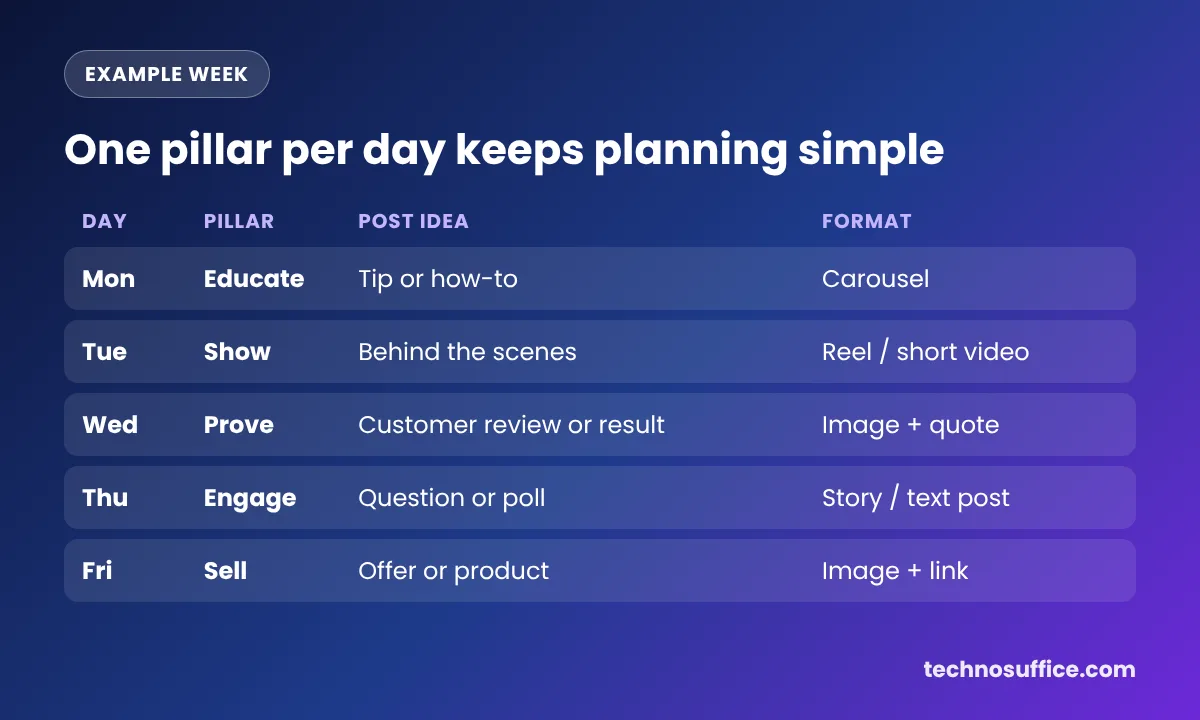
4. Pick 3–5 content pillars
Content pillars are the main themes you post about again and again. They stop you from staring at a blank page, because every post must fit one of them. Here's a set that works for most local businesses:
- Educate: tips, how-tos and answers to common questions.
- Show: behind the scenes, your team, how you make things.
- Prove: reviews, before-and-after photos, customer stories.
- Engage: questions, polls and fun posts that invite replies.
- Sell: offers, new products and booking reminders.
Many marketers follow the 80/20 rule, which means about 80% helpful or fun posts and 20% direct selling. Another common idea is the "rule of thirds": one third about your business, one third sharing useful ideas from others, and one third talking with your audience. These are rules of thumb, not research findings, so adjust them once you see your own results.
5. Decide how often to post
There's no magic number. Posting more only helps if you can keep the quality up. For a small team, three to five posts a week on your main platform, plus a few stories, is a pace most people can keep for months.
Consistency matters more than volume. Three posts every week for a year will do more than ten posts a week for three weeks and then silence. Pick a number you can keep even in your busiest month.
For posting times, check the insights in each app. Instagram, Facebook and LinkedIn all show when your followers are online. Use your own data before any "best time to post" chart, and schedule in your customers' time zone, not yours.
6. Build the calendar and add key dates
Create a spreadsheet with the columns from the table at the top. Add one row per post. Then mark the dates that matter to your business before you add anything else.
For US businesses, the end of the year is the busiest stretch. In 2026 the key dates are:
| Date (2026) | Day | Why it matters |
|---|---|---|
| Nov 26 | Thursday | Thanksgiving: a "thank you" post works well |
| Nov 27 | Friday | Black Friday: big offers |
| Nov 28 | Saturday | Small Business Saturday: great for local shops |
| Nov 30 | Monday | Cyber Monday: online deals |
| Dec 1 | Tuesday | Giving Tuesday: charity or community posts |
Add your own dates too: store anniversaries, local events, product launches and seasonal changes. If you sell outside the US, add local dates such as Boxing Day in the UK and Australia. Our free date calculator helps you count back from an event so you know when to start teasing it.
7. Create posts in batches
Batching means doing the same kind of task for many posts at once. Write all of next month's captions in one sitting. Shoot all the photos in another. Then design them together. It's much faster than switching tasks for every post.
Before you schedule, check two things for each post: the caption length and the image size. Each platform has its own limits, and the same caption can fit one app and break on another.
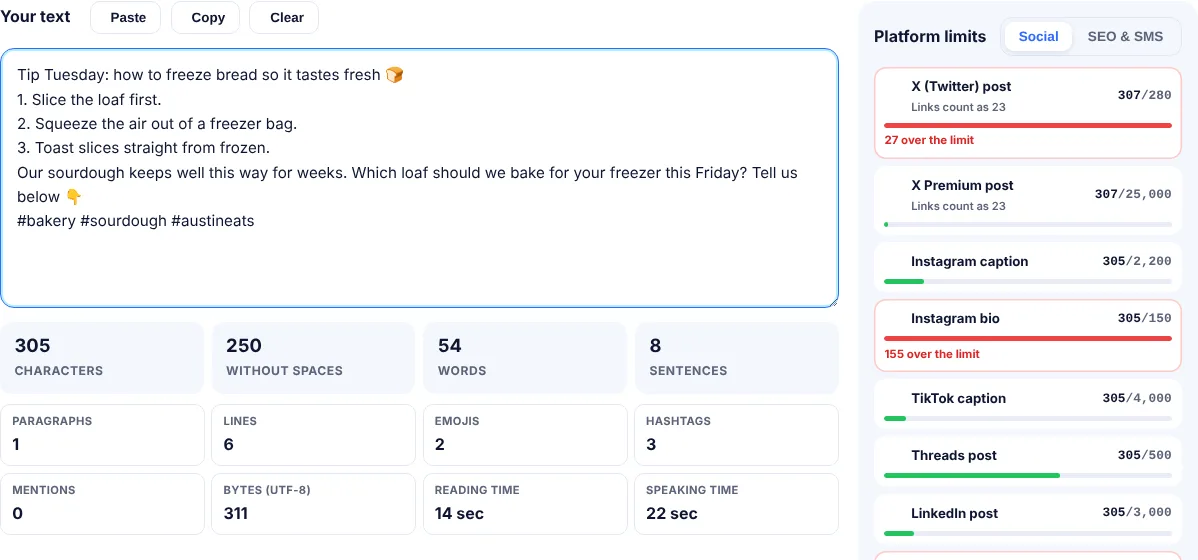
We tested this with a real sample caption for a made-up Austin bakery. We pasted it into our free character counter. It came to 305 characters, 54 words, 2 emojis and 3 hashtags. The tool showed it fit easily in an Instagram caption (305 of 2,200) and a LinkedIn post (305 of 3,000). But it was 27 characters over the limit for a standard X post, because X counts some emojis as two characters. X's own help page confirms the 280-character limit for regular accounts. So the X version needed a shorter caption.
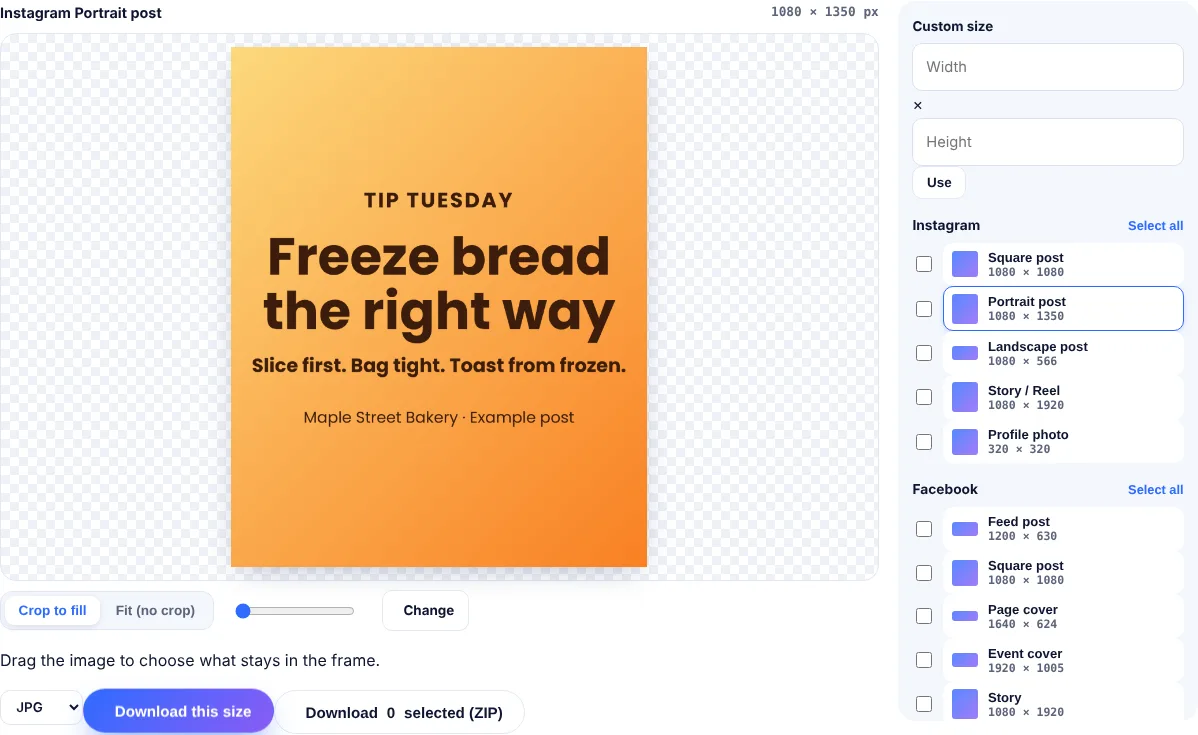
Then we took the post graphic, a 1600 × 1200 PNG of 482 KB, and ran it through our free social media image resizer. We picked Instagram → Portrait post and clicked Download this size. We got a 1080 × 1350 JPG of 105 KB in a few seconds. Note that "Crop to fill" trims the sides of a wide image. We dragged the image to keep the text in the frame. If you don't want to lose anything, use "Fit (no crop)."
A quick note on hashtags. Instagram now limits how many hashtags you can add to a post, reported as five per post since late 2025. Plan a few very relevant tags instead of a long list, and check the app if a post won't publish.
8. Schedule, publish and review every month
Scheduling can be free. Meta Business Suite lets you schedule Facebook and Instagram posts for free. LinkedIn and TikTok also let you schedule from their own apps or websites. Paid tools like Buffer, Hootsuite, Later and Sprout Social add one dashboard for all platforms, team approvals and reports. They're worth it once you post to three or more accounts.
Once a month, fill in the results column and look at the numbers. Which pillar got the most saves? Which posts brought clicks or messages? A common way to compare posts is engagement rate: the total likes, comments, shares and saves, divided by followers, times 100. Our free engagement rate calculator does the math and shows whether a result is low, average or good for each platform.
Then make next month's plan with what you learned. Do more of what worked, drop what didn't, and leave a few open slots for timely posts like news, trends or a big local event.
How a Content Calendar Works Day to Day
The real value of a calendar is the workflow behind it. In plain words, every post moves through the same five steps:
- Idea: someone adds a row with a rough idea and a pillar.
- Draft: the caption and visual get made, usually in a batch.
- Approved: the owner or manager checks facts, prices and spelling. This is your approval workflow.
- Scheduled: the post is loaded into Meta Business Suite or your scheduling tool.
- Live and measured: after a week, someone adds the results.
The "Status" column tracks this. If you filter by status, you can see in seconds what still needs work. A single person can run this alone, but it works even better with two: one makes the posts and one approves them.
Free vs Paid Calendar Tools
| Option | Best for | Good at | Limits |
|---|---|---|---|
| Google Sheets or Excel | Solo owners and small teams | Free, flexible, easy to share | No auto-posting; you schedule by hand |
| Meta Business Suite | Facebook and Instagram only | Free scheduling and basic insights | No LinkedIn, TikTok or X |
| Trello, Asana or Airtable | Teams with approvals | Boards, owners, due dates | Still need a tool to publish |
| Buffer, Hootsuite, Later, Sprout Social | 3+ accounts or agencies | One dashboard, approvals, reports | Monthly cost; check each plan's limits |
Start with a spreadsheet. If you find yourself copying the same post into four apps every day, that's the sign to try a paid scheduler's free trial.
Common Content Calendar Mistakes and Fixes
| Mistake | What happens | Fix |
|---|---|---|
| Planning too much | The calendar falls apart by week three | Plan a pace you can keep in your busiest month |
| Same post on every platform | Captions get cut off or look odd | Adjust length, size and tone per platform |
| Only selling | People stop engaging | Keep most posts helpful, fun or proof-based |
| No open slots | You miss trends and local news | Leave one or two free slots each week |
| Never checking results | You repeat posts that don't work | Fill in the results column once a month |
| No tracking on links | You can't tell which posts brought sales | Add UTM tags to every link |
| Scheduling and forgetting | A cheerful post goes out during a crisis or bad news | Check the next day's posts every morning and pause if needed |
Best Practices to Keep Your Calendar Going
- Keep a content bank. Add every idea to one tab, even half-ideas. When you plan the month, pick from the bank instead of starting from zero.
- Reuse what works. Turn a blog post into a carousel, a carousel into a Reel, and a customer review into a quote graphic. Evergreen content, meaning posts that stay useful for a long time, can be shared again every few months.
- Use UTM tags. A UTM tag is a short label added to the end of a link, like
?utm_source=instagram&utm_medium=social. It tells Google Analytics which post sent each visitor. - Share user-generated content. User-generated content (UGC) means photos or videos your customers post about you. Ask permission, then share them. It's free proof that real people like you.
- Include your Google Business Profile. Google lets you share updates and offers on your profile too. Add a row for it in your calendar. Our guide on how to optimize your Google Business Profile explains how those posts work.
- Write down your brand voice. A short note on tone, emoji use and words you never use keeps posts sounding the same, even when different people write them.
When to Get Help
A calendar is easy to start and hard to keep up when the business gets busy. If posts keep slipping, or you want paid ads and reports on top of organic posts, it may be time for help. Our social media marketing services include a monthly content strategy and posting calendar, posts, Reels and stories, Meta, TikTok and LinkedIn ads, and clear monthly reports.
Frequently Asked Questions
What is a social media content calendar?
It's a plan, usually a spreadsheet or app, that lists every post you'll publish with its date, time, platform, caption, image and link. It helps you post on a steady schedule, plan around holidays and see what's working.
How far ahead should I plan my social media posts?
For most small businesses, one month ahead works well. Plan big campaigns like Black Friday or a product launch two to three months ahead. Keep a few open slots each week for timely posts.
Is there a free social media content calendar template?
Yes. Make one in Google Sheets or Excel with these columns: date, time, platform, pillar, format, caption, visual link, UTM link, status, owner and results. That simple sheet is all most small teams need.
How many times a week should a small business post?
There's no single right number. Three to five posts a week on your main platform is a pace most small teams can keep. Posting on a steady schedule matters more than posting a lot.
What's the difference between a content calendar and a social media calendar?
A content calendar usually covers all content, like blog posts, emails, videos and social posts. A social media calendar is the part that covers only social posts. Small businesses often keep both in one spreadsheet with a "channel" column.
What are content pillars?
Content pillars are 3–5 main topics you post about over and over, such as tips, behind the scenes, reviews and offers. They make it faster to come up with ideas and keep your feed balanced.
Should I use the same post on every platform?
You can reuse the idea, but change the details. Each platform has different caption limits, image sizes and audiences. In our test, one caption fit Instagram but was 27 characters too long for a regular X post.
Plan Your First Month This Week
Block one afternoon. Do the quick audit, set one goal, pick your pillars and fill in four weeks of rows. Then batch the captions and visuals, schedule them, and look at the numbers at the end of the month. That one habit will put you ahead of most local competitors.
Before you schedule, check every caption with our free character counter and resize your images in one click. Both are free, with no sign-up. Want a team to run it for you? Talk to our social media team.