
Local business schema markup is a small block of code that hands Google your business name, address, phone number and hours in a format it can read without guessing. You can build it for free with a simple form, paste it into one page and test it in a single sitting. That matters because Google has to understand who you are and where you are before it can show your details to people nearby.
The quickest route is our free Schema Markup Generator. You pick Local Business, fill in your details, copy the code and paste it into your site. There's no sign-up, and it works in your browser.
Most people who search for this have one of two problems. Either they've never added schema, or they added it and a test tool now shows something odd. We'll cover both: the usual causes, a cause-and-fix table and a simple test routine you can repeat.
What is local business schema markup?
It's a label for your business that search engines can read. It lives in your page's code, and visitors never see it.
The plain-words version
Schema markup, also called structured data, is extra code that describes what's on a page. Picture a shipping label on a box. The box is your web page, and the label says, "This is a bakery, here's the address, and here are the hours."
The words on that label come from Schema.org, a shared list of types and properties that search engines understand. LocalBusiness is the type for a business with a real place people can visit, or one that serves a local area.
The code is usually written in JSON-LD. That's a tidy block of text placed inside a script tag, which is a small container in your page's code that browsers don't display. Google's general structured data guidelines name JSON-LD as the format Google recommends.
Google also accepts two older formats, Microdata and RDFa. Those are woven into your page's HTML, so editing them means touching your layout. JSON-LD sits in one block, so you can change it without going near your design.
What it won't do
Schema won't push you to the top of Google Maps overnight, and anyone who promises that is overselling. Don't expect a ranking boost from schema on its own. What it does is remove guesswork, because Google gets your details in one clean, standard form instead of piecing them together from your footer and contact page.
Our honest view: for a small business, schema is cheap insurance. It takes little time, costs nothing and helps keep your business details consistent everywhere Google looks.
Schema vs Google Business Profile
Your Google Business Profile is your free listing on Google Search and Maps. Schema lives on your own website, so the two are separate, and you should have both.
What matters most is that your name, address and phone number (often shortened to NAP) match in both places. If you haven't polished your listing yet, our Google Business Profile checklist walks you through it.
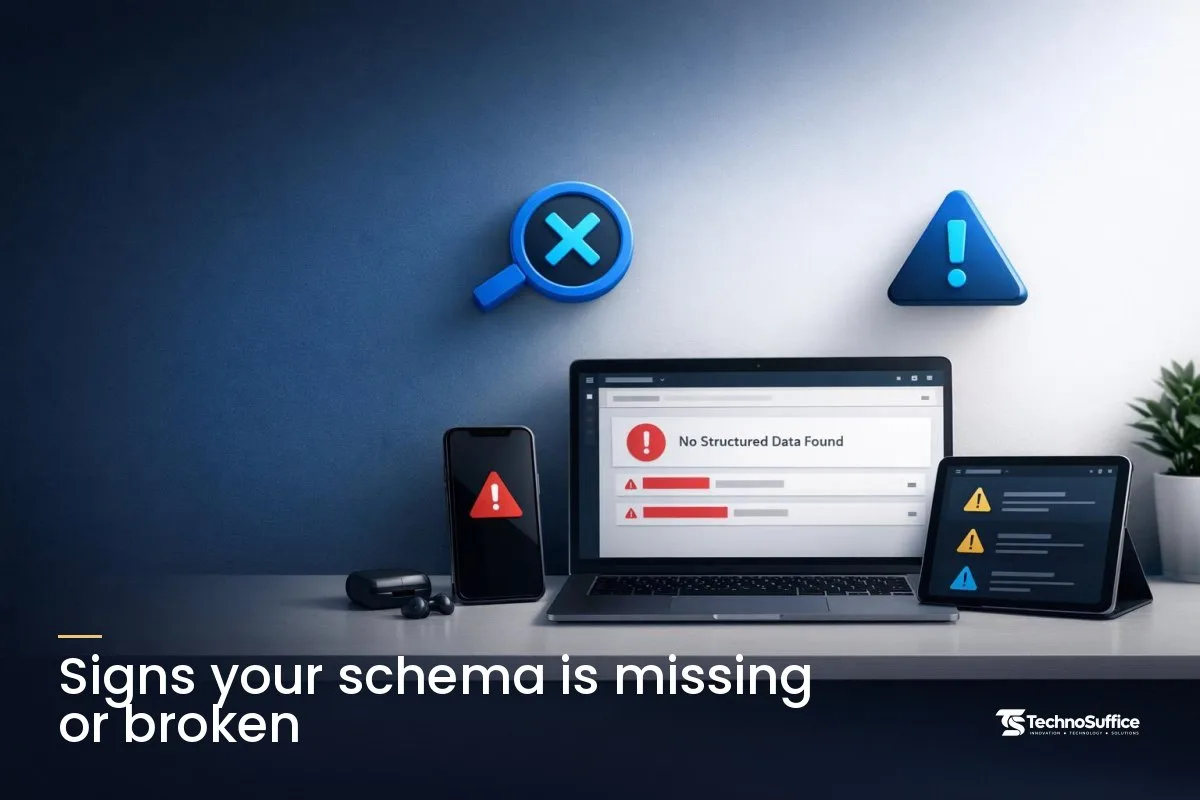
Signs your schema is missing or broken
You'll usually spot the problem in a test tool, not on Google itself. These are the symptoms we see most often:
- Google's Rich Results Test says it found no structured data on your page.
- The test shows errors or warnings, such as a missing address field.
- The test finds two or three LocalBusiness blocks on the same page.
- The hours or phone number in the code differ from what your page shows.
- Your site builder or SEO plugin added schema you didn't know about, with old details.
Why local schema goes wrong: the usual causes
Nearly every problem traces back to one of a handful of causes. The good news is that most are small and quick to fix.
There's no markup at all
Plenty of small business sites have none. Templates often skip it, and nobody adds it after launch. This is actually the easiest case, because you start with a clean slate.
The wrong schema type
Plain LocalBusiness works, but a more specific subtype tells Google more. Schema.org has exact labels such as Dentist, Plumber, Restaurant, Bakery and HardwareStore.
Choosing LocalBusiness when you're clearly a dentist isn't an error. It's simply a missed chance to be precise.
The code doesn't match the page
Google says structured data must be a true picture of the page, and you shouldn't mark up content readers can't see. So an address that appears in your schema but nowhere on the page is a problem.
For example, say your contact page lists one phone number and your header shows another. If the schema copies a third, older number, Google gets three different answers to one simple question.
Duplicate markup from plugins
This one catches a lot of WordPress users. An SEO plugin adds a LocalBusiness block, the theme adds another, and then you paste a third. Now Google sees conflicting details, so pick one source and switch the others off.
Old hours, phone or address
Maybe you moved, changed your number or now close earlier on Saturdays. Your page got updated, but the schema didn't. Google asks for up-to-date information, so stale data works against you.
Marking up your own reviews
It's tempting to add star ratings for your own business. But Google's LocalBusiness structured data guide says review and rating markup is meant for sites that collect reviews about other local businesses. So leave self-review stars out.
Small typing errors
Schema.org values are case-sensitive, so "LocalBusiness" works and "localbusiness" may not. Code pasted from a word processor can also pick up curly quotes, which break JSON-LD. A form-based generator avoids both problems.
Cause and fix at a glance
Find your symptom in the middle column, then apply the fix on the right. Most of these are short jobs.
| Cause | What you see | Fix |
|---|---|---|
| No markup | Test finds no structured data | Generate JSON-LD and paste it on your home or contact page |
| Too general a type | Type shows as LocalBusiness only | Switch to the closest subtype, such as Dentist or Plumber |
| Code doesn't match page | Different phone or hours in code | Make the code match what visitors see, word for word |
| Duplicate blocks | Two or more LocalBusiness items found | Keep one source; turn off schema in the extra plugin or theme |
| Stale details | Old address or hours in code | Update the schema every time your details change |
| Self-review stars | Rating markup on your own business | Remove the review and rating properties |
| Typing errors | Parsing or syntax errors in the test | Rebuild the code with a generator and paste it again |
Which schema type should you pick?
Choose the most specific type that honestly describes your business. If nothing fits, use plain LocalBusiness, or Organization if you have no public location.
Organization is a broader type for any company. Google suggests LocalBusiness for pages about a physical place, such as your location and opening hours. Organization covers things like your logo and contact info for the whole company.
If no subtype fits, generic LocalBusiness or Organization is a fine choice. Add sameAs links, which point to your official social profiles, so Google can connect them to you.
| Your business | Schema type to use |
|---|---|
| Shop, restaurant, salon or clinic with a public address | The closest LocalBusiness subtype, such as Restaurant or Dentist |
| Local business with no matching subtype | Plain LocalBusiness |
| Online-only business, no public location | Organization |
| Plumber, cleaner or electrician who travels to customers | LocalBusiness subtype plus areaServed |
| Several branches | One LocalBusiness block per location page |
Service-area businesses
If you go to customers instead of them coming to you, add areaServed. That property lists the cities or regions you cover. For example, a mobile dog groomer might list the towns it drives to.
Don't add a street address that your website keeps hidden. Google doesn't want markup for content visitors can't see.
Multiple locations
Google says to define each location as its own LocalBusiness. Give every branch its own page, and put that branch's block on that page. The url property should point to that location's page, not just your home page.
How to create LocalBusiness schema JSON-LD with a free generator
Gather your details, fill in a form and copy the result. You can write JSON-LD by hand, but a free schema markup generator spares you from missing commas and wrong quotes.
Gather your details first
Have these ready before you open the tool. Copy them straight from your live website so they match exactly.
- Business name, exactly as it appears on your site and signs
- Full address: street, city, state code (like CA), ZIP code and country (US)
- Main phone number, ideally with the +1 country code
- Opening hours for each day, plus any special or holiday hours
- Your logo or a photo, as a public image URL that Google can crawl
- Your website URL
- Links to your official social profiles
- A price range, if you want to show one
Keep your Google Business Profile open in another tab. If anything differs, fix it now, before it ends up in your code.
Step 1: Choose Local Business
Open the Schema Markup Generator and click Local Business. The tool also offers Organization, Article, FAQ, Product, Breadcrumb and Person.
Step 2: Fill in the form
Type your details into the fields. The JSON-LD code updates as you type, so you can watch it take shape. Social profiles use repeatable fields, so add as many as you have.
Step 3: Copy the code
Click Copy. You now have a complete script block, ready to paste into your site.
Your details stay in your browser
The code is generated in your browser, and your details are never sent to our server. Your work is also auto-saved in your browser for each type.
On a shared or library computer, click Reset when you're done. That way the next person won't see your info.
A local business schema markup example
Here's a hand-written example for a made-up bakery in Sacramento, so you can see the shape of the code. Your generator output may list things in a different order, and that's fine.
<script type="application/ld+json">
{
  "@context": "https://schema.org",
  "@type": "Bakery",
  "name": "Maple Street Bakery",
  "image": "https://www.example.com/logo.png",
  "url": "https://www.example.com/",
  "telephone": "+1-555-010-0142",
  "priceRange": "$$",
  "address": {
    "@type": "PostalAddress",
    "streetAddress": "123 Maple Street",
    "addressLocality": "Sacramento",
    "addressRegion": "CA",
    "postalCode": "95814",
    "addressCountry": "US"
  },
  "openingHoursSpecification": [
    {
      "@type": "OpeningHoursSpecification",
      "dayOfWeek": ["Monday", "Tuesday", "Wednesday", "Thursday", "Friday"],
      "opens": "07:00",
      "closes": "18:00"
    }
  ],
  "sameAs": ["https://www.facebook.com/example"]
}
</script>
Notice two US details. PostalAddress holds the street, city, state code and ZIP code, and times use the 24-hour clock, so 6 p.m. becomes "18:00". You can also add geo, which holds your map coordinates (latitude and longitude).
How to add schema markup to your website
Paste the script block into the head or body of the page it describes. For most small businesses, that's the home page or the contact page.
Google says you can add LocalBusiness markup to any page, but it makes the most sense on a page with your business information. So don't paste the same block across your whole site. Put it where your address and hours actually appear.
Where to paste it on popular platforms
Platform menus change often, so use this as a rough map rather than exact click paths.
| Platform | Where the code goes |
|---|---|
| WordPress | A header and footer code plugin, or your SEO plugin's local settings (use one, not both) |
| Shopify | Your theme code, usually the theme.liquid file, or the template for your contact page |
| Squarespace | The Code Injection setting for the site or the page |
| Wix and other builders | The custom code or structured data setting in site or page settings |
| Google Tag Manager | A Custom HTML tag that fires on the right page |
Google Tag Manager is a tool that adds code to your site without editing its files. It works, but pasting the code straight into the page is easier to check and harder to break by accident.
How do you test structured data?
Test the code before you publish, then check the live page afterward. Three free tools cover the job.
Google's Rich Results Test
In our generator, click Rich Results Test. The tool copies your code first, so you only need to paste it on Google's test page. Google then shows any errors and which rich results the page may qualify for.
Rich results are search listings with extra details, such as opening hours. Keep in mind that this test only reports on features Google supports.
Schema.org validator
Click Schema.org validator for a plain check of the code itself. It confirms your schema is written correctly, without Google-specific warnings. If the Rich Results Test is quiet and you still want proof the code is clean, use this one.
Search Console URL Inspection
After you publish, open Google Search Console, a free Google tool that shows how Google sees your live page. Run URL Inspection on the page and check that the markup is detected.
This step catches problems that only show up on the live site. A plugin quietly adding a second block is the classic example.
What about FAQ schema and star ratings?
Don't add either one hoping for extra features in Google. FAQ dropdowns are gone, and self-review stars aren't what rating markup is for.
Our generator still offers an FAQ type, and the code it makes is valid. But FAQ rich results ended May 7, 2026, according to reports quoting Google's notice. FAQ markup no longer creates those question dropdowns under your listing.
If you already have FAQ markup, there's no need to rush to delete it. Just don't count on it to do anything visible in search.
And resist stacking shortcuts. Google warns that breaking its structured data rules can lead to a manual action, which is a penalty applied by Google's own team. Honest, accurate schema keeps you well clear of that.
How to keep your schema working after launch
Update your schema every time your business details change. That one habit prevents most problems.
- Add "update schema" to your checklist for new hours, a new phone number or a move.
- Update your website, your schema and your Google Business Profile on the same day.
- Re-test the page after any theme change, plugin install or redesign.
- Run a quick check with our free Website SEO Checker every few months.
- Make sure Google can find all your pages, too. Our guide on creating an XML sitemap shows how.
If you'd rather hand this off, that's where we come in. Our SEO services team handles technical SEO, including schema. When we build a site through our web development service, SEO and performance are built in from day one.
You get a dedicated project manager, weekly demos and clear updates, so you always know where things stand. Our post-launch maintenance plans cover updates, security patches and backups, which keeps details like schema from slipping out of date. We work with clients worldwide.
Frequently Asked Questions
What is local business schema markup?
It's code that tells search engines your business name, address, phone number and hours in a standard format. It uses the LocalBusiness type from Schema.org and sits in your page's code, hidden from visitors.
Does local business schema help SEO or rankings?
Don't expect a ranking boost from schema alone. Its job is to help Google read your details correctly and keep your data consistent, which supports your wider local SEO work.
Where do I put LocalBusiness JSON-LD on my website?
Put it in the head or body of the page that shows your business details. For most small businesses, that's the home page or contact page. With several locations, add one block to each location page.
Do I need schema if I have a Google Business Profile?
Yes, it's worth having both. Your profile lives on Google, while schema lives on your own site. Keep the name, address and phone the same in both places.
Can I add schema without a developer?
Yes. A free form-based generator writes the code for you, and most platforms have a place to paste it. Call a developer if your theme or plugins already add conflicting schema you can't turn off.
Can wrong schema hurt my site?
It can. Google says markup that breaks its guidelines can lead to a manual action. Keep the code accurate, matched to your visible page and free of self-review stars.
Is my data safe in the generator?
Yes. Our Schema Markup Generator builds the code in your browser, and your details are never sent to our server. Your work is saved in your own browser, and the Reset button clears it.
Your next step
Gather your details, open the free Schema Markup Generator and pick Local Business. Paste the code on your contact or home page, then test it. For most small businesses, that's the whole job.
Want a fast-loading website where schema, page speed and technical SEO are handled for you? Book a free discovery call and get a fixed quote with clear milestones and no hidden costs. Our team replies within one business day. Request a Free Quote.