
On Windows 11, the screenshot app you already have can read the words in a picture. Microsoft says this text recognition happens locally, on your own computer. There's nothing to upload and nothing new to install.
That's the short answer to how to copy text from an image: start with the reader built into your device. On iPhone, that's Live Text. On Android, it's Google Lens. On Windows 11, it's the Snipping Tool's Text actions button.
Built-ins have limits, though. If yours is missing, or you need a Word file, several images at once or a non-English language, use our free Image to Text (OCR) tool. It works in your browser, and your images are never uploaded.
Below are the steps for each device. Then come eight myths that lead to messy results, plus a short checklist for cleaner text.
How to copy text from an image: the quick answer
Open the image in your device's built-in text reader, select the words and tap Copy. No built-in reader? Paste or upload the image into a free online OCR tool and copy the result.
What OCR means in plain words
OCR stands for optical character recognition. It's software that looks at a picture of words and turns them into real text, meaning text you can select, edit and paste. Without OCR, the words in a photo are just colored dots to your computer.
Which method to pick
The best way to copy text from an image depends on two things: your device and what you need at the end. Match your situation to a row below.
| Your need | Best method | Why it fits |
|---|---|---|
| A line or two from a photo on iPhone | Live Text in Photos or Camera | Built in, no app needed |
| Text from a picture on Android | Google Lens or Google Photos | Free, works with the camera or saved photos |
| A private screenshot on Windows 11 | Snipping Tool, Text actions | Runs on your PC and can hide emails and phone numbers |
| Text from an image on a Mac | Live Text in Preview | Built into Apple's image viewer |
| Many images, a .txt or Word file, or non-Latin scripts | TechnoSuffice Image to Text | Batch work, file export and 100+ languages |
| Older phone or no built-in option | TechnoSuffice Image to Text | Runs in a web browser with no sign-up |
How do I copy text from a photo on iPhone?
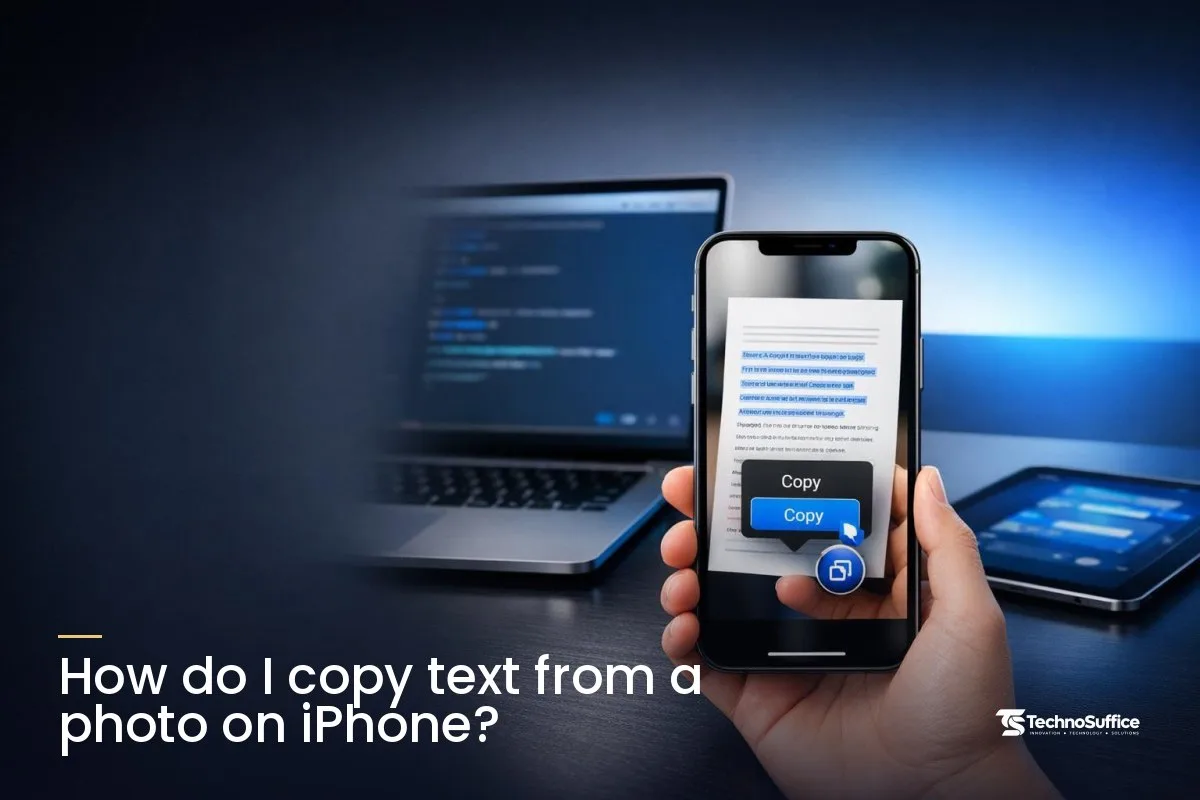
Use Live Text. Open the photo, tap the Live Text button, then tap Copy.
Use Live Text in Photos
- Open the picture in the Photos app.
- Tap the Live Text button in the lower-right corner. All the text it finds gets highlighted.
- Tap Copy to copy the text.
- Or tap Select All to grab everything at once.
Use Live Text in Camera
You don't have to take the photo first. Live Text also works in the Camera app, so you can point your phone at the words and copy them from there. That's handy for a Wi-Fi password printed on the back of a router.
If Live Text is missing
Live Text needs an iPhone XS, iPhone XR or later with iOS 15 or later, according to Apple's Live Text instructions. If your phone qualifies, check that the feature is turned on in your Language & Region settings.
Apple also supports Live Text only in certain regions and languages. If none of this works, open our Image to Text tool in Safari instead.
How do I copy text from a picture on Android?
Use Google Lens. Point it at the text or open a saved photo, tap Select text, then tap Copy.
Google Lens app
Open Lens and point the camera at the words, or pick a photo from your gallery. Tap Select text, then choose Copy, Listen or Translate. Listen reads the words out loud, which helps with small print on a medicine box or a long sign.
Google's help page for Lens text selection also advises using a clear, well-lit image. That advice holds for every OCR tool, not just Lens.
Google Photos
Open the photo in Google Photos, tap More, then tap Google Lens. Tap and select the words you want, then copy them. This works well for screenshots and photos you saved weeks ago.
Circle to Search on supported phones
Some newer Android phones also offer Circle to Search, which lets you circle something on screen to search it. Not every phone has it. If yours doesn't, Google Lens and Google Photos do the same job.
Copy text from an image on a Windows 11 PC or Mac
On Windows 11, take a snip and click Text actions in the Snipping Tool. On a Mac, open the image in Preview and select the words like normal text.
Snipping Tool: Text actions and Copy all text
- Press Windows key + Shift + S.
- Drag a box around the text you want.
- Click the pop-up to open the snip in the Snipping Tool.
- Select Text actions to turn on text recognition.
- Highlight the words you want and copy them, or choose Copy all text.
Microsoft's Snipping Tool guide confirms the recognition runs on your device. Your screenshot doesn't leave your PC.
Quick redact before you share
The same toolbar has Quick redact. It hides email addresses and phone numbers in the snip. Use it before you send anyone a screenshot of an order page or a support chat.
Other free Windows options
If the Snipping Tool isn't on your PC, open our Image to Text tool in any browser. It's a good fit when you have a folder of images, need a Word file at the end, or want to read text in another language.
Mac: Live Text in Preview
On a recent version of macOS, open the image in Preview. Drag your pointer across the words to select them, then press Command + C. Like on iPhone, this depends on your system version and language. If it doesn't work, our browser tool runs fine in Safari or Chrome.
How can I copy text from a screenshot?
Take the screenshot, then paste it straight into an OCR tool. You don't have to save it as a file first.
A screenshot is a picture of your screen. The words in it are pixels, not real text, which is why click-and-drag doesn't select them. To copy text from screenshot images on Windows, press Windows key + Shift + S. That puts the screenshot on your clipboard, your computer's short-term memory for copied things.
Then open our Image to Text tool and press Ctrl + V (Command + V on a Mac). The tool reads the image and shows the text, ready to copy.
Use our free Image to Text tool (no sign-up)
Our tool reads JPG, PNG, WebP, BMP and GIF images in your browser. You get text you can copy or download. It's free, there's no account, and your image stays on your device.
Looking for an image to text online option that works on both phone and PC? Here's how to use it, step by step.
Step 1: Add an image
Open the free Image to Text converter. Drop an image on the box, click to choose a file, or paste a screenshot with Ctrl + V. You can add several images at once, for example a stack of receipt photos from one business trip.
Step 2: Pick the language
Choose the language from the list before you start. The tool supports 100+ languages, and picking the right one makes a big difference. If the photo is dull or faded, also turn on Auto-enhance.
Step 3: Copy or download the text
When the tool finishes, click Copy. Or download the result as .txt (a plain text file) or .docx (a Microsoft Word file). This is the quickest way to convert picture to text and keep editing it in Word.
Why the first run is slower
The OCR engine loads the first time you use the tool. After that, your browser saves a copy, so later runs start faster. Non-English language data downloads once from a public CDN, a network of servers that hosts shared files. Your images are never sent anywhere.
Got a PDF instead of an image? If its text can already be selected, our PDF to Text tool is the faster choice.
OCR myths vs facts
Most bad OCR results come from a handful of wrong ideas. Here are eight, and what's actually true.
Myth: You have to buy software to do this
The truth: Most people already own the best app to copy text from an image. Live Text, Google Lens and the Snipping Tool cost nothing. For everything else, you can extract text from image free with a browser tool like ours. Free OCR online is easy to find. Private OCR is the harder part.
Myth: Text in a screenshot is already text
The truth: It's a picture. Your computer sees colors, not letters, until OCR reads them. That's why you can't highlight words in a screenshot of a bank email.
Myth: Every online OCR uploads your image to a server
The truth: Not always. Microsoft says the Snipping Tool reads text locally, and our Image to Text tool also runs on your device. Some other online tools do send files to their servers. Read the privacy statement before you put IDs, bank statements or medical papers into any site.
Myth: OCR reads handwriting as well as print
The truth: Handwriting is much harder. Our own tool page says clear printed text gives very accurate results, while handwriting gives weaker ones. For example, a typed letter will need few fixes, but a page of quick class notes will need many.
Myth: OCR only works in English
The truth: Our tool supports 100+ languages. The catch is that you must pick the right language first. Leave it on English for a page in another script, and you'll get nonsense back.
Myth: Every phone has this built in
The truth: Live Text needs an iPhone XS or XR or later with iOS 15 or later. Apple doesn't offer it in every region or language. Circle to Search is only on some Android phones.
Myth: A smaller image works just as well
The truth: Shrinking a picture shrinks the letters, and tiny letters cause errors. Crop away the extra space instead. Our Image Cropper can cut a photo down to just the text without making the letters smaller.
Myth: If most words look right, the numbers are right too
The truth: OCR often mixes up characters that look alike. The letter O and the number 0 get swapped, and so do a lowercase l and the number 1. Check every price, date, tracking number and email address before you use it.
| Myth | Fact |
|---|---|
| You have to buy software | Built-in and browser options are free |
| Screenshot text is real text | It's pixels until OCR reads it |
| Online OCR always uploads files | Some tools, including ours, run on your device |
| Handwriting reads like print | Handwriting gives weaker results |
| OCR is English-only | 100+ languages, if you pick the right one |
| Every phone has it | Live Text and Circle to Search have device limits |
| Smaller images work fine | Tiny letters cause errors, so crop instead |
| Numbers will be correct | 0/O and 1/l get mixed up, so proofread |
What to do instead: a quick checklist
- Shoot from straight above the page, not at an angle. Angled photos give weaker results.
- Use even light. Shadows from your hand or phone hide letters.
- Get close so the text fills most of the frame. Sharper, higher-resolution pictures read better.
- Take a screenshot instead of photographing a screen.
- Crop out everything that isn't text.
- Pick the language before you extract.
- Turn on Auto-enhance for faded or low-contrast photos.
- Proofread numbers, names and emails before you use them.
What can you use it for?
Anything you'd otherwise retype by hand. A few everyday examples:
- Receipts and bills: pull item names and totals from a receipt photo into an expense report.
- Scans and letters: copy key lines from a scanned utility letter or tax notice into your notes.
- Labels: grab a tracking number from a package label or a Wi-Fi password from a router sticker.
- Notes, slides and whiteboards: turn a photo of class slides into study notes you can search.
- Flyers, memes and social posts: copy event details or a caption without typing.
Are the words spoken in a video or voice memo instead of shown in a picture? Use our free Speech to Text tool.
Need OCR or AI features in your own app or website?
We design and build custom web apps and mobile apps for clients worldwide. If you want a feature like text recognition in your product, we'll talk through what fits your goals and what doesn't. TechnoSuffice has 10+ years of experience and 491+ delivered projects.
Every project gets a dedicated team, a project manager and weekly demos, so you see progress every week. After a free discovery call, you get a fixed quote with milestones and no hidden costs. SEO and performance are built in from day one. After launch, our maintenance plans cover updates, security patches and new features.
See our web development services or our mobile app development services for iOS and Android.
Frequently Asked Questions
How do I copy text from an image on iPhone?
Open the photo in Photos, tap the Live Text button and tap Copy. It needs an iPhone XS or XR or later with iOS 15 or later. On older phones, use our Image to Text tool in Safari.
How do I copy text from an image on Android?
Open the image in Google Lens, tap Select text and tap Copy. In Google Photos, tap More, then Google Lens, and select the words you want.
How do I copy text from an image on a Samsung phone?
Use Google Lens or Google Photos, the same way as on other Android phones. Some newer models also offer Circle to Search. If those don't work, open our Image to Text tool in your browser.
How do I copy text from an image in Windows 11?
Press Windows key + Shift + S, open the snip in the Snipping Tool and select Text actions. Then copy the words you want or click Copy all text.
How do I copy text from an image on a Mac?
Open the image in Preview, drag across the words and press Command + C. This uses Apple's Live Text, so it depends on your macOS version and language.
How do I copy text from an image into Word?
Convert the picture to text first. Add it to our Image to Text tool, pick the language and download the result as a .docx file. That file opens straight in Microsoft Word.
Try it on your next image
Start with the reader built into your phone or PC. When it falls short, open our free Image to Text tool for batch work, Word export or other languages, with nothing uploaded.
Want features like this inside your own website or app? Our team replies within one business day. Request a Free Quote and tell us what you want to build.