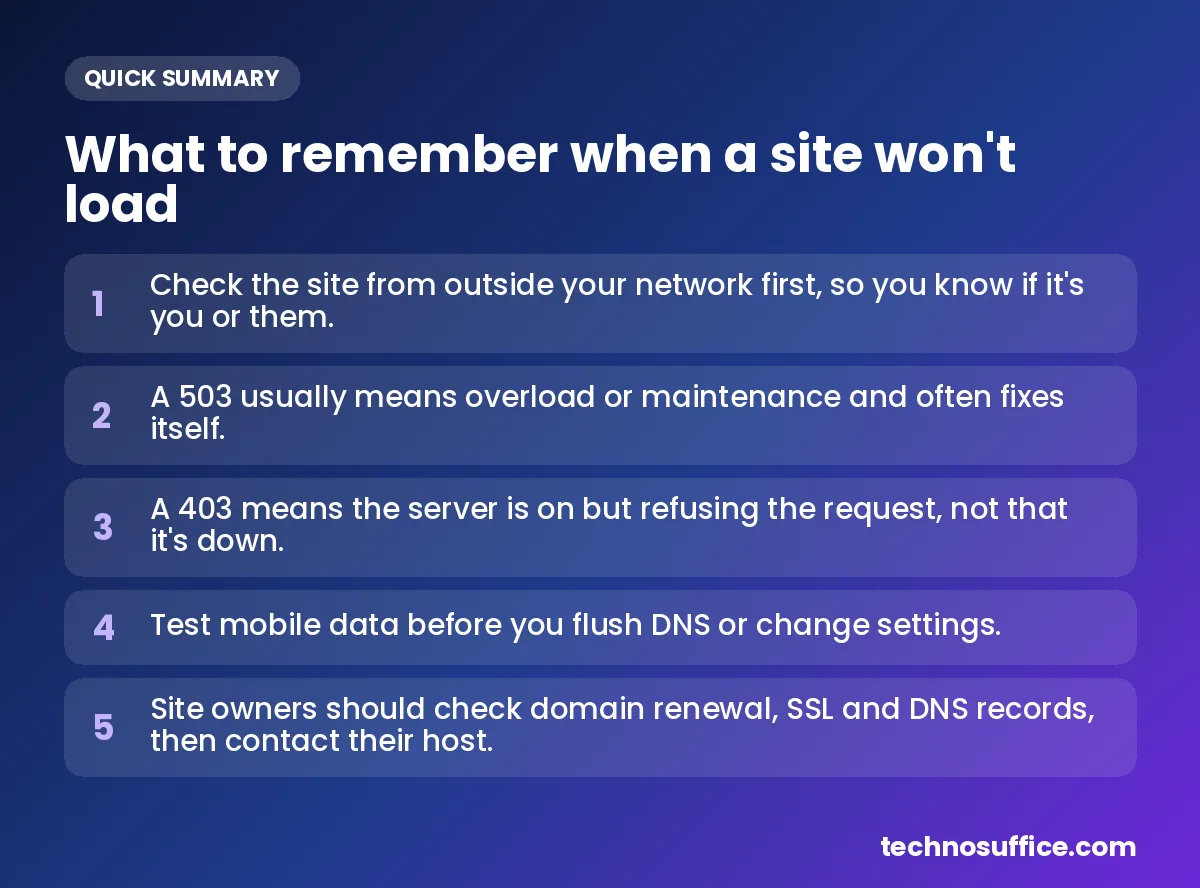
If a site won't load, check it from somewhere outside your own network. If it fails there too, it's down for everyone. If it loads there but not for you, the problem is on your side: your Wi-Fi, device, browser, DNS settings or a block on your network.
That's the whole idea behind the search "is website down for everyone or just me." Our free Website Down Checker gives you that outside view in seconds. It shows a clear verdict, the status code and the response time, and you don't need to sign up.
Below are six checks, in a sensible order. Start with the first one and stop as soon as you find the cause. If you run the site yourself, there's a separate section for owners further down.
Quick answer: is the website down for everyone or just me?
Match what you see with the rows below. Each row tells you what it most likely means and where to go next.
| What you see | What it likely means | What to do next |
|---|---|---|
| Checker says up, but the site fails for you | The problem is on your side | Go to checks 3 to 6 |
| Checker says down, and it fails for you | The site is down for everyone | Wait, and turn on auto recheck |
| Status code 403 | The site is on but refuses the request | Try opening it in your browser anyway |
| Status code 503 | The server is overloaded or in maintenance | Wait; it usually comes back on its own |
| The domain doesn't resolve | A DNS problem or an expired domain | Run a DNS lookup or WHOIS check |
| Works on mobile data, not on Wi-Fi | Your router, DNS or a network filter | Go to checks 5 and 6 |
Check 1: Run the Website Down Checker
Your own device can't tell you much on its own. It only sees the internet through your connection. So the first step is to ask a server somewhere else to try the site.
How to use it, step by step
- Open the free Website Down Checker.
- Type the site address in the box, for example
youtube.com. You don't need the "https://" part. - Click Check status.
- Read the verdict: up or down. Below it, you'll see the status code and the response time.
- If the site is down, turn on auto recheck. The tool will keep checking every 30 seconds until the site is back.
How the check works, in plain words
This is called a server-side check. Instead of your browser visiting the site, our server sends the request. It then reports what came back. Because the visit doesn't go through your Wi-Fi, device or browser settings, your local problems can't affect the result.
The tool shows two key numbers. The status code is a three-digit reply that says how the visit went. The response time is how long the site took to answer, usually shown in milliseconds (thousandths of a second). A site that answers but takes a long time isn't down, but it may feel broken. If that's your own site, our guide on how to speed up a small business website can help.
The checker also looks at DNS and IP. If a domain no longer points to any server, it will tell you. That often happens when a domain has expired or its settings were changed by mistake.
One honest limit: any single outside check sees the site from one place. Some sites use bot protection that blocks automated visits, including ours, while real people still get in. A problem in one region may also look different from elsewhere. [ADD: confirm whether the tool checks from one location or several, and where they are.]
Is it safe to use?
We only request the website you enter, from our server, and nothing is stored. Still, use common sense. Don't paste private links, login pages or links that contain access codes or tokens. A plain address like example.com is all the tool needs.
Check 2: Read the status code
Status codes come in five groups, according to MDN's list of HTTP status codes. Codes starting with 1 are information, 2 means success, 3 means a redirect, 4 means a problem with the request, and 5 means a problem on the server. The table below covers the codes you're most likely to meet.
| Code | What it means in plain words | Who's at fault |
|---|---|---|
| 200 | Success. The site answered normally. | Nobody; the site is up |
| 403 Forbidden | The server is on but refuses the request | The site's rules (firewall or bot protection) |
| 404 Not Found | The server works, but that page address doesn't exist | A wrong link or a removed page |
| 429 Too Many Requests | The site is slowing you down for sending too many requests | You or your network |
| 451 Unavailable For Legal Reasons | The page is blocked for legal reasons | A legal rule, not a crash |
| 500 Internal Server Error | Something broke on the server | The site |
| 502 Bad Gateway | A middle server got a bad reply from the main server | The site or its hosting |
| 503 Service Unavailable | The server is on but can't take requests right now | The site (often temporary) |
| 504 Gateway Timeout | A middle server got no reply in time | The site or its hosting |
Many big sites use a CDN, which is a network of servers that keeps copies of a site closer to visitors. When the main server fails, the CDN may show its own error page. That's where you often see 502 and 504.
What a 503 tells you
Per MDN: 503 Service Unavailable, this code means the server isn't ready to handle the request. The usual causes are maintenance or too much traffic, and the code is meant for short-term problems. Some sites send a hidden note called a Retry-After header, which says when to try again. MDN also notes that if a site is limiting one visitor for sending too many requests, the right code is 429, not 503.
What a 403 tells you
A 403 means the server understood the request but refused it. MDN explains that logging in again won't change the answer, and sending the same request again will fail the same way. So a 403 on the checker doesn't mean the site is down. It often means a firewall blocked our server, and you can still open the site yourself. MDN also points out that some sites send a 404 instead of a 403 to hide that a page exists. "Not found" isn't always proof the page is gone.
Check 3: Try another network or device
If the checker says the site is up, the next step is to find out what part of your setup is causing trouble. The quickest test is to change your connection.
- Switch from Wi-Fi to mobile data. Turn off Wi-Fi on your phone and try the site again. Your home internet (cable, fiber or DSL) and your mobile carrier are different networks.
- Use a phone hotspot. Connect your laptop to your phone's hotspot. If the site opens, your home network is the problem.
- Try another device. If it works on your tablet but not your laptop, the problem is on the laptop.
- Ask a friend. Send them the link and ask if it opens for them, on their own internet.
This step also helps you tell "down" from "blocked." If a site fails at work but opens on mobile data, the site is fine. Something on the work network is stopping it.
Check 4: Rule out your browser and VPN
Browsers save copies of pages and small files called cookies. When those saved files go bad, a working site can look broken. Try these in order:
- Open a private window. Incognito or private mode skips saved cookies and cache, so it's a clean test.
- Try a different browser. If the site works in another browser, the first browser is the problem.
- Clear cache and cookies for that site in your browser settings.
- Turn off extensions. Ad blockers and privacy add-ons sometimes break pages.
- Turn your VPN off, or on. A VPN sends your traffic through another network. Some sites block VPN traffic. In other cases, a VPN can make a site open that your network was blocking.
Check 5: Fix DNS problems
DNS is the internet's phone book. It turns a name like example.com into a number, called an IP address, that computers use to find each other. Your device keeps a short memory of recent look-ups, called the DNS cache.
These saved entries expire on their own after a set time, so you rarely need to clear them by hand. But if a site recently moved to a new server, an old entry can send you to the wrong place. That's when a manual flush helps. "Flush" just means wiping that memory so your device asks again.
Flush DNS on Windows and Mac
These commands come from University of Oklahoma IT: flushing the DNS cache.
- Windows: Open Command Prompt as administrator. Type
ipconfig /flushdnsand press Enter. - Mac: Open Terminal. Type
sudo dscacheutil -flushcache; sudo killall -HUP mDNSResponderand press Enter. Type your Mac password when asked. The guide lists this for macOS Catalina through Sonoma.
Switch to a public DNS service
Your internet provider (ISP) usually handles DNS for you. If its DNS is having trouble, you can switch to a free public service. Cloudflare's runs at 1.1.1.1 and Google's runs at 8.8.8.8. You can change this in your device's network settings or in your router.
On an iPhone, a DNS setting you enter by hand applies only to that one Wi-Fi network. It doesn't cover mobile data or other Wi-Fi networks. That's one more reason to test on mobile data before you start changing settings.
If you think the domain itself may not be working, run it through our free DNS Lookup tool. It shows the records that tell the internet where the site lives. No records often means the domain isn't set up or has expired.
Check 6: Restart your router and look for a block
Turn your router and modem off, wait a little, then turn them back on. Give them a few minutes to reconnect before you test again. This clears many short-term glitches on home networks.
If the site still won't open on your Wi-Fi but works everywhere else, look for a block. Workplaces and schools often filter sites. Security software on your computer can block sites too. Some sites also block whole regions, and an internet provider can block a site as well. A 451 code means a legal block, while 429 means you've sent too many requests. Refreshing the page over and over can cause that.
No online checker can prove a private block on your own network. It can only show that the site works from outside. If it works on mobile data and from our server, but not on one network, that network is the cause. You can then ask whoever runs it, such as your IT team or your provider. Don't try to get around school or work rules.
| Sign | Site is down | Site is blocked | Your connection |
|---|---|---|---|
| Outside checker result | Down or 5xx error | Usually up | Up |
| On mobile data | Fails | Often works | Works |
| Other sites on your network | Work | Work | Often fail too |
| What helps | Waiting | Asking the network owner | Restart, DNS fixes |
Common problems and quick fixes
| Problem | Likely cause | Quick fix |
|---|---|---|
| Site loads on your phone but not your laptop | Browser, extension or saved files on the laptop | Private window, clear cache, turn off extensions |
| Works on mobile data, not Wi-Fi | Router, DNS or network filter | Restart the router, flush DNS, try 1.1.1.1 |
| Fails only with the VPN on | The site blocks VPN traffic | Turn off the VPN for that site |
| Browser shows a security warning | An expired SSL certificate | Wait for the owner to fix it; don't enter private data |
| Site worked yesterday, gone today | Recent server move or expired domain | Flush DNS; check the domain with WHOIS |
Website down: what to do if it's your own site
When it's your own business site, every minute counts. Work through these steps calmly.
1. Confirm with the checker first
Run your address through the Website Down Checker and note the status code and time. Then turn on auto recheck so you'll see the moment it comes back.
2. Check that your domain hasn't expired
A domain you don't renew stops working, even if your hosting is fine. Our Domain Age & WHOIS Checker shows the expiry date and name servers.
3. Check your SSL certificate
An SSL certificate is the file that gives your site https and the padlock icon. When it expires, browsers show a scary warning and many visitors leave. Use our free SSL Certificate Checker to see the expiry date.
4. Check your DNS records
If anyone changed your DNS recently, a wrong record can send visitors nowhere. Run a DNS lookup and compare the results with what your host told you to use.
5. Contact your host with the details
Send your hosting company the status code, the time you first saw the problem and what you've already checked. Clear details help them find the cause faster.
Common mistakes to avoid
- Refreshing the page again and again, which can trigger a 429 block.
- Judging the site only from your own device.
- Flushing DNS before you test on another network.
- Forgetting that a VPN or extension is turned on.
- Assuming a 403 means the whole site is down.
How to stop downtime surprises
Most outages for small sites come from things you can plan for. A few habits go a long way:
- Turn on auto-renew for your domain, and keep your billing card up to date.
- Set reminders before your SSL certificate expires, or use a host that renews it for you.
- Keep regular backups so you can restore the site quickly if something breaks.
- Apply updates to your site software and plugins to close security holes.
- Use uptime monitoring. This is a service that checks your site all day and alerts you when it fails.
Our checker runs on demand, so it only checks when you ask it to. For 24/7 monitoring with alerts, we set up uptime monitoring for our clients. Our Cloud & DevOps team handles hosting, deployment and monitoring, and our post-launch maintenance plans cover updates, security patches, backups and performance checks. Every site we build is secure by default, with OWASP security practices, SSL and regular backups.
We serve clients worldwide, with a dedicated project manager, weekly demos and replies within one business day. If your site keeps going down or feels slow, our web development team can fix it or rebuild it, with SEO and performance built in from day one.
Frequently Asked Questions
How do I know if a website is down for everyone or just me?
Check the site from outside your own network with a tool like our Website Down Checker. If it's down there too, it's down for everyone. If it loads for the checker but not for you, the cause is your connection, device, browser, DNS or a block on your network.
Why does the site work for the checker but not for me?
The checker visits from our server, so your local setup doesn't affect it. The usual causes on your side are an old DNS entry, bad browser cache, an extension, a VPN, or a filter on your work or school network. Try mobile data first, then work through checks 4 to 6.
What does a 503 error mean?
It means the server is on but can't handle requests right now. That's usually because of maintenance or too much traffic. It's meant for short-term problems, so the site often comes back on its own. Turn on auto recheck instead of refreshing again and again.
What does a 403 error mean? Am I blocked?
A 403 means the server got the request and refused it. If the checker shows 403, the site is still online, and a firewall or bot protection probably blocked our server. Try opening the site in your browser. If you see 403 yourself, the site's rules are blocking your visit.
Why does a site work on mobile data but not on Wi-Fi?
Your Wi-Fi network is the cause. It could be the router, your provider's DNS, or a filter set by your workplace or school. Restart the router, flush your DNS or switch to a public DNS service. If that doesn't help, ask whoever runs the network.
Can I get alerts when my website goes down?
Our free checker works on demand, and auto recheck only runs while the page is open. For round-the-clock alerts, you need uptime monitoring. We set this up for our clients as part of our maintenance and Cloud & DevOps work. Contact us for a free quote.
Next step
When a site won't open, the fastest move is to check it from outside your own network. Then follow the six checks until you find the cause. Try our free Website Down Checker — no sign-up needed.
Run a business site that keeps going down? Request a Free Quote. We'll start with a free discovery call and give you a fixed quote with clear milestones and no hidden costs.