Quick answer: transcribe audio to text free in 3 steps
To transcribe audio to text free, open our free Speech to Text tool, add your audio or video file (or record your voice), and press Transcribe. When it finishes, you can copy the text or download it as a .txt or .srt file. You don't have to create an account, and your recording stays on your own device the whole time.
The tool runs OpenAI Whisper, a free, open-source AI model that listens to speech and types out the words. It works inside your web browser, so there's no app to install on your laptop or phone.
- Tap Tap to record, or drop a file into the Drop an audio or video file box.
- Choose a language (or leave Auto-detect language on), then press Transcribe.
- Press Copy, or download your transcript as .txt or .srt.
| Question | Short answer |
|---|---|
| Cost | Free. No sign-up and no account. |
| File types | MP3, WAV, M4A, OGG, WebM and MP4 |
| Output | Copy to clipboard, .txt file, or .srt subtitle file |
| Languages | 90+ languages, with auto-detect and a "Translate to English" option |
| Privacy | Audio is processed on your device and never uploaded |
| First run | A one-time model download of about 40 MB (Fast) or 80 MB (Accurate) |
What you need before you start
You only need a modern web browser and something to transcribe. That can be a saved file, like a phone voice memo, a Zoom recording or an MP4 video. It can also be your own voice, as long as your device has a working microphone.
One tip from us: do your first run on Wi-Fi. The AI model downloads once, and on a phone data plan that can be slow.
Step-by-step: how to use our free Speech to Text tool
Each label below matches a real button or option on the Speech to Text page, so you can follow along with the tool open in another tab.
Step 1: Record your voice or drop a file
To dictate, press Tap to record and speak clearly. Tap again when you want to stop. To convert a voice recording to text, drag your file into the box that says Drop an audio or video file. Voice notes, meetings, lectures and MP4 videos all work here.
Step 2: Pick a language and a model
Leave Auto-detect language on if you aren't sure. If you know the language, pick it from the list, since the tool page says choosing it gives the best result for languages like Urdu. Then choose Fast or Accurate. Fast is smaller and quicker, and Accurate is bigger and makes fewer mistakes.
Step 3: Turn on extra options if you need them
By default, the tool uses Write in the spoken language, which means Spanish audio gives you Spanish text. Switch to Translate to English if you want English text from another language. Turn on Timestamps (for SRT) if you plan to make subtitles. Timestamps are time marks like 00:01:25 that show when each line was said.
Step 4: Press Transcribe and wait
Press Transcribe and watch the progress bar move from 0%. If you see "AI model not loaded yet," that's normal on your first visit. The browser downloads the model once and saves a copy, which makes later runs start almost instantly, even offline.
Step 5: Copy or download your transcript
Your text appears in the Transcript box. Press Copy to paste it into an email or doc. Press .txt for a plain text file, or .srt for a subtitle file with timestamps.
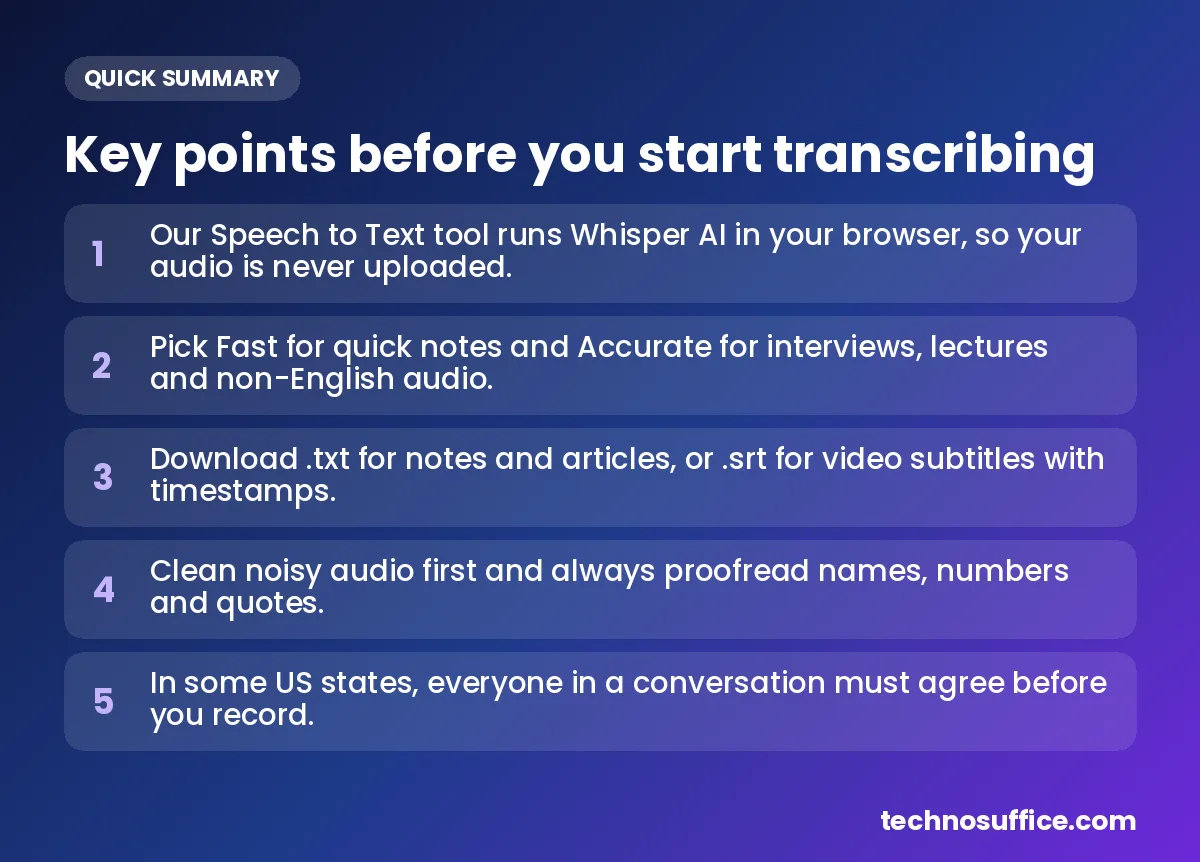
How the tool turns speech into text
Transcription simply means writing down what people say in a recording. Software that does this for you is called speech to text, or ASR (automatic speech recognition).
When you open the tool, your browser downloads the Whisper model from a public CDN. A CDN is a network of public servers that delivers files fast. Your browser then keeps a copy, called a cache, so it doesn't have to download the model again.
When you press Transcribe, the tool cuts your audio into 30-second chunks. Whisper listens to each chunk, works out the most likely words, and writes them down. If timestamps are on, it also notes when each sentence starts and ends. All of this happens on your own computer or phone, which is called on-device processing. That's why your file never has to leave your device.
Which model and output should you pick?
Most people get the best result from a simple rule. Use Fast when speed matters, and use Accurate when every word matters.
| Your task | Model | Output |
|---|---|---|
| Quick voice note or reminder | Fast | Copy |
| Meeting notes from Zoom or Teams | Fast, or Accurate for long or busy meetings | .txt |
| Interview for an article or podcast show notes | Accurate | .txt, plus .srt to check quotes |
| College lecture for study notes | Accurate | .txt |
| YouTube video, reel or short | Accurate | .srt with Timestamps on |
| Non-English audio, or translation to English | Accurate | .txt or .srt |
Why accuracy changes by language
Whisper comes in several sizes. The OpenAI Whisper project on GitHub lists six, from "tiny" up to "large," plus a faster "turbo" version. Smaller models run faster but make more mistakes. Bigger models are slower but more accurate.
The same page says performance varies widely by language. Speed also depends on the language, how fast people talk, and how powerful your device is. Experts measure accuracy with word error rate (WER), which is the share of words the AI gets wrong, so a lower score is better. In plain terms, clear English speech usually comes out cleaner than fast speech in a less common language, so plan more time for proofreading.
How to transcribe an interview recording
Get consent first
Before you hit record, ask the other person if it's okay. In the US, federal law (the Wiretap Act) generally lets you record a talk you're part of if one person agrees, and that person can be you. This is called one-party consent. But some states are stricter and require all-party consent, which means everyone in the conversation has to agree.
The Digital Media Law Project guide to recording calls and conversations lists California, Florida, Massachusetts, Pennsylvania and Washington among the all-party states. Sources disagree on the exact total, but it's about a dozen states. If people on a call are in different states, the stricter rule may apply. The safest habit is to ask everyone and record their "yes" at the start. This is general information, not legal advice.
Record well, then transcribe
Use a quiet room and keep the phone or mic as close to the speakers as is comfortable. Ask people to take turns. When you're done, upload the file, pick Accurate, and turn on Timestamps. Download both the .txt and the .srt.
Proofread names, numbers and quotes
AI often slips on names, brands, numbers and job-specific terms. The .srt file shows the time of each line, so you can jump to that spot in the audio and listen again. Check every quote you plan to publish against the recording. Keep the original audio until your article is live, because you may need it later.
How to transcribe a lecture
Ask permission and check school rules
Ask your professor before you record a class. Many colleges also have their own rules about recording lectures, so check your syllabus or student handbook.
Record close to the speaker
Sit near the front. Distance and room echo are two of the biggest reasons AI mishears words. Most phones save voice memos as M4A, which the tool accepts directly.
Turn the transcript into study notes
A raw transcript is long and messy, so don't study from it as-is. Paste it into our free Text Summarizer to get the main points. Then fix any technical terms the AI got wrong and add headings by topic.
Video to text free (and subtitles)
Upload an MP4 and keep Timestamps on
You don't have to pull the audio out of a video first. Just drop the MP4 file into the tool, keep Timestamps (for SRT) on, and download the .srt file.
What an SRT file is
An SRT (SubRip) file is plain text that holds each line of speech and the time it should show on screen. Each block has a number, a time range like 00:00:01,000 --> 00:00:04,200, and the words. YouTube Help on supported subtitle files calls SRT a good basic format for beginners. It says you can edit an SRT file in any plain text editor, but it must be saved as plain UTF-8. UTF-8 is a standard way to save text so letters from many languages display correctly.
A quick note on wording: subtitles show the spoken words, often in translation. Captions also describe sounds, like [music] or [laughter], for viewers who can't hear. The tool writes speech, so add sound notes by hand if you want full captions.
Upload the SRT to YouTube or a video editor
The tool page says the .srt file works with YouTube, Facebook, Premiere, CapCut and VLC. Fix any spelling errors in a text editor first, then upload it as your subtitle track.
Is it private? Free? Any limits?
Your audio stays on your device
Whisper runs inside your browser, so your recordings are never uploaded. The only thing that crosses the internet is the AI model itself, which downloads once and is then cached. That matters for private meetings, client calls and personal voice notes.
No sign-up, no account
Because the work happens on your device, there are no server costs. That's why the tool page says there are no limits on how many files you can transcribe.
| Option | Where your audio goes | Typical catch |
|---|---|---|
| Our Speech to Text tool | Stays on your device | Slower first run while the model downloads, and long files are slower on older devices |
| Many other free transcription sites | Uploaded to their server | Often an email sign-up, daily caps, or file size and length limits |
| Typing it yourself | Nowhere | Very slow for anything longer than a few minutes |
Long files and slower devices
Long recordings are processed in 30-second chunks, so full meetings and lectures work. Very long files take more time on older laptops and phones, so keep the tab open and plug in your charger.
Honest limits
No AI writes a perfect transcript. Heavy noise, strong accents, crosstalk (two people talking at once) and jargon all cause mistakes. Whisper can also "hallucinate," which means writing words nobody said, usually during long silences or very poor audio. Speaker labels, which mark lines as "Speaker 1" or "Speaker 2," are not listed on the tool page. [ADD: confirm whether our Speech to Text tool offers speaker labels]
Common mistakes that ruin a transcript
| Problem | Likely cause | Fix |
|---|---|---|
| Lots of wrong or missing words | Fan hum, traffic or room echo | Clean the file with our Audio Noise Remover, then transcribe again |
| Text in the wrong script or language | Auto-detect guessed wrong | Pick the language by hand and run it again |
| Jumbled sentences | People talking over each other | Ask speakers to take turns next time, and fix these lines by ear |
| Words that nobody said | Long silence or very poor audio | Trim silent parts, use Accurate, and check the lines with timestamps |
| Very slow first run | The one-time model download | Wait for it to finish on Wi-Fi, since later runs start fast |
| Wrong names or numbers | No proofreading | Check every name, number and quote against the audio |
For more ways to clean a recording, read our guide on how to remove background noise from audio for free.
Tips for a cleaner transcript next time
- Record in a quiet room with soft things around you, like curtains or a couch, to cut echo.
- Keep the mic as close to the speaker as is comfortable.
- Ask people to speak one at a time and say names clearly once.
- Choose the language by hand when you already know it.
- Use Accurate for anything you'll publish or study from.
- Keep the original audio until you've finished proofreading.
Need a custom transcription or AI feature for your business?
If your team transcribes calls every week, a built-in feature may save more time than a browser tab. We add AI chat, search, automation and smart tools like speech to text to websites and apps, built around how your business works.
With 10+ years of experience and 491+ projects delivered, TechnoSuffice serves clients worldwide. Every project gets a dedicated team and project manager, with weekly demos so you always see progress. We give a fixed quote with milestones after a free discovery call, with no hidden costs. SEO and performance are built in from day one, and our maintenance plans cover updates, security patches and backups after launch. See our web development service, then Request a Free Quote. Our team replies within one business day.
Frequently Asked Questions
Is this speech to text tool really free?
Yes. The Whisper model runs in your browser, so there are no server costs for us to pass on. You don't need an account, and the tool page says you can transcribe as many files as you like.
Are my recordings uploaded anywhere?
No. Your audio is processed on your own device. Only the AI model is downloaded, once, from a public CDN, and your browser then keeps a copy for next time.
Which languages can I transcribe or translate?
Whisper understands more than 90 languages, including English, Spanish, Hindi, Urdu, Arabic, French and German. You can keep the text in the spoken language or choose "Translate to English." Accuracy is usually better in some languages than others, so proofread carefully.
How long can the audio be, and does it work offline?
Long files are handled in 30-second chunks, so full meetings and lectures work, though they take longer on slower devices. After the first run, the model is cached and the tool can start even without an internet connection.
Why is the first run slow?
The first time, your browser downloads the AI model, which is about 40 MB for Fast or 80 MB for Accurate. After that, it's saved and starts almost instantly.
Can I transcribe a WhatsApp voice note?
Yes. Save or export the voice note to your phone or computer, then drop it into the tool. WhatsApp voice notes usually come as OGG or M4A files, and both are on the supported list. [ADD: confirm the export file type on iPhone and Android]
Is it legal to record an interview in the US?
Federal law generally allows recording if one person in the talk agrees. About a dozen states require everyone to agree, so the safest choice is to ask all people first. This is general information, not legal advice.
Next step
A clean transcript starts with clear audio and ends with a quick proofread. Pick Accurate for anything important, use .srt when you need timestamps, and keep your original file until you've checked the text.
Try our free Speech to Text — no sign-up needed.