Is there a Smallpdf alternative free of daily caps, sign-up walls and watermarks? Yes. For most people, the best pick is a tool that runs in your browser, asks for no account and adds nothing to your file. Before you switch, check four things: the free limit, the sign-up rule, the watermark and where your file goes.
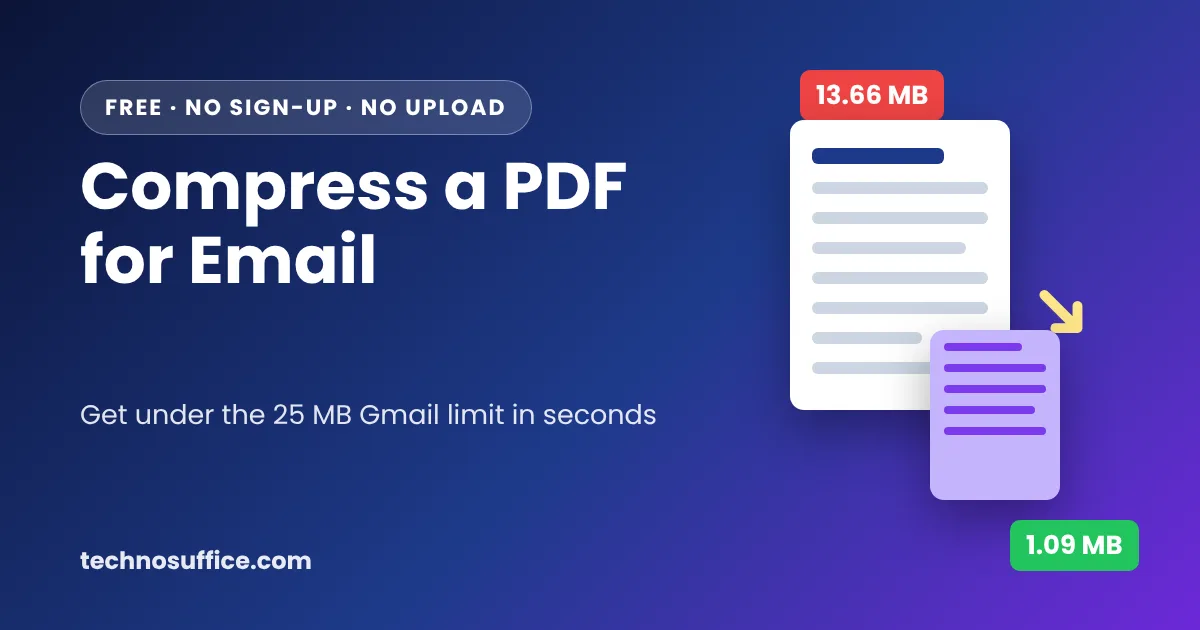
If you just need to shrink a file right now, try our free Compress PDF tool. It works inside your browser, so your PDF is never uploaded. There's no sign-up, no watermark and no daily limit.
Below, we compare the main options and show you how to test any tool in five minutes. We also cover how to spot fake converter sites, and when paying for a PDF tool is the fair choice.
Which free PDF tool should you pick?
Pick the tool by the job, not by the brand. Shrinking one email attachment, handling a weekly stack of invoices and sending a tax form are three different jobs. Each one puts different demands on a tool.
Pick by job: one-off, weekly or sensitive
- One-off job (shrink a resume, merge two scans): any trusted free web tool works. An in-browser tool is the safest default.
- Weekly or daily jobs (invoices, school forms, client reports): avoid tools with a daily task cap. You'll hit it quickly.
- Sensitive files (tax forms, IDs, contracts, medical papers): use a tool that works on your device, or an offline desktop app.
Our honest opinion: for compressing scans and image-heavy PDFs, an in-browser tool wins on privacy. It has one weak spot, though, because it may turn text into images. We explain that trade-off further down.
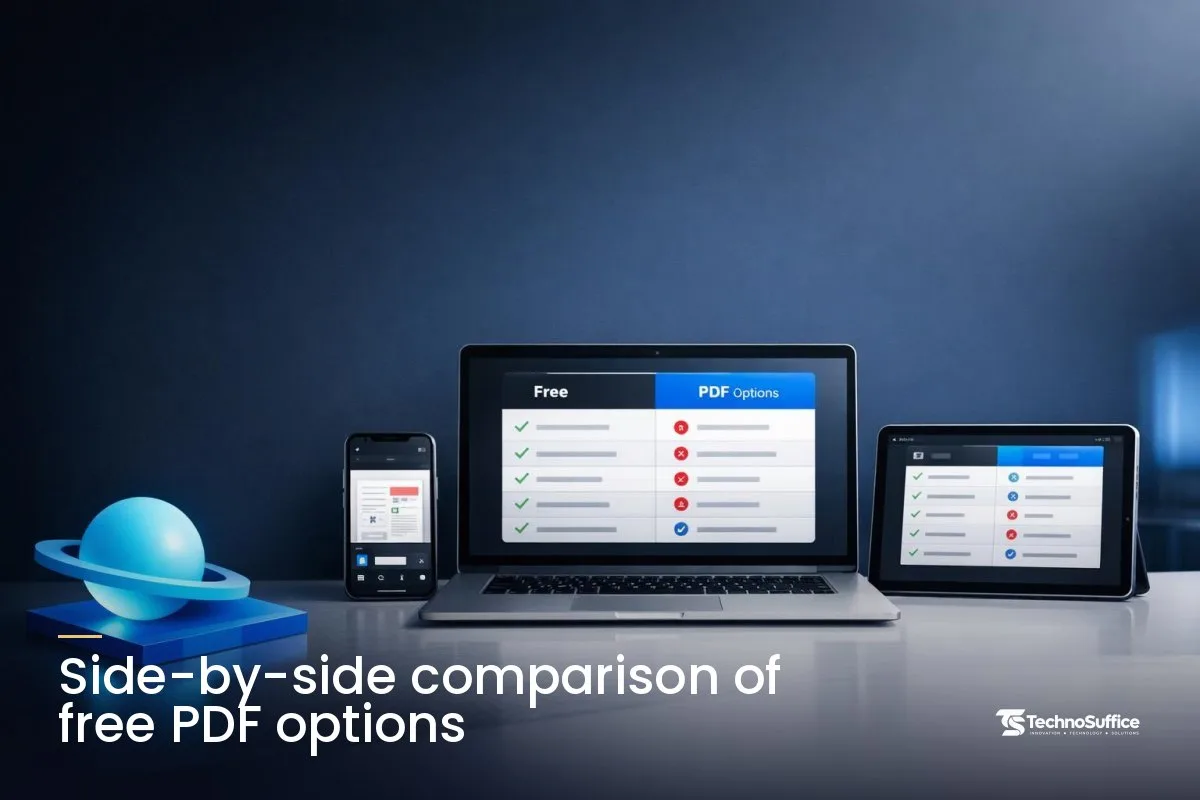
Side-by-side comparison of free PDF options
The table compares the main types of free PDF tools. Free plan limits change often, so treat the Smallpdf and iLovePDF rows as a starting point. Confirm the details on each company's own pricing page.
| Option | Free limit type | Sign-up | Watermark | Where the work happens | Cost level | Best for |
|---|---|---|---|---|---|---|
| Smallpdf free plan | Small daily task limit shared across all tools (reports differ on the exact number) | Check the official site | Test with a dummy file | Online, through the web or app | Free with limits; paid plan removes them | Occasional single jobs |
| iLovePDF free plan | Usage limits per tool, such as file size and batch size, plus ads | Check the official site | Test with a dummy file | Online on the web; offline in its desktop app | Free with limits; paid plans remove them | Users who want many tools in one place |
| In-browser tool (our Compress PDF) | No limits | No | No | Inside your browser; the file stays on your device | Free | Shrinking scans and image-heavy PDFs privately |
| Desktop or offline app | Depends on the app | Depends on the app | Depends on the app | On your computer, no internet needed | Free to paid | Sensitive files and large batches |
Finding a Smallpdf alternative free of daily caps
Most people switch because a limit stops them in the middle of a task. Each service limits you in a different way. Knowing which kind you're up against tells you which alternative will actually fix the problem.
Smallpdf free plan: pros and cons
Smallpdf is a polished, legitimate service. Its free plan uses a daily task cap, a rule that lets you run only a small number of jobs per day. It works a bit like a day pass with a set number of rides: once they're used up, you wait until tomorrow.
Third-party reviews and Smallpdf's own app listing don't agree on the exact number, and the rule has changed over time. Check the pricing page on smallpdf.com for the current limit.
- Pros: clean design, many tools and a phone app.
- Cons: the cap is shared across all tools. Compress one file and merge another, and you may be done for the day.
iLovePDF free plan: pros and cons
iLovePDF takes a different approach. Third-party reports say it has no single daily counter. Instead, each tool has its own file-size and batch limits, and the free version shows ads.
A file-size limit is the biggest file a tool accepts for free, like a mail slot that only fits envelopes up to a certain thickness. Batch processing means working on many files at once.
In iLovePDF's own comparison of web, desktop and mobile, the company says its free tools have usage limits. Its paid plans remove the limits on documents and file size, and its desktop app can work offline with no size cap.
- Pros: softer limits for small jobs and a desktop app for offline work.
- Cons: ads, and size limits that big scans can bump into.
In-browser tools: pros and cons
If you want an iLovePDF alternative with no account and no upload, look for a tool that processes files in your browser. Our Compress PDF tool works this way.
- Pros: no upload, no sign-up, no watermark and no daily cap.
- Cons: our compressor saves pages as images, so text in the compressed copy can't be selected. Text-only PDFs may not shrink much.
Desktop and offline apps: pros and cons
- Pros: files never leave your computer, and they handle big batches well.
- Cons: you have to install software, and you should only get it from the official source. Free versions vary a lot in what they include.
7 things to check before you pick a free PDF tool
You can check all seven in a few minutes. Most answers sit on the tool's page, its pricing page or its FAQ.
- Daily or hourly limit. Does the free plan count your tasks? If it does, is that count shared across every tool?
- File-size limit. A phone scan of a 20-page lease can be large, because every page is a photo. Check the maximum file size before you start.
- Sign-up needed? Some tools let you upload first, then ask for an account before you can download.
- Watermark on the result? A watermark is a logo or text stamped onto your finished file. For job applications or client work, only use PDF tools with no watermark.
- Upload or in-browser? Read the tool page. If it doesn't say, assume your file gets uploaded.
- Text kept or lost? Some compressors turn pages into pictures. After that, you can't copy or search the text.
- Ads and upsell pop-ups. Heavy ads slow you down. They can also hide the real download button among fake ones.
Which should you choose for your situation?
Match the tool type to the task in front of you. Here are some common US examples.
- A job portal rejects your resume for being too big → use an in-browser compressor with a target-size check, like our Compress PDF tool.
- An email bounces because the attachment is too large → compress first, then send. If it's still too big, split the file.
- You need to merge receipts or scans into one file for an expense report → compress each scan, then use Merge PDF.
- You have phone photos of a school form or rental application → shrink the photos with our Image Compressor, then turn them into one file with JPG to PDF.
- Tax paperwork, IDs or contracts → use an on-device tool or an offline desktop app. Don't upload these files to a site you don't know.
- You need to edit text, run OCR or convert to Word → most free web compressors fall short here. OCR is software that reads the words in a scan and turns them back into real, editable text. A paid tool may suit you better for this job.
What happens to your file when you use online PDF tools?
Your file either gets uploaded to the company's server or processed inside your own browser. For online PDF tools privacy, that one difference matters more than any promise on a homepage.
Upload vs in-browser, in plain words
Server-side (upload) processing means your file travels to the company's computer, gets changed there and then comes back. It's like mailing a document to a print shop and waiting for the copy.
In-browser (client-side) processing means the work happens on your own device, inside the browser tab. That's more like using the copier in your own office, where the paper never leaves the room.
Upload tools aren't automatically unsafe. Many big services use HTTPS, the lock-icon connection that scrambles data as it moves between you and a site. Still, with an upload tool you're trusting the company with your file. With an in-browser tool, there's simply less to trust.
A 5-minute self-test for any PDF tool
You can check what a tool does with your file using a free panel built into your browser. The Network tab shows everything a web page sends and receives, a bit like a delivery log for your internet connection.
- Make a harmless dummy PDF, such as a single page that says "test."
- Open the tool in Chrome, Edge or Firefox.
- Press F12 (or right-click and choose Inspect), then open the Network tab.
- Process the dummy file and watch for a large outgoing request about the size of your file. That's usually an upload.
- Download the result, open it and look for a watermark on every page.
- Note any sign-up wall, countdown timer or "task limit reached" message.
This test isn't perfect, since some sites send data in ways that are hard to spot. Even so, it tells you a lot for very little effort.
Sort your files by risk
- Low risk: flyers, menus, public reports and class notes. Most trusted tools are fine for these.
- High risk: tax forms, IDs, bank statements, signed contracts and medical papers. Use on-device or offline tools.
Some tools mention GDPR, a European privacy law. For US readers, that's a good sign but not a guarantee. If you handle health or financial data at work, your employer may have rules about which tools you can use, so ask before you upload anything.
How to spot a fake PDF converter
Some "free converter" sites are traps, much like a fake parking meter that takes your card details. The FBI's Denver office warned about a rise in these sites. They can install malware, which is harmful software that spies on you or damages your files.
They can also pull personal details out of the files you upload, such as Social Security numbers, passwords and bank details. You can read the FBI Denver warning about fake file converters.
According to Malwarebytes on fake online converters, common tricks include asking you to download a program, pushing a browser extension, or handing back a "converted" file that carries malware. Word-to-PDF and images-to-PDF are popular bait.
Red flags checklist
- The result is an
.exe,.bator.scrfile. These are program files, not documents. A PDF tool should give you a.pdf,.docxor image file, so don't download or open anything else. - The site makes you install a browser extension or "helper app" first.
- There's no lock icon in the address bar.
- You can't find a company name, contact page or privacy policy.
- The domain name looks like a copy of a known brand, with an extra letter or an odd ending.
The FBI also advised people to look closely at a site before using it and to keep their antivirus software up to date. Updated antivirus software knows about newer threats, so it has a better chance of catching a bad file before it does harm.
Is our Compress PDF the best free PDF compressor for scans?
For scanned documents and image-heavy PDFs, it's a strong choice: free, private and runs right in your browser. The tool page says these files can shrink by 50–90%. Text-only PDFs made in Word are already small, though, so they may not shrink much at all.
Step 1: Add a PDF
Open Compress PDF. Add your file by dragging it onto the page or picking it from your computer.
Step 2: Pick a level
- Strong (72 DPI): the smallest file. Try this when you face a strict limit like 200 KB.
- Recommended: the middle setting and a sensible place to start.
- Light (170 DPI): keeps more detail, so the savings are smaller.
- Black & white: an extra option for plain text scans that don't need color.
DPI means dots per inch. More dots give you a sharper page and a bigger file, the same way a photo with more pixels takes up more space.
Step 3: Check the size
Run the compression and compare the before and after sizes on screen. The target-size helper shows whether your file fits common limits like 1 MB or 200 KB. That's useful for job portals and government forms that reject large uploads.
Step 4: Download
Download your new copy. Nothing was uploaded along the way, because all the work happened in your browser.
Honest limit: keep your original
The tool rebuilds each page as an optimized image, which is why scans shrink so much. The catch is that text in the compressed copy can't be selected or searched. Treat your original like a master copy: keep it for editing, and use the small version for sharing and uploads.
Tips to keep PDFs small from the start
The easiest file to compress is one that was never big in the first place. A few habits save you time later.
- Export at a smaller size from the app that made the PDF, if it offers that option.
- Scan at a lower resolution. Plain text documents rarely need the highest setting.
- Shrink photos before you build the PDF. Our Image Resizer and Image Compressor help with this.
- Compress first and merge second, the way you'd pack each bag before loading the car.
- Always keep an untouched original in a safe folder.
Common mistakes with free PDF tools
Most problems come from a handful of small habits. Each one is easy to fix once you know it.
- Compressing your only copy. If the text turns into images, you can't get it back. Keep the original.
- Wasting a daily cap on tiny jobs. On capped plans, save your tasks for the files that matter.
- Uploading sensitive files to unknown sites. Use on-device or offline tools for tax forms and IDs.
- Merging before compressing. One huge merged file may go over a size limit, so compress the parts first.
- Expecting text-only PDFs to shrink. They're already small. Images are what make PDFs heavy.
- Clicking the first big "Download" button. On ad-heavy sites, that button may be an ad.
When paying for a PDF tool makes sense
Free tools are great for one-off jobs. Paying becomes the fair choice when the free version costs you more in time than the plan would cost in money.
- Heavy daily use or large batches. If you process dozens of files a day, caps and size limits will keep slowing you down.
- Advanced editing, OCR or e-signatures. Paid suites usually go further than free web tools.
- Company rules or contracts for sensitive data. Some jobs need a vendor that signs data agreements, and free plans rarely offer that.
Businesses have a third option. If your team fills in the same PDFs every week, the better fix may be to drop the PDF altogether. Through our web development service, we build simple online forms, portals and automations that replace that paperwork.
Related free tools
These tools pair well with Compress PDF. Each one is free, needs no sign-up and works in your browser.
- Merge PDF: combine several PDFs into one file.
- JPG to PDF: turn phone photos into a single PDF.
- Image Compressor: make photos smaller before you build a PDF.
- Image Resizer: change photo dimensions for forms and uploads.
Frequently Asked Questions
What is the best free Smallpdf alternative?
The best one fits your task and has no daily cap, no sign-up and no watermark. For shrinking scans privately, an in-browser compressor like ours works well. For sensitive files, an offline desktop app is safer.
What is a free iLovePDF alternative with no sign-up?
Our Compress PDF tool needs no account and no email address. It runs in your browser, with no watermark and no usage limit.
How many tasks does Smallpdf allow per day for free?
Smallpdf's free plan has a small daily task limit, but sources disagree on the exact number. It has changed over time, so check Smallpdf's official pricing page for the current rule.
Does iLovePDF have a daily limit or file-size limit?
iLovePDF says its free tools have usage limits. Third-party reports describe these as per-tool file-size and batch limits rather than a daily counter. Exact numbers differ between reviews, so check iLovePDF's own site.
Are online PDF tools safe for confidential files?
Trusted tools are usually fine for everyday files, but confidential files are safer on your own device. Use in-browser or offline tools for tax forms, IDs and contracts, and avoid sites you don't know.
Which PDF tools don't add a watermark?
Our free PDF tools, including Compress PDF, add no watermark. For any other tool, process a dummy file first and check every page of the result.
Do free PDF tools upload my file to a server?
Many do, but not all. Our Compress PDF tool works in your browser, so your PDF never leaves your device. For other tools, read the tool page or run the Network tab test described above.
Next step
For a quick, private fix, open our free Compress PDF tool and shrink your file right in your browser. It's one of 123 free online tools we build and run at TechnoSuffice, all with no sign-up and no watermark.
If PDFs slow your business down every week, we can replace them with online forms, portals or automations. We've delivered 491+ projects over 10+ years for clients worldwide. Every project gets a dedicated team, a project manager and weekly demos, so you see progress as it happens.
After a free discovery call, you get a fixed quote with milestones and no hidden costs. SEO and performance are built in from day one, and our maintenance plans keep things running after launch.
Request a Free Quote and tell us what you'd like to automate. Our team replies within one business day.