To convert WebP to JPG, open a free converter in your web browser, add your file, pick JPG and download the new copy. You can also use apps that are already on your device: Paint on Windows, Preview on Mac, the Files app on iPhone, or Google Photos on Android.
The quickest route on any device is our free WebP to JPG Converter. It needs no sign-up, has no watermark, and converts images inside your browser, so your files are never uploaded to a server. Below you'll find that method, four built-in ones, a table to help you choose, and fixes for the problems people run into most.
Quick answer: the fastest way to convert WebP to JPG
3 steps with our free WebP to JPG tool
- Add images: drop one or more WebP files into the box, or click to browse.
- Pick the format: make sure JPG is selected under "Convert to."
- Download: save each file, or click Download all (ZIP) to get them in one packed file.
Which method to pick
The best way depends on your device and how many files you have. Use this table to decide in a few seconds.
| Your situation | Best method | Why |
|---|---|---|
| One file on Windows | Paint (Way 2) | Already installed, takes a few clicks |
| One file on a Mac | Preview (Way 3) | Built in, with a simple Export menu |
| iPhone with iOS 16 or newer | Files app (Way 4) | No app to download |
| Android phone | Google Photos or our browser tool (Way 5) | Both work without extra apps |
| 10, 20 or 50 files on any device | Our browser tool (Way 1) | Converts them all at once and gives you one ZIP |
| Work or school computer where you can't install apps | Our browser tool (Way 1) | Nothing to install, files stay on the device |
| Logo with a see-through background | Our tool set to PNG, or JPG with a chosen background color | JPG can't keep see-through areas |
Why is my image WebP? (and why it won't open or upload)
What WebP is, in plain words
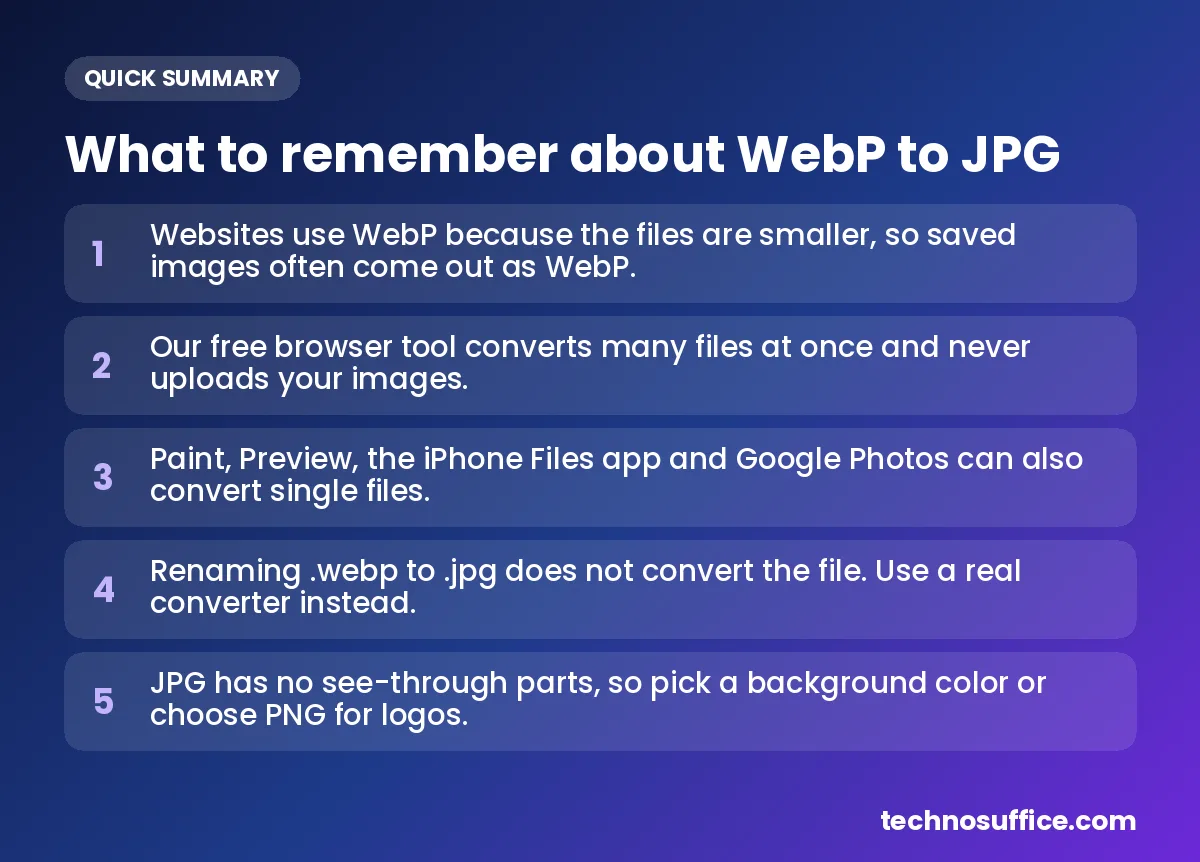
WebP is an image file type made by Google for websites. Its main job is to make small files that load fast. It can hold photos, see-through areas (like a logo with no box around it) and even short moving images, much like a GIF.
Why websites use it
Smaller images make pages load faster. According to Google's WebP page, lossy WebP images are 25–34% smaller than similar JPEGs at the same quality. Lossless WebP images are 26% smaller than PNGs. Google also lists Chrome, Safari, Firefox, Edge and Opera as browsers that support WebP.
That's why so many sites now send you WebP. When you right-click a picture and choose "Save image as," you get the file the site actually sent, which is often WebP. Many people are confused by this. In one Microsoft Q&A thread, a Windows 11 user found that every browser saved web images as WebP. The suggested fix was to open the file in Paint and save it as JPEG, or to use a browser extension or an online converter.
Where old apps and upload forms still fail
Browsers handle WebP fine, but other software doesn't always. Some older photo viewers and editing apps can't open it. Many upload forms only accept JPG or PNG. Common examples are job application portals, school assignment pages and online store listing forms. If a form says "file type not allowed," converting to JPG usually solves it.
Way 1: Free online converter in your browser (any device)
This method works the same on Windows, Mac, Chromebook, iPhone and Android. It's also the best pick when you have lots of files.
Step by step
- Open the free WebP to JPG Converter.
- Drop your images into the box, or click to browse. It accepts WebP, PNG, JPG, AVIF, GIF and BMP, and you can add many files at once.
- Under Convert to, choose JPG. (You can also choose PNG or WebP.)
- Check the Quality slider. It starts at 92%. Slide toward "Smaller file" for lighter files, or toward "Best quality" for the sharpest result.
- If your image has see-through parts, pick a color under Background for transparent areas. White is the default.
- Click Download next to a single file, or Download all (ZIP) to get every image in one file.
The tool shows the original size and the converted size, so you can see how the file changed. Click Clear to start over with a new set.
Batch convert many files
Batch conversion means changing many pictures in one go. Add a whole folder of WebP images, set your options once, then use Download all (ZIP). A ZIP is a single packed file that holds all your images. Open it on your computer or phone to get the JPGs out. There's no daily limit, so you can repeat this as often as you like.
Privacy: in-browser vs upload tools
Many online converters send your file to their server, change it there, and send it back. They may delete it later, but your file still leaves your device. Our tool works differently. The conversion happens inside the web page on your own device, so your images are never uploaded.
Want to check any converter yourself? Read its page for words like "upload" or "files deleted after." Another simple tip: once the page has loaded, turn off Wi-Fi and try a conversion. If it still works, the file is most likely being handled on your device.
Way 2: Windows (Paint, and how to open WebP on Windows)
Convert with Paint
- Right-click the WebP file.
- Choose Open with > Paint.
- In Paint, click File > Save as.
- Choose JPEG as the file type, give it a name, and click Save.
Paint is fine for one or two images. For a large batch, it gets slow, so use Way 1 instead.
Opening WebP in the Photos app
Newer versions of the Windows Photos app can open WebP files. Older versions may not. If double-clicking a WebP file does nothing useful, update Photos from the Microsoft Store, or just open the file in Paint or your browser.
Why renaming the file is a poor shortcut
A file extension is the letters after the dot in a file name, like .webp or .jpg. Changing .webp to .jpg only changes the label. The data inside is still WebP. Some apps will open it anyway, but upload forms that check the real file type may reject it or show a broken image. A proper conversion avoids that problem.
Way 3: Mac (Preview)
Preview is the built-in Mac app for viewing pictures and PDFs. It can save a WebP as a JPG in a few clicks.
- Open the WebP file in Preview. Double-click it, or right-click and choose Open With > Preview.
- Click File > Export.
- Open the Format menu and choose JPEG (or PNG).
- If you see a quality slider, keep it near the high end. Then click Save.
Way 4: WebP to JPG on iPhone
Use the Files app (iOS 16 or newer)
Your iPhone has a built-in converter in the Files app. SlashGear's device steps note that it needs iOS 16 or higher.
- Open the Files app and find your WebP image.
- Press and hold the image.
- Tap Quick Actions > Convert Image.
- Choose JPEG or PNG.
- Pick a size: Small, Medium, Large or Original. Choose Original to keep the full size.
If the image is in your Photos app
Convert Image only works inside Files. Open the picture in Photos, tap Share, then Save to Files. Now follow the steps above.
Many files on iPhone
Converting one at a time in Files gets tiring. Open our converter in Safari, add all your images, and tap Download all (ZIP). Safari saves the ZIP to the Files app, where you can tap it to unpack your JPGs.
Way 5: Android
Google Photos: edit and save a copy
Google Photos comes on most Android phones. According to SlashGear, you can make a JPG this way:
- Open the WebP image in Google Photos.
- Tap Edit.
- Make a very small change, such as a tiny crop or filter tweak.
- Tap Save copy. This creates a new file and leaves the original alone.
[ADD: verify the current Google Photos menu names before publishing]
Or use our browser tool in Chrome
If Google Photos isn't on your phone, or you have many files, open our converter in Chrome. The steps are the same as Way 1, and your images stay on your phone.
For tech-savvy users: the command line
If you're comfortable typing commands, free programs can convert whole folders. ImageMagick and ffmpeg both convert images. With ImageMagick, a command like magick photo.webp photo.jpg does one file. Google's own free tool, dwebp, turns WebP into PNG with dwebp photo.webp -o photo.png. Most people will find the browser tool easier.
How to convert WebP to JPG without losing quality
How the conversion works, in plain words
A digital image is a grid of tiny colored dots called pixels. A converter opens your WebP, reads the color of every pixel, and saves those pixels again in JPG format. The picture looks the same, but it's stored in a way more apps understand.
JPG uses lossy compression. That means it makes files smaller by throwing away small details you probably won't notice. Lossless compression, used by PNG, makes files smaller without losing any detail. If your WebP was already lossy, saving it as JPG is a second lossy step. So a tiny extra loss is possible. Our tool page says the difference is invisible at 90% quality. Still, no converter can bring back detail that was removed before.
Format comparison
| Format | Keeps every detail? | See-through parts? | Moving images? | Best for |
|---|---|---|---|---|
| WebP | Can be lossy or lossless | Yes | Yes | Images on your own website |
| JPG | No (lossy) | No | No | Photos, sharing and upload forms |
| PNG | Yes (lossless) | Yes | Only special APNG files | Logos, screenshots, images with text |
Set the quality slider
Our tool starts at 92%, which suits most photos. Push it higher if you plan to print the image or edit it again. Lower it if a form has a strict size limit. Lower quality means a smaller file, but fine details can get blurry.
Use PNG for logos and text
Lossy formats can make sharp edges and small text look fuzzy. For logos, charts and screenshots, choose PNG. The file will be bigger, but it keeps every detail.
Transparent backgrounds
Transparency means the see-through parts of an image. JPG can't hold them. Our tool fills those areas with the background color you pick, white by default. Choose a color that matches where the image will go. If you need to keep the see-through areas, choose PNG or WebP instead.
Animated WebP
An animated WebP is a moving image, like a GIF. JPG can only hold one still picture, so the motion is lost. Our tool page confirms that GIFs convert using the first frame only. [ADD: confirm how our tool handles animated WebP before publishing] If you need the movement, keep the WebP file.
Common problems and fixes
| Problem | Likely cause | Fix |
|---|---|---|
| WebP won't open on Windows | Older version of Photos | Open in Paint, update Photos, or convert to JPG |
| Upload form says "file type not allowed" | Form only accepts JPG or PNG | Convert to JPG with any method above |
| Renamed file shows as broken | The data inside is still WebP | Do a real conversion instead |
| White or black box behind a logo | JPG has no see-through areas | Pick a matching background color, or save as PNG |
| Moving image is now still | JPG holds one picture only | Keep the original WebP |
| Text looks fuzzy | Lossy compression | Raise quality or choose PNG |
| JPG is too big for the form | High quality or very large picture | Lower the slider, or use our free Image Compressor or Image Resizer |
| Form only accepts PDF | The portal wants documents, not images | Turn the JPG into a PDF with our JPG to PDF Converter |
Best practices and how to stop getting WebP files
- Add a "save as JPG" option to your browser. Some browser extensions add a right-click option to save images as JPG or PNG. Install them only from your browser's official store, and check what permissions they ask for.
- Convert in batches. If you save lots of web images, collect them in one folder and convert them all at once with Download all (ZIP).
- Keep your originals. Don't delete the WebP files until you've checked the JPGs. You can always convert again from the original.
- Keep WebP on your own website. Convert only for sharing and uploading. On your site, WebP's smaller size helps pages load faster. Our guide on how to speed up your website covers more fixes like this.
- Use clear file names. Names like "resume-photo.jpg" are easier to find than "image123.jpg," especially in upload forms.
Frequently Asked Questions
Is WebP better than JPG?
For websites, often yes. Google says lossy WebP files are 25–34% smaller than similar JPEGs at the same quality, which helps pages load faster. For sharing, printing and uploading, JPG is still the safer choice because almost every app and form accepts it.
Does converting WebP to JPG lose quality?
A tiny amount can be lost, because JPG is a lossy format. At high quality settings, it's usually very hard to see. Our tool starts at 92% quality, and you can raise it. If you need a copy with no loss at all, choose PNG.
Can I convert many WebP files at once?
Yes. Add as many images as you like to our converter, choose JPG, and click Download all (ZIP). You'll get every converted image in one file. There's no daily limit.
Are my files safe?
With our tool, your images are converted inside your browser and are never uploaded to a server. They stay on your device the whole time. With other online converters, read their page to see whether files are uploaded and when they're deleted.
Can I convert PNG or AVIF too?
Yes. AVIF is a newer web image type, similar to WebP. Our converter accepts WebP, PNG, JPG, AVIF, GIF and BMP, and saves to JPG, PNG or WebP. GIFs convert using the first frame only.
Is the tool really free?
Yes. There's no sign-up, no watermark and no daily limit. Just open the page and start converting.
Next step
Have a WebP file that won't open or upload? Pick the method that fits your device, or use the browser tool for the fastest result on anything. Try our free WebP to JPG Converter — no sign-up needed. If the file is still too large afterward, our free Image Compressor and Image Resizer can shrink it.
Need more than a quick fix? Our team designs logos, social media graphics, product images and full brand kits for clients worldwide. Every project gets a dedicated team, weekly demos and a fixed quote after a free discovery call, with no hidden costs. If you also need a website, we build in SEO and speed from day one and offer support and maintenance after launch. See our UI/UX and graphic design service and Request a Free Quote.