If your website feels slow, the cause is usually one of a few things: big images, too many plugins or scripts, no caching, or weak hosting. To speed up your website, first measure what is heavy, then fix the biggest files first. For most small business sites, that means images.
Below you'll find how to test your site for free, ten fixes in the order I'd do them, and what to leave to a developer.
Why a Slow Website Costs You Customers
Picture a plumber's website in Ohio. Someone with a leaking pipe taps the link on their phone, waits, and sees a blank white screen. They go back and call the next company on Google. You never even find out they tried.
Speed also matters for search. Google says its ranking systems use Core Web Vitals (Google Search Central). These are three scores that show how a page loads and reacts for real visitors. Google is also clear that a perfect score won't push you to the top by itself. Good content still comes first. But a slow page makes good content harder to reach.
Here are the three scores and the "good" targets Google's web.dev team publishes:
| Score | What it measures, in plain words | Good target |
|---|---|---|
| LCP (Largest Contentful Paint) | How long until the main thing on the screen, like a big photo or headline, shows up | 2.5 seconds or less |
| INP (Interaction to Next Paint) | How fast the page reacts when someone taps a button or opens a menu | 200 milliseconds or less |
| CLS (Cumulative Layout Shift) | How much things jump around while the page loads | 0.1 or less |
Source: web.dev, Web Vitals. Google checks these at the 75th percentile, so most of your visits need to pass, not only the fast ones.
Step 1: Measure Before You Change Anything
Don't guess. Guessing is how people spend a weekend on the wrong fix.
Check your page weight
Open our free Page Size Checker, paste a page address and click Check page size. It lists every file the page loads (HTML, CSS, JavaScript, images and fonts) and sorts them from heaviest to lightest.
I tested it on our own blog page while writing this. The result came back in under 10 seconds: 1.36 MB total, 22 requests (files the browser has to download) and a 261 ms server response. Images were 914.7 KB of that, or 66%.
The surprise was the top of the list. Our logo PNG was 289.4 KB, and the footer logo was the same size again. That's two small logos weighing more than all ten blog thumbnails put together. So yes, we found something to fix on our own site too.
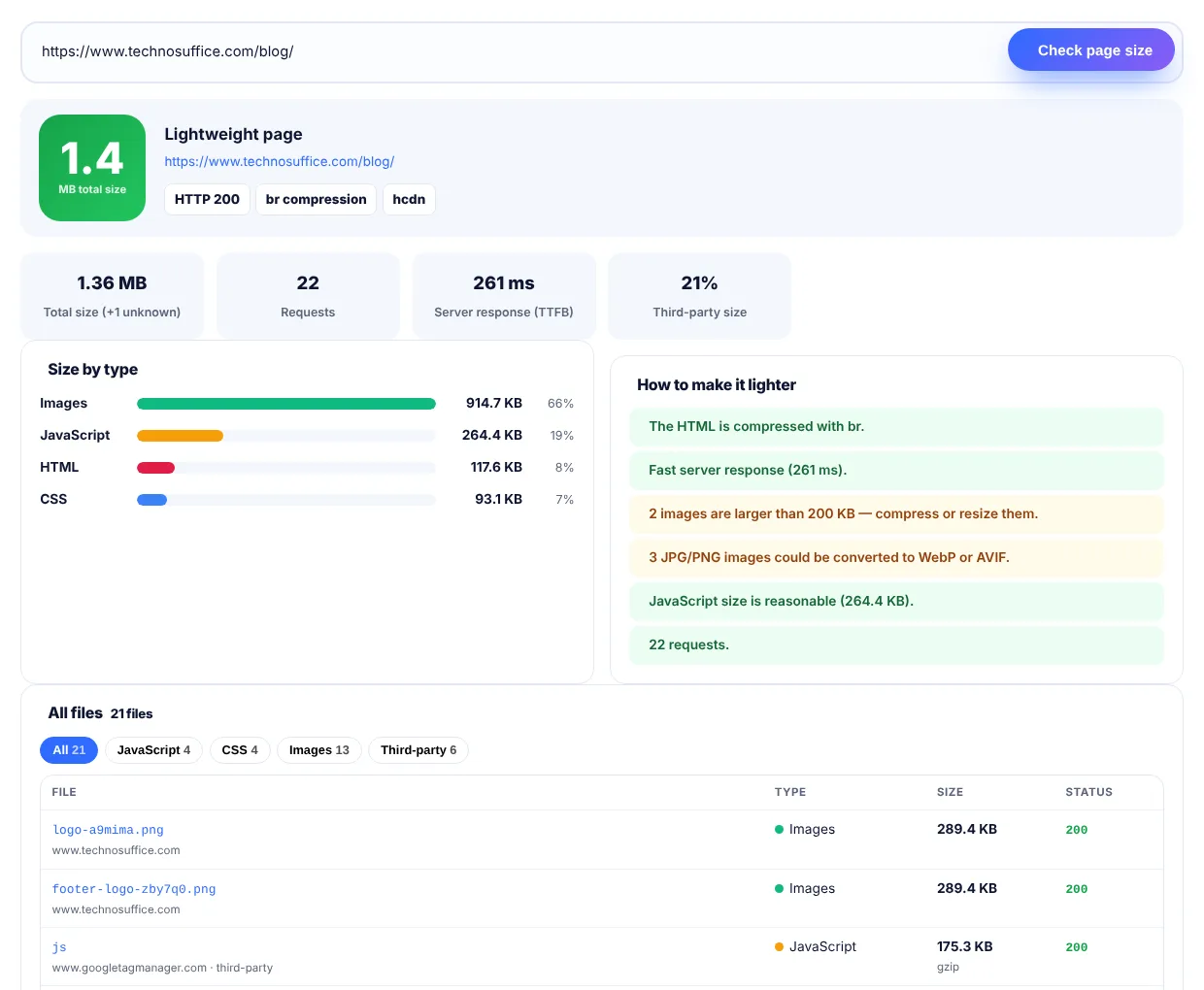 Our Page Size Checker on the TechnoSuffice blog page. Two logo PNGs were the heaviest files at 289.4 KB each.
Check your real-world scores
Next, run the same page through Google's PageSpeed Insights. Look at the mobile tab first. If your site gets enough visitors, the top section shows real data from Chrome users. The lower section is a lab test, which is useful for finding problems but can change from run to run.
If you already use Google Search Console, the Core Web Vitals report there groups your pages into "Good," "Needs improvement" and "Poor." That helps you see whether one template, such as all product pages, has the problem.
How to Speed Up Your Website: 10 Fixes in Order
Start at the top of this list. The early fixes are cheap and you can do most of them yourself.
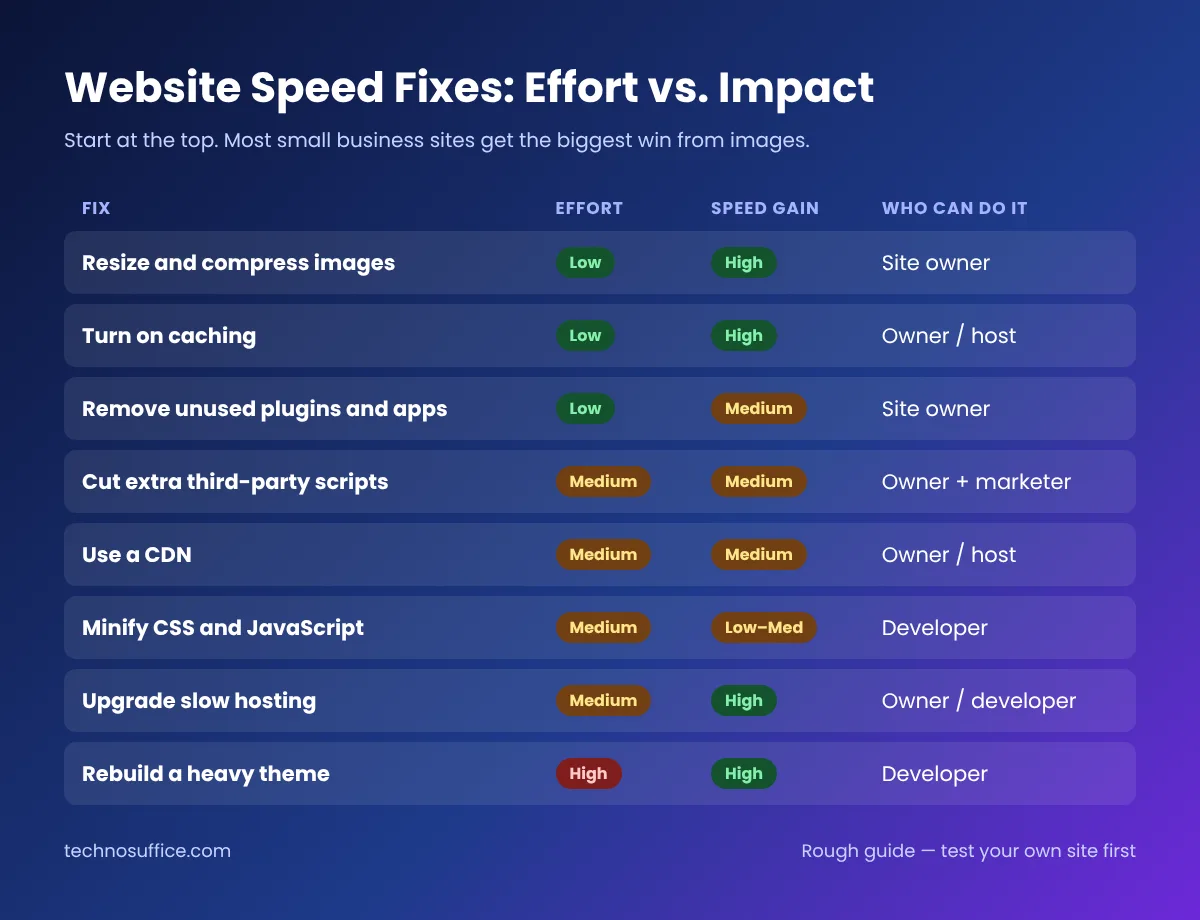 A rough guide to which speed fixes give the most for the least work.
1. Resize images to the size they are shown
Phone cameras save photos that are 4,000 pixels wide or more. Your website might show that photo in a box 800 pixels wide. The browser still downloads the full file.
Use the Image Resizer to bring each image down to about the width it really appears on the page. A good rule is twice the display width for sharp screens, and no more. A realtor uploading 25 listing photos straight from a phone will see a big difference from this step alone.
2. Compress images and switch to WebP
WebP is a newer image format that all modern browsers support. It usually makes files much smaller than JPG or PNG at the same quality.
I put our 289 KB logo (1,600 × 640 pixels) into the Image Compressor to see what would happen. Here's what I got at the default 75% quality:
| Setting | Result | Saved |
|---|---|---|
| Same size, WebP | 90 KB | 69% |
| Max width 400 px, kept as PNG | 33 KB | 89% |
| Max width 400 px, WebP | 10 KB | 96% |
From 289 KB to 10 KB, and the logo still looked sharp at header size. The compression runs inside your browser, so your images are not uploaded to a server.
3. Lazy-load images further down the page
Lazy loading means images below the screen only download when the visitor scrolls near them. In plain HTML, you add loading="lazy" to the image tag. WordPress adds it to most images by default.
One warning. Don't lazy-load the big image at the top of the page. That image is often your LCP, and delaying it makes the score worse.
4. Turn on caching
Caching saves a ready copy of your pages and files so they don't have to be built again for every visitor. On WordPress, this usually means a caching plugin or a setting from your host. Many managed hosts include it, so check your hosting dashboard before you install anything.
Browser caching matters too. It tells a returning visitor's browser to keep your logo, fonts and styles for a while. You can see whether a file sends a "Cache-Control" header with our HTTP Headers Checker.
5. Remove plugins and apps you don't use
Every plugin or store app can add its own scripts and styles to every page. Make a list of what's installed. If you can't say what a plugin does for your business, deactivate it and test the site.
This is just as true on Shopify. Some apps leave code behind even after you uninstall them, so check your theme or ask the app maker how to remove it cleanly.
6. Cut third-party scripts
Chat widgets, ad scripts, heat maps, review badges and social feeds all load from other companies' servers. On our test page, 21% of the weight came from other domains, and the largest single script was Google Tag Manager at 175.3 KB.
Some of these scripts earn their place. Others were added for a test two years ago and forgotten. Ask your marketing person which ones are still used for real decisions, and remove the rest.
7. Turn on text compression
Your server can shrink HTML, CSS and JavaScript before sending them, using gzip or Brotli (two common compression methods). Most good hosts do this already. The Page Size Checker shows the compression type next to each file, so you'll see at a glance whether it's on. Our blog page used "br," which means Brotli.
8. Minify CSS and JavaScript
Minifying removes spaces, line breaks and comments from code files. The code works the same, but the file is smaller. Our HTML / CSS / JS Minifier does this for single files. On a WordPress site, most caching plugins can do it for the whole site.
This fix usually saves less than people expect. If your images are still heavy, start there instead.
9. Use a CDN
A CDN (content delivery network) keeps copies of your files on servers in many cities. A visitor in Texas gets files from a server close to Texas instead of one across the country. If you sell to customers in the US, UK and Australia, a CDN helps a lot.
Hosted builders like Shopify, Wix and Squarespace already include one. On WordPress or a custom site, your host may offer one, or you can add one like Cloudflare.
10. Upgrade hosting if the server is slow
Look at the server response time, also called TTFB (time to first byte). This is how long the server takes to start sending the page. Ours was 261 ms on the test. If yours is often over about 800 ms, cheap shared hosting may be the problem, and no amount of image work will fully fix it.
Moving hosts takes some planning, so do it after the easy fixes above.
Common Mistakes That Make Sites Slower
- Uploading photos straight from the phone. A 5 MB photo used as a small thumbnail is still 5 MB.
- Installing a "speed plugin" on top of three other speed plugins. Two caching tools can fight each other and break pages.
- Using a slider with six huge images on the homepage. Most visitors only see the first slide anyway.
- Chasing a score of 100. Google itself says a perfect score is not the goal. Aim for "Good" on real-user data.
- Testing only on office Wi-Fi. Many customers are on a phone with weak signal. Test the mobile results.
- Forgetting old pages. Your homepage may be fast while blog posts from 2019 still carry huge images.
Which Fixes Can You Do Yourself?
| Your situation | Do it yourself | Get a developer |
|---|---|---|
| WordPress site, a few slow pages | Images, caching plugin, remove unused plugins | Only if a theme or page builder is the main problem |
| Shopify, Wix or Squarespace | Images, remove unused apps, fewer homepage sections | Theme code changes |
| Custom-built website | Images and testing | Caching, minifying, server settings |
| Slow server response on every page | Ask your host what plan you're on | Hosting move or server setup |
| Site built on a very heavy theme | Not much | Rebuild or a lighter theme |
If you're in the right-hand column, our web development team handles speed work and Core Web Vitals fixes, and our SEO services include technical SEO checks like page speed and crawling. For more ways to help rankings once your site is fast, read our 12 SEO tips to improve your website ranking.
Frequently Asked Questions
What is a good page load time?
Google's target for the main content (LCP) is 2.5 seconds or less. Use that as your goal instead of a single "load time," because different tools measure load time in different ways.
Why is my website slow on mobile but fine on desktop?
Phones have slower processors and often weaker connections. Heavy images and lots of JavaScript hurt more on a phone. That's why PageSpeed Insights usually gives a lower mobile score.
Does website speed affect SEO?
Yes, but it is one signal among many. Google says Core Web Vitals are used by its ranking systems. Helpful content and a good match to what people search for still matter more.
How big should images be on a website?
There's no single number. Resize them to about the width they are shown at, then compress. Many photos end up under 200 KB, and small graphics like logos can often be under 20 KB.
Is WebP better than JPG?
For most website photos, yes. WebP files are usually smaller at the same quality, and all modern browsers show them. Keep the original JPG as a backup on your computer.
Can I speed up my website for free?
Most of the time, yes. Resizing and compressing images, removing unused plugins and turning on your host's caching cost nothing. Paid help is mostly needed for hosting moves and theme rebuilds.
Start With One Page Today
Pick your most visited page, usually the homepage. Run it through the Page Size Checker, fix the three heaviest files, and test again. You'll know in about ten minutes if it helped.
If the slow part turns out to be your theme or your server, ask us for a free quote and we'll tell you what we'd fix first.