How do you extract images from a PDF without losing quality? Pull out the pictures stored inside the file instead of taking a screenshot. Our free Extract Images from PDF tool finds every embedded picture and keeps its original pixel size. You can download the pictures one by one or all together in a ZIP file.
The tool works in your browser, so your PDF is never uploaded to a server. There's no sign-up and no watermark. Below you'll find the exact steps, the Mac route, and what to do when a picture won't show up. We also explain which format to pick, so you only have to do the job once.
| Quick answer | Details |
|---|---|
| What you need | A PDF file and a modern web browser |
| Cost | Free, no account needed |
| Time | A few clicks. Big files with many pictures take a little longer. |
| Result | Each picture saved as its own PNG, JPG or WebP file, or all of them in one ZIP |
Extract images from a PDF: the quick answer
To get pictures out of a PDF at full quality, extract the embedded images rather than converting whole pages. An embedded image is a real picture file placed inside the PDF, such as a product photo or a screenshot.
People often mix up two different jobs. One saves the pictures, and the other turns each whole page into a picture. Choosing the wrong one is the usual reason for blurry or badly cropped results, so it's worth a quick check before you start.
Extract vs PDF to JPG in one table
| Extract images | PDF to JPG (page rendering) | |
|---|---|---|
| What you get | Only the pictures placed inside the pages | Each full page as one picture, with text and pictures together |
| Quality | Original pixel size of each picture | Depends on the DPI you choose |
| Best for | Product photos, slide images, flyer photos | Charts, logos, text pages, scanned pages |
| Free tool | Extract Images from PDF | PDF to JPG Converter or the "Pages as images" mode |
What "original quality" really means
A picture is made of pixels, which are tiny colored dots. A photo can look small on a PDF page while the file stored inside is much larger. Extraction saves the picture at its real pixel size, not the size you see on screen.
There is one limit to be clear about: the file format can change. If you choose PNG or WebP, the picture is saved in that format, but the pixel size stays the same. So "original quality" here means you get every pixel the PDF holds, and nothing gets shrunk.
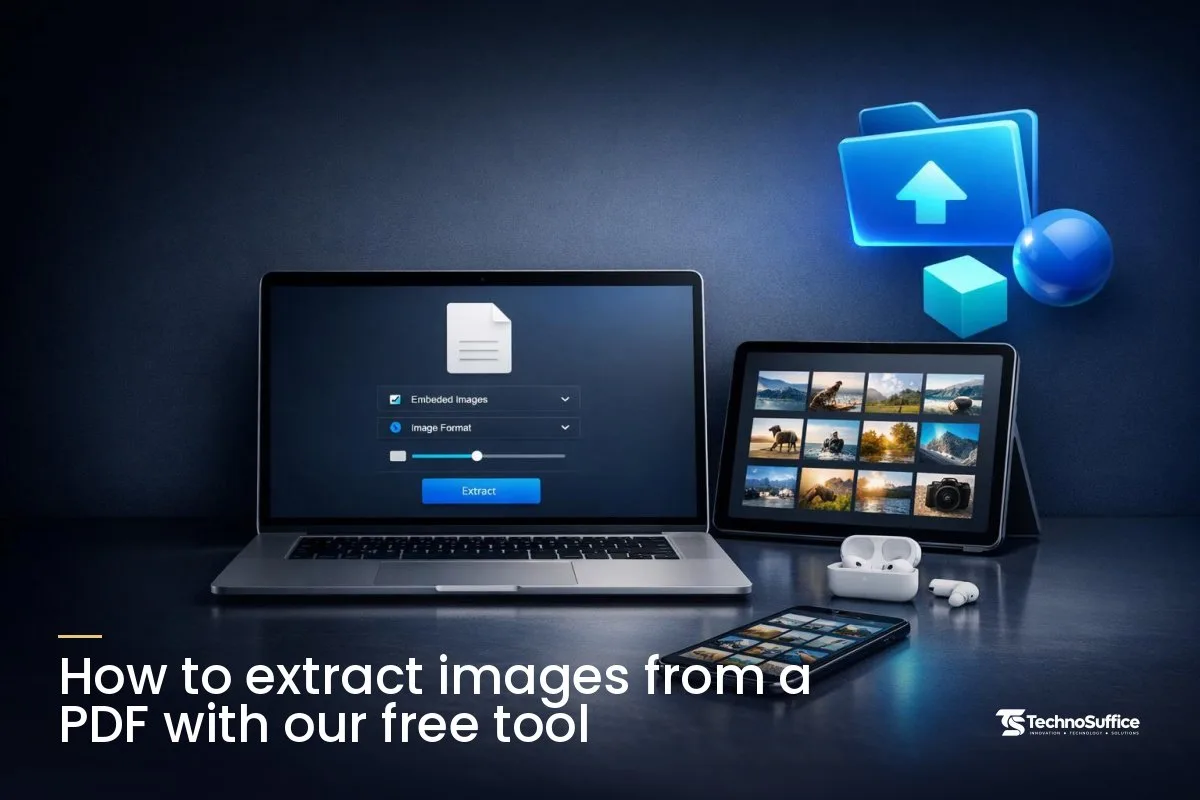
How to extract images from a PDF with our free tool
The whole process takes five short steps:
- Choose your PDF.
- Pick "Embedded images" and a format.
- Set a minimum size.
- Click Extract and check the preview.
- Download your pictures.
Each step is explained below, with the button names you'll see on the page.
Step 1: Choose your PDF
Go to the Extract Images from PDF page. Drag your file onto the box that says "Drop a PDF here or click to choose." If you prefer, click the box and pick the file from your folders.
Step 2: Pick "Embedded images" and a format
Set the mode to Embedded images, then choose PNG, JPG or WebP. If you're unsure, PNG is the safe pick because it keeps every detail. You can always make the files smaller later, but you can't add lost detail back.
Step 3: Set a minimum size to skip icons
Many PDFs hold tiny pictures, like bullet icons, small arrows and thin lines. The size filter leaves them out so your download stays tidy. The menu gives you four choices:
- Any size: keeps everything. Use it when you need a small logo or badge that's stored as a picture.
- Skip tiny: drops lines and dots. A good choice for reports.
- Skip icons: drops icons as well. Useful for slide decks, which often contain lots of small icons.
- Large only: keeps only big pictures. Best for catalogs, brochures and real estate flyers full of photos.
Step 4: Click Extract and check the preview
Click Extract. The tool lists every picture it finds, along with its page number and pixel size. That's handy when you need one photo from deep inside a long vendor catalog, because you can spot it without scrolling through the whole file.
Step 5: Download one by one or all at once
Save single pictures straight from the preview, or click Download all (ZIP). A ZIP is one file that holds many files. Open it on your computer and every picture is inside, ready to use.
Your PDF stays on your device
Extraction runs in your browser, on your own computer, and the PDF isn't sent to a server. That gives you peace of mind when the file is a contract, a client brochure or anything else you'd rather keep private.
How does extracting images from a PDF work?
A PDF stores each picture as a separate piece of data, and the page simply points to it. The extractor reads those pieces directly, so it never has to "photograph" the page.
In PDF terms, a stored picture is called an image XObject. A PDF also contains text and vector graphics, which are lines and shapes drawn from math instead of pixels. The PDF overview on Wikipedia describes this mix of vector graphics, text and raster graphics. A raster graphic, also called a bitmap, is a picture made of pixels, like a photo.
PDFs can compress pictures in a few ways. You may see these names in technical tools:
DCTDecode: the picture is stored as a JPEG.FlateDecode: the picture is stored without losing detail, a bit like a PNG.JPXDecode: the picture is stored as JPEG 2000, which PDFs support from version 1.5 onward.
The rules for all of this live in ISO 32000, the international standard for PDF files. The PDF Association has made the latest version, ISO 32000-2, free to get. You don't need to read it to use the tool. It simply explains why photos come out clean while logos and charts sometimes don't come out at all.
When should you use "Pages as images" instead?
Use "Pages as images" when the thing you want isn't actually a picture. Charts, logos drawn as shapes, pages of text and scanned pages all fall into this group. This mode turns each whole page into one image at the DPI you choose.
Logos, charts and text are not images
Many logos and charts are vector graphics. They look like pictures, but they're built from shapes, so there's no photo inside the file to save. Switch to Pages as images, export the page, then crop out the part you need.
Which DPI to pick: 72, 144, 216 or 300
DPI means dots per inch. A higher number gives a sharper, larger image. Here's how we'd choose:
- 72 DPI: a quick preview or a small thumbnail.
- 144 DPI: clear on most screens, and fine for slides and emails.
- 216 DPI: when you plan to zoom in or crop part of the page.
- 300 DPI: for print, or for cropping a small chart while keeping it sharp.
How do you get images out of a PDF on a Mac?
Preview, the free app that comes with every Mac, can save a whole PDF page as an image. It doesn't pull out the embedded pictures one by one, though. For separate pictures at full size, a browser tool is the quicker route.
Preview: what it can and can't do
According to Apple's Preview instructions, you open the PDF, choose File > Export, pick a format such as PNG from the Format menu, and click Save. Apple describes this as saving a PDF page as an image. That means you get the full page with its text and margins, not the separate photo.
What about a single picture?
If you only need one picture, you can export its page from Preview and crop it in any photo app. That works, but the crop depends on how carefully you trim it. Our tool skips the cropping and gives you the picture at the exact size stored in the file.
Why the browser tool is faster for many images
Think of a supplier catalog full of product photos. Exporting and cropping each page in Preview would take a long time. Our tool finds every picture in one pass and hands you a single ZIP, in Safari, Chrome or any modern browser on your Mac.
Other ways to save images from a PDF
Adobe Acrobat can export every picture, and a screenshot can work when nothing else is handy. Each option has trade-offs, so pick the one that fits your file.
Adobe Acrobat "Export all images"
In Acrobat, you export the PDF as images and tick "Export all images." Adobe's guide to exporting images from a PDF says this saves raster images but not vector objects. It also offers an "Exclude images smaller than" setting, similar to our size filter, where "No Limit" keeps everything.
Watch one detail: if you don't choose "Export all images," Acrobat saves each page as an image instead. This route makes the most sense if you already use Acrobat Pro.
Screenshot or Snipping Tool: why quality drops
A screenshot captures what's on your screen, not the picture stored in the file. If you're zoomed out, the photo appears small, so your screenshot is small too. Windows Snipping Tool and Mac screenshots share this limit, so treat them as a last resort.
Comparison table
| Method | Output | Quality | Many images at once? | Cost | File uploaded? |
|---|---|---|---|---|---|
| Our tool (Embedded images) | Each picture as its own file | Original pixel size | Yes, as a ZIP | Free | No, runs in your browser |
| Our tool (Pages as images) | Whole pages | Set by DPI (72 to 300) | Yes | Free | No, runs in your browser |
| Mac Preview Export | Whole page | Depends on export settings | No | Free on Mac | No, on your Mac |
| Adobe Acrobat Pro | Each raster picture | Original | Yes | Needs Acrobat Pro | Desktop app |
| Screenshot | What's on screen | Limited by screen and zoom | No | Free | No |
Why are some images missing or look wrong?
Usually the "missing" item isn't a picture at all, or the size filter is hiding it. A few PDFs also store pictures in unusual ways. Here's how to work out what happened.
Scanned PDFs
A scanned PDF is made from a scan or photo of paper, so each page is one big picture. There's no separate photo layer inside, and the tool returns the full page. Extract the page, then crop the part you want.
Vector graphics
Logos, icons and charts made in design apps are often vector shapes. They won't appear under "Embedded images." Use "Pages as images" at 300 DPI and crop.
Pictures in strips or flipped
Some programs that create PDFs cut one picture into strips. Others store it flipped, rotated or mirrored, then turn it back the right way on the page. Extraction gives you the stored version, so the result can look odd.
If a picture comes out upside down, rotate it in any photo app. If it comes out in strips, export that page as an image instead.
Filter set too high
If you chose "Large only," smaller photos are left out on purpose. Set the filter to "Any size" and click Extract again.
Common mistakes and fixes
These mistakes waste the most time, and each one is easy to avoid.
| Mistake | What happens | Fix |
|---|---|---|
| Using Preview's Export to get one photo | You get the whole page with text and margins | Use "Embedded images" in our tool |
| Taking a screenshot while zoomed out | A small, soft picture | Extract instead, or zoom in a lot before you capture |
| Saving logos or screenshots as JPG | Fuzzy edges around text and lines | Choose PNG |
| Leaving the filter on "Any size" | Lots of tiny icons and lines in your ZIP | Use "Skip icons" or "Large only" |
| Extracting from a compressed copy | Pictures can be smaller than the originals | Use the original PDF, not a shrunk version |
| Looking for a chart in "Embedded images" | The chart never shows up | Switch to "Pages as images" at 300 DPI |
Which format should you choose: PNG, JPG or WebP?
Pick JPG for photos, PNG for logos and screenshots, and WebP for pictures going straight onto a website. When in doubt, PNG is the safe choice because it keeps every detail.
Photos
JPG makes small files. It's "lossy," which means it drops a little detail to save space, and with everyday photos that's rarely a problem. For example, JPG is a sensible pick when you pull product shots from a vendor catalog for a Shopify listing.
Logos and screenshots
PNG is "lossless," so it keeps every pixel and supports see-through backgrounds. Text, sharp lines and flat colors stay crisp. The files are bigger, but you avoid blurry edges.
Web use
WebP is a web image format that keeps files small. PDFs don't store pictures as WebP, so choosing it always means a conversion. It's useful when the image goes straight onto a blog or store page.
After you extract: resize, compress and reuse
Most extracted pictures need a little cleanup before you post them. Large photos can slow down a web page, and some platforms ask for specific sizes.
Image Compressor
Our free Image Compressor cuts file size before you upload pictures to a website or attach them to an email. Smaller images help pages load faster, which visitors notice.
Image Resizer
If a listing or post needs a set width, the Image Resizer changes the pixel size. For example, you might resize photos from a restaurant menu PDF before adding them to your Google Business Profile.
Check permission before reusing images
Images in a PDF usually belong to the person or company that made them. A real estate flyer, a lecture slide or a vendor catalog can all contain photos owned by someone else. Ask for permission before you reuse them in public. This isn't legal advice, just a sensible habit that keeps you out of trouble.
Pro tips
- Keep the source files. Store the original photos next to each PDF you create, so you never have to extract them later.
- Ask for originals. When a partner sends you a PDF, ask for the image files too. They're often better than the copies inside.
- Compress copies only. Tools like Compress PDF can lower picture quality, so always keep an untouched original.
- Use the page number. The preview shows where each picture comes from, which makes clear file names easy.
Frequently Asked Questions
What's the difference between PDF to JPG and extracting images?
PDF to JPG saves whole pages as pictures, while extracting saves only the pictures placed inside the pages. Use extraction for photos and PDF to JPG for charts, text or scanned pages.
Is the quality reduced?
No. Embedded images are saved at their original pixel size. The file format may change to PNG, JPG or WebP, and JPG drops a small amount of detail to save space.
Why are some images missing?
The missing items are usually vector graphics or text, which aren't images. Small pictures can also be hidden by the minimum size filter, so try "Any size."
Is my PDF uploaded?
No. Our tool runs in your browser, and your PDF stays on your device the whole time.
Can I extract images from a scanned PDF?
Yes, but each page comes out as one picture. A scan has no separate photos inside it, so export the page and crop the part you need.
Can I get all images from a PDF at once?
Yes. Click "Download all (ZIP)" after you extract, and you'll get one ZIP file with every picture inside.
Can I extract images from a password-protected PDF?
Only open files you have the right to use. If you don't have the password, ask the sender for an unlocked copy or the original image files.
Need a tool or workflow built for your business?
For quick jobs, the free Extract Images from PDF tool is always ready in your browser. But if PDFs and paperwork slow your team down every week, a custom web app can take those manual steps off your plate. That's the kind of problem TechnoSuffice solves.
We've spent 10+ years building websites and apps, with 491+ projects delivered for clients worldwide. Every project gets a dedicated team, a project manager and weekly demos, so you always see progress. SEO and performance are built in from day one, and our maintenance plans cover updates, security patches and new features after launch.
You get a fixed quote with milestones after a free discovery call, with no hidden costs. See our web development service to learn more.
Ready to replace the paperwork? Request a Free Quote and book your free consultation. Our team replies within one business day.