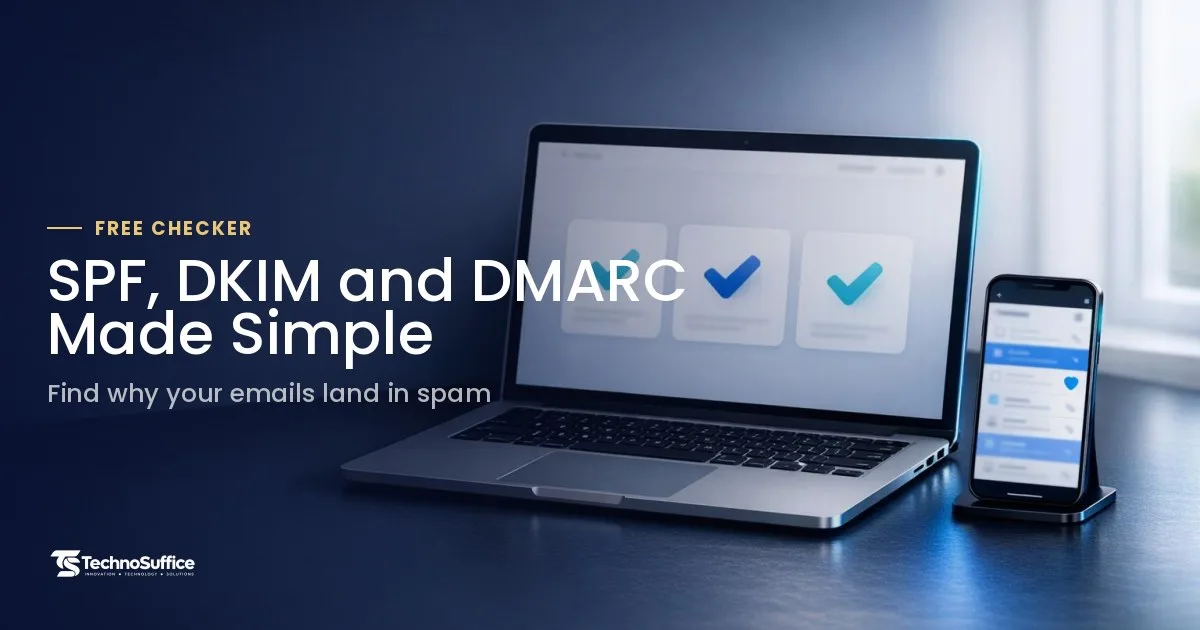
Here are SPF, DKIM and DMARC explained in plain words. Many business owners add one SPF record and assume the job is done. Put the three side by side, though, and you'll see they aren't rivals. Each one covers a gap the others leave, and those gaps are what push your mail into spam.
In short, SPF lists who may send for your domain, and DKIM signs each message. DMARC tells inboxes what to do when those checks fail. Set up all three, in that order.
Before you change anything, check what your domain has today. Our free SPF, DKIM & DMARC Checker reads your MX, SPF, DKIM, DMARC and BIMI records and flags what needs fixing. There's no sign-up, it works in your browser, and nothing is stored.
SPF, DKIM and DMARC explained: the quick verdict
All three are short lines of text in your domain's DNS. Each one answers a different question. SPF asks, "Was this sent from an allowed server?" DKIM asks, "Is this message really yours, and is it unchanged?" DMARC asks, "What should happen if those checks fail?"
First, a quick word on DNS. DNS is the public address book of the internet, and it tells other computers where to find your website and email. A TXT record is simply a line of text stored with your domain name. All three checks live in TXT records, so any inbox, including Gmail, can read them.
| Feature | SPF | DKIM | DMARC |
|---|---|---|---|
| What it checks | The server that sent the email | A digital signature on the message | Whether SPF or DKIM passed and matches the From address |
| Where it lives | TXT record on your root domain | TXT record at a selector, like google._domainkey | TXT record at _dmarc.yourdomain.com |
| Survives forwarding? | Often no | Usually yes | Depends on DKIM passing |
| Main weakness | 10 DNS-lookup limit; breaks on forwarding | Selector and key must be set up per sender | Does nothing alone; needs SPF or DKIM first |
| Cost level | Free to publish in DNS | Free to publish in DNS | Free to publish in DNS |
| Best for | Naming your allowed senders | Proving each message is genuine | Blocking fakes and getting reports |
SPF: the guest list
SPF (Sender Policy Framework) works like a guest list at a party door. It names the mail servers that may send email for your domain. If a server shows up and isn't on the list, the receiving inbox gets suspicious.
The weak spot is that the guest list only checks who knocked, not what they carried in. That's why SPF needs help from DKIM.
- Pros: It's quick to add, and one line covers most small businesses.
- Cons: It checks the server, not the message. It often fails when someone forwards your email, and it breaks if the record needs more than 10 DNS lookups.
DKIM: the sealed stamp
DKIM (DomainKeys Identified Mail) adds a hidden digital signature to every email you send. Picture a wax seal on a letter. The receiver compares the seal with a public key stored in your DNS, and a match proves two things: the message came from you, and nobody changed it on the way.
- Pros: The seal travels with the message, so it usually survives forwarding.
- Cons: Each service that sends for you needs its own key. If a checker looks for the wrong selector, it can't find the key.
DMARC: the rule and the reports
DMARC is the rule book the doorman follows. It tells inboxes what to do when SPF and DKIM fail: let the email through, send it to spam, or block it. It also sends you summary reports, so you can see who is sending mail in your name.
- Pros: It helps stop spoofing, which is when a scammer sends email pretending to be your domain. The reports also show problems you would never spot on your own.
- Cons: It can't work alone. A strict policy set too early can block your own real email.
How the three work together (alignment)
DMARC passes only when SPF or DKIM passes and the domain matches the one in your From address. That match is called alignment. Google's email sender guidelines say the From domain must align with the SPF domain or the DKIM domain to pass DMARC.
Alignment is like checking that the name on the envelope matches the name on the signature. For example, a newsletter tool might sign your emails with its own domain. DKIM passes, but for the wrong name, so DMARC still fails. The fix is to set up DKIM inside that tool using your own domain.
Why do my emails go to spam?
Missing or broken SPF, DKIM and DMARC records are a common reason. Google says authenticated messages are less likely to be rejected or marked as spam. Mail without these checks has a much harder time reaching the inbox.
What Gmail, Yahoo and Outlook expect
Google says all senders need SPF or DKIM, and bulk senders need SPF, DKIM and DMARC. You count as a bulk sender if you send around 5,000 or more messages a day to Gmail accounts. Google counts all the mail from your main domain together, not one tool at a time, and it keeps the bulk label once you cross that line.
Bulk senders must also keep their spam complaint rate under 0.3%. That rate is the share of people who click "Report spam." Marketing mail must offer one-click unsubscribe, a hidden setting in the email that lets people leave your list with a single click.
Yahoo's rules look similar: SPF and DKIM, a DMARC policy of at least p=none, and complaints under 0.3% for bulk senders. Many people assume Yahoo uses the same 5,000-a-day line, but Yahoo doesn't publish a hard number. The 5,000 figure comes from Google. Microsoft announced that from May 2025, high-volume senders to Outlook.com, Hotmail and Live.com (around 5,000 or more a day) must publish aligned SPF, DKIM and DMARC.
Do small senders need this too?
Yes. Most small businesses send far fewer than 5,000 emails a day, so the strict bulk rules may not apply to you. Google still expects SPF or DKIM from everyone, though.
A basic DMARC record is free to publish. In our view, it's one of the cheapest ways to protect your domain from people pretending to be you.

Check your records first (free, no sign-up)
Start with a check, because guessing wastes time. It's like a doctor running a test before giving medicine. Our free online tool reads your DNS and shows what's missing and what's broken.
Step 1: Enter your domain or an email address
Open the SPF, DKIM & DMARC Checker. Type your domain, like yourdomain.com, or paste an email address and let the tool take the domain from it. Click Check email setup.
Step 2: Add a custom DKIM selector if needed
The tool tries more than 30 common DKIM selectors by itself. If your provider uses an unusual one, type it into the Custom DKIM selector (optional) box. We explain how to find your selector in the DKIM section below.
Step 3: Read the verdicts and score
You'll get a deliverability score, plus a verdict for each record. The tool also shows your MX records, which name the mail servers that receive email for your domain. For SPF, it checks the syntax, the "all" ending and the 10-lookup limit.
Want to see every raw record instead? A DNS lookup tool shows all the TXT, MX and other records for any domain.
How to set up SPF (with an SPF record example)
SPF is one TXT record on your root domain that lists every service allowed to send your email. Get the exact value from each provider, then join them into one line.
Build the record piece by piece
Here's an SPF record example for a business that uses Google Workspace, a newsletter tool and one office server:
v=spf1 include:_spf.google.com include:_spf.example-newsletter.com ip4:203.0.113.10 ~all
v=spf1says "this is an SPF record." It always comes first.include:_spf.google.comallows Google Workspace servers. This is the value Google gives you.include:_spf.example-newsletter.comis a sample name. Use the exact value your newsletter or CRM tool provides.ip4:203.0.113.10allows one server by its IP address, which is its number on the internet.~allis the ending. It tells inboxes what to do with senders who aren't on the list.
The parts in the middle, such as include, ip4, ip6, a and mx, are called mechanisms. The ending is a qualifier. ~all means soft fail, so inboxes treat unknown senders as suspicious. -all means hard fail, so inboxes reject them.
Many admins start with ~all. They switch to -all only after confirming every real sender is on the list, because a strict door blocks forgotten guests too.
The 10-lookup limit and permerror
While checking your record, SPF may ask DNS at most 10 questions. This limit comes from the SPF standard, RFC 7208. Each include, a, mx, exists, redirect and ptr costs one lookup, while ip4 and ip6 cost nothing.
It works like a phone plan with 10 calls. One include can hide several more calls inside the provider's own record. If you merge two records that each use 6 lookups, you're at 12, and the record breaks.
The result is a permerror, short for permanent error. DMARC treats it as an SPF fail for all your mail. There's also a smaller limit of 2 "void" lookups, which are lookups that return nothing.
This often happens quietly. For example, you add a new invoicing app, paste its include, and suddenly every email you send fails SPF.
One SPF record only
A domain must have exactly one SPF record, because two records starting with v=spf1 make SPF fail. If a new tool tells you to "add an SPF record," add its include to your existing line instead.
How to set up DKIM
You turn DKIM on inside each email service, then publish the public key it gives you as a TXT record. From then on, the service signs every message it sends for you.
In Google Workspace, go to the Admin console and open Apps > Google Workspace > Gmail > Authenticate email. Google creates the key, and you add it as a TXT record at google._domainkey. Once the record is live, turn on signing in the same screen.
Find your selector
A DKIM selector is a label that points to your key, like the tag on a key ring. In google._domainkey, the selector is google. One domain can have several selectors, one for each sending service.
To find yours, open an email you sent. In Gmail, click the three dots and choose "Show original." Look for DKIM-Signature and the s= part; the word after s= is your selector.
Key length: 1024 vs 2048
Key length is how long your DKIM key is, and longer keys are harder to crack. For mail sent to personal Gmail accounts, Google requires at least 1024 bits and recommends 2048. Pick 2048 if your provider offers it.
A 2048-bit key is a long text string. If your DNS host won't accept it, ask the host how it handles long TXT values.
DKIM not working? Common causes
- Wrong selector. The checker looked for the wrong label. Enter your real one in the custom selector box.
- Record at the wrong host. Many DNS hosts add your domain to the end automatically. Typing
google._domainkey.yourdomain.comcan turn intogoogle._domainkey.yourdomain.com.yourdomain.com, so type onlygoogle._domainkey. - Broken key. A missing character or extra space from copy and paste breaks the signature.
- Signing not turned on. The record is live, but the service never started signing.
- Wrong domain. The service signs with its own domain, so DMARC alignment fails.
How do I set up DMARC step by step?
Set up SPF and DKIM first, wait, then add one DMARC TXT record at _dmarc. Google Workspace Help: Set up DMARC says to turn on SPF and/or DKIM first and allow 48 hours before adding DMARC. Skip that order and delivery problems are likely, because the rule book would have no checks to judge.
Create the record with the generator
Our checker includes a DMARC record generator. Follow these steps:
- Under Policy, pick none — monitor only to start.
- In Aggregate reports to, enter a mailbox for reports. A separate address, like
dmarc-reports@yourdomain.com, keeps your main inbox clean. - Leave Apply to % at 100 for now. This sets what share of failing mail the policy covers.
- Copy the Host (
_dmarc) and the TXT value with the Copy button.
The result looks like this:
v=DMARC1; p=none; rua=mailto:dmarc-reports@yourdomain.com
Three tags do the work. v=DMARC1 is the version, and p= is the policy. rua= stands for aggregate reports and tells inboxes where to send the summaries.
Where to add the TXT record
Add the record where your domain's DNS lives, not in your email app. Google notes that you don't set up DMARC in the Admin console. Your DNS host is the company that stores your domain's settings, such as GoDaddy, Cloudflare, Namecheap or wherever you bought the domain.
Log in there, open the DNS settings and add a new TXT record. Type _dmarc as the host, then paste the value. Not sure where your DNS lives? A WHOIS lookup, which reads the public record of a domain's registration, shows your registrar and name servers.
Start at p=none, then quarantine, then reject
Google's recommended DMARC rollout is to start at p=none for 100% of messages for one week and review the reports daily. One week is usually enough to see all your mail streams. It's like watching who comes through the door before you lock it.
| Policy | What it does | Move up when | What can go wrong |
|---|---|---|---|
p=none | Just watches and sends reports | Reports show every real sender passing | Left forever, it never blocks fakes |
p=quarantine | Sends failing mail to spam | No real mail has landed in spam for a while | A forgotten tool's mail goes to spam |
p=reject | Blocks failing mail completely | This is the final step | Any unlisted sender gets blocked outright |
Our checker also looks for a BIMI record. BIMI is a standard that can show your logo next to your emails in some inboxes, and it builds on a working DMARC setup.
Which should you set up first? Pick by situation
You'll end up with all three, so the real choice is the order and where to focus. Find your situation below.
- If you only use Google Workspace or Microsoft 365 → add your provider's SPF line, turn on DKIM, wait 48 hours, then add DMARC at
p=none. - If you send newsletters, invoices or CRM emails → add each tool's include to your single SPF record, and set up DKIM in each tool with your own domain.
- If forwarded mail fails → focus on DKIM. SPF breaks on forwarding, but DKIM usually survives.
- If someone is faking your domain → move DMARC to quarantine, then reject, as fast as your reports allow.
Quick fix table: symptom, cause, fix
Find your symptom, check the likely cause, and apply the fix. Then run the checker again to confirm it worked.
| Symptom | Likely cause | Fix |
|---|---|---|
| All mail goes to spam | No SPF or DKIM, or no DMARC | Add SPF and DKIM, wait, then add DMARC at p=none |
| SPF shows permerror | Over 10 lookups, or two SPF records | Merge into one record; remove includes for tools you no longer use |
| Only newsletter or invoice mail fails | Third-party sender missing from SPF or DKIM | Add its include; set up DKIM with your domain in that tool |
| Only forwarded mail fails | SPF breaks when mail is forwarded | Make sure DKIM passes for that mail |
| DKIM "not found" | Wrong selector or record at the wrong host | Find the selector in the email header; enter it as a custom selector |
| SPF passes but DMARC fails | No alignment with the From domain | Sign DKIM with your own domain |
| Records pass, mail still goes to spam | Spam complaints or a blocklisted server | Check whether your server is on a blocklist and clean your list |
Common mistakes to avoid
The same few errors come up again and again. Watch for these:
- Publishing two SPF records instead of merging them into one.
- Adding a new tool and pushing SPF past 10 lookups without noticing.
- Adding DMARC before SPF and DKIM are working.
- Using the wrong DKIM selector, or typing the full domain into the host field.
- Forgetting third-party senders like newsletter, booking or invoice apps.
- Leaving DMARC at
p=noneforever, so fakes are never blocked. - Letting a tool sign DKIM with its own domain, so alignment fails.
Keep your email out of spam: prevention checklist
Email setup isn't a one-time job, because the tools you use keep changing. A few simple habits keep everything passing:
- Keep a written list of every service that sends email for your domain.
- Re-run the checker every time you add or remove a sending tool.
- Send DMARC reports to a dedicated mailbox and skim them each week.
- Check your records once a month, even when nothing seems wrong.
- After any DNS change, run a DNS propagation check, which shows whether servers around the world see your new record yet.
Frequently Asked Questions
Do I need all three?
Yes. For the best delivery, use SPF, DKIM and DMARC together, because each one covers a gap the others leave. Google requires all three from bulk senders and at least SPF or DKIM from everyone.
What is a DKIM selector and how do I find mine?
A DKIM selector is a label that points to your DKIM key, like google in google._domainkey. Open a sent email, view the original message, and look for s= in the DKIM-Signature line.
How long do DNS changes take?
Often minutes, but sometimes longer, depending on your DNS host. Google suggests waiting 48 hours after setting up SPF and DKIM before you add DMARC.
Is the checker safe to use?
Yes. It only reads public information, and it stores nothing. The tool looks up records from your browser through Google and Cloudflare DNS-over-HTTPS, which is an encrypted way to read DNS. You don't upload any files or emails.
What DMARC policy should I use?
Start with p=none to collect reports. Move to p=quarantine, then p=reject, once all your real email sources pass.
Why are my emails going to spam even with SPF set up?
SPF alone often isn't enough. You may be missing DKIM or DMARC, your SPF may have a permerror, or the passing domain may not align with your From address. Run the free SPF, DKIM & DMARC Checker to see which one it is.
Need help with email setup, your website or hosting? Request a Free Quote
If your records still won't pass, or you'd rather hand the whole job to a team, we can help. TechnoSuffice has 10+ years of experience and 491+ projects delivered for clients worldwide. Through our web development service, we build fast-loading, mobile-friendly websites with SEO and performance built in from day one.
Every project gets a dedicated team, a project manager and weekly demos, so communication stays transparent and you can measure results. After launch, our maintenance plans cover updates, security patches, backups and performance monitoring.
Start with a free discovery call, and you'll get a fixed quote with clear milestones and no hidden costs. Our team replies within one business day.