

The AI that can wipe a stranger out of your beach photo is now small enough to run inside a web browser. Our tool uses a model called MI-GAN, which its researchers designed to run on phones. They describe it as about one order of magnitude (roughly ten times) smaller and cheaper to run than the leading models that came before it.
So the easiest way to remove an object from a photo for free is also the simplest. Open our free Remove Object from Photo tool, paint over the thing you want gone, and download the clean picture. There's no sign-up and no watermark, and your photo never leaves your device.
You do have other free choices. Google Photos has Magic Eraser, newer Apple devices have Clean Up, and plenty of websites offer an eraser of their own. We'll compare all four, walk through the exact steps, and show you how to fix blurry or smudged spots.
Quick Answer: What It Takes to Erase an Object
A photo and a web browser are enough to get started. The table sums up what to expect.
| Question | Answer |
|---|---|
| What you need | A JPG, PNG or WebP photo and a web browser on a computer or phone |
| Time | One object on a simple background is usually a quick job. Busy scenes need extra passes. On your first visit, the AI model (about 30 MB) downloads once. |
| Result | A JPG or PNG with the object gone and no watermark |
| Cost | Free and unlimited, with no account |
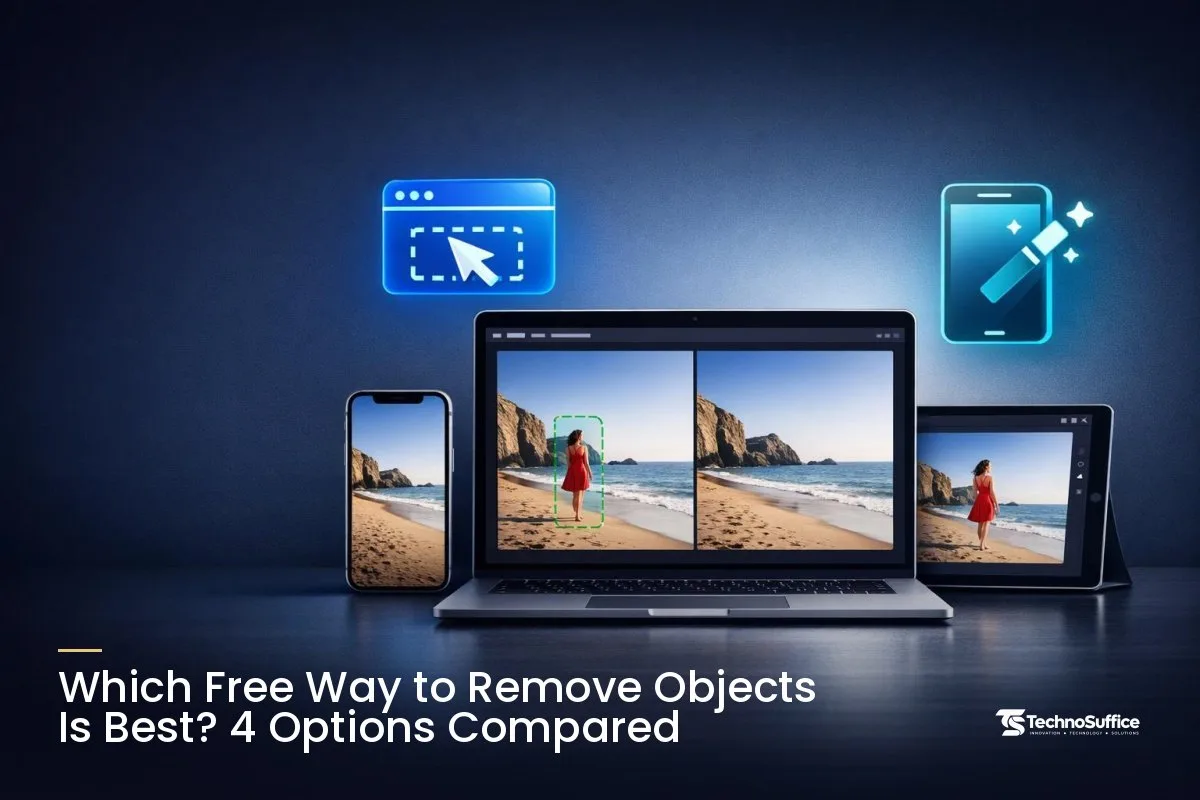
Which Free Way to Remove Objects Is Best? 4 Options Compared
For most people, a browser tool that runs on your own device is the easiest pick. It works on a phone or a computer, and your photo stays private. The phone built-ins are good too, but only if your device supports them.
| Way | Cost and limits | Sign-up | Works on | Privacy | Best for |
|---|---|---|---|---|---|
| TechnoSuffice Remove Object from Photo | Free, unlimited, no watermark | None | A web browser on a computer or phone (phones process photos at up to 2048 px, or pixels) | Runs on your device. Photos are never uploaded. | Quick, private fixes on any device |
| Google Photos Magic Eraser | Free on some phones. [ADD: verify current Google Photos Magic Eraser access rules for non-Pixel phones] | Uses your Google Photos account | Google Photos app on Android and iPhone | [ADD: confirm from Google whether editing runs on the device or in the cloud] | Photos already saved in Google Photos |
| Apple Photos Clean Up | Built into Photos. Usage limits may apply. | None beyond your Apple device | iPhone 15 Pro, iPhone 15 Pro Max, iPhone 16 and later, plus supported iPads and Macs | [ADD: confirm Apple's statement on how Clean Up processes photos] | Owners of a supported Apple device |
| Other free online removers | Often a few free edits per day or month, or file-size caps | Sometimes required | Browser | Some upload your photo to their server. Check the privacy policy. | A second try on a tough photo |
Way 1: Our Remove Object from Photo tool
Our eraser runs inside your browser, so the AI does its work on your own phone or computer. We don't pay for server time, which is why we can keep it free, unlimited and watermark-free.
It accepts JPG, PNG and WebP files, and you can save the result as JPG or PNG. You'll find the full steps in the next section.
Way 2: Google Photos Magic Eraser
Magic Eraser lives inside the Google Photos app. You mark something in the picture, and the app removes it.
On Android, Google Photos Help says to open the photo, tap Edit, and use Search to find Magic Eraser. Tap, circle or brush the area, then tap Erase. Some editing tools have to download before you can use them.
Google's own editing page describes a slightly different path. There, you tap Edit, then Tools on iPhone or Actions on Android, and choose Magic Eraser. The app may also suggest distractions for you to tap, or you can circle or brush items yourself.
One honest limit: older guides said Magic Eraser was free on Pixel phones but needed a Google One plan on other phones, including iPhone. That may have changed, so check before you count on it. [ADD: verify current Google Photos Magic Eraser access rules for non-Pixel phones]
Way 3: Apple Photos Clean Up
Clean Up is Apple's built-in eraser and part of Apple Intelligence, Apple's set of AI features. According to Apple Support's Clean Up guide, it works on iPhone 15 Pro, iPhone 15 Pro Max, and iPhone 16 and later. It isn't offered in every language or region, and usage limits may apply.
To use it, open a photo in Photos and tap Edit, then Tools, then Clean Up. Tap, brush or circle the item, then tap Done. You can choose Auto, Fast or High Quality processing.
Mac users also get a Retouch tool in Photos, which Apple recommends for small blemishes and dust specks. If a tiny mark doesn't go away on the first try, Apple suggests zooming in and trying again.
Way 4: Other free online removers
Plenty of websites offer a free eraser, and some of them do a good job. But "free" often has strings attached. Check these four things before you upload:
- Limits: a few free edits per day or month, then a paywall.
- File size: small caps that can block large phone photos.
- Sign-up: an account you must create before you can download.
- Uploads: your photo may go to their server. Read what they do with it.
How to Remove an Object from a Photo for Free, Step by Step
The whole process takes five steps: open the tool, add your photo, paint, check, and download. Each step names the controls you'll see on the page.
Step 1: Open the tool and let the AI load
Go to our free object remover. On your first visit, the MI-GAN model (about 30 MB) downloads one time. Your browser then saves a copy, so the model doesn't need to download again on later visits.
Step 2: Upload or paste your photo
Drag a photo onto the upload area, or click it to pick a file from your device. [ADD: confirm the exact upload button label shown on the tool page] On a computer, you can also paste a copied image with Ctrl + V. JPG, PNG and WebP files all work.
Step 3: Set the brush size and paint over the object
Move the Brush size control until the brush roughly matches the object. Then paint over the whole thing, including its shadow. When you lift your finger or mouse, the AI removes what you covered.
Step 4: Clean up leftovers and compare
If a faint edge or smudge is left, paint over it again. Made a mistake? Use Undo and Redo as often as you like.
Next, press and hold Hold to compare to flip between your edit and the original. This is the fastest way to spot repeated patterns or soft patches.
Step 5: Download your clean photo
Download the result as a JPG or a PNG. JPG files are smaller, which suits social posts and email. PNG files keep fine detail without extra compression.
To edit a new picture, click Another photo. To reset the current one, click Start over.
How Does AI Object Removal Work?
The AI studies the pixels around the area you painted and predicts what was behind the object. Then it fills that prediction in. Pixels are the tiny colored dots that make up every digital picture.
This process is called inpainting. Our tool uses a model called MI-GAN. A GAN (generative adversarial network) is an AI with two parts that train together. One part draws, and the other judges whether the drawing looks real, so the drawings keep getting more convincing.
According to the MI-GAN research paper (ICCV 2023), Picsart AI Research and SHI Labs built it to run efficiently on mobile devices. That small size is what lets it work in your browser instead of on a server.
Before AI, people did this job by hand with tools like the clone stamp or healing brush. You copied a nearby patch of the photo over the object, which took time and real skill. With inpainting, you only mark the area, and the AI handles the fill.
How Do I Remove a Person from a Photo for Free?
Paint over the whole person, including their shadow, and let the AI fill the gap. You'll get the best result when the person stands in front of something plain.
Best case: a simple background
A tourist on a beach, a jogger on a road, or a stranger against a plain wall are easy wins. The AI only has to rebuild sand, asphalt or paint. Our tool works best on simple backgrounds like sky, grass, walls, sand and roads.
Crowds and group shots: one person at a time
Want to clear out several photobombers, the people who wander into your shot? Remove them one at a time rather than all at once. After each one, check the result before you move on.
Smaller edits leave more real background around the gap. That gives the AI better material to work from.
Faces and overlapping people
Take care near the people you want to keep. If your brush touches their face or hair, the AI may smudge it. Apple gives a similar warning in its guide to Apple Intelligence in Photos: brushing over a face with Clean Up may blur it with a pixelated effect.
When strangers overlap your friends, expect several passes and use Undo freely. If you only need to hide a face, our guide on how to blur faces in photos for free may be a better fit.
How to Remove Text, Dates and Logos from an Image
Paint over the text or logo the same way you would any other object. Small marks on plain areas come off cleanly. Large banners, or text over busy patterns, take more passes.
Your own photos only
This works well for old date stamps from a camera, a caption you added, or a sticker on a product. It's also useful for tidying your own screenshots and graphics before you post them.
Small marks versus big banners
A small date in the corner over grass or sky is the easiest case. Text that crosses a face, a pattern or fine detail is much harder, because the AI has to invent more of the picture.
In those cases, the fill can look soft. Work in small sections and compare often.
A word on watermarks and copyright
A watermark is a logo or line of text added to show who owns an image. Our tool can remove small marks, but please use it only on images you own or have permission to change. Removing a watermark from someone else's photo can break copyright rules. [ADD: optional link to an official US Copyright Office page on removing copyright management information]
How Do You Remove Power Lines from a Photo?
Use a small brush, paint each wire in short sections, and repeat until the line is gone. Wires against open sky are usually the easiest to remove, because sky is a simple background.
Why thin lines on sky are easier
A clear or cloudy sky has little detail. The AI only needs to match color and soft shading, so the fill tends to blend in. Wires that cross trees, roofs or buildings are tougher and may need extra passes.
Short strokes, small brush, repeat
Lower the Brush size until it's just wider than the wire. Paint one section, lift, and check it before you start the next one.
One long stroke across the whole photo hands the AI a large area to rebuild in one go. Short strokes keep each fill small, and small fills usually look cleaner.
Real estate example
For example, a front-yard listing photo might show overhead wires, trash bins and a parked car. Remove the bins first, then the wires, one at a time.
Keep your edits honest, though. Clearing clutter is fine, but don't hide real features of the property that a buyer should know about.
Common Mistakes and How to Fix Them
Most blurry or smudged results trace back to a handful of habits. Here's what goes wrong and how to fix it.
| Mistake | What you see | Fix |
|---|---|---|
| Brush too tight around the object | A thin outline or "ghost" stays behind | Paint a little past the edges |
| Shadow left out | A dark patch with nothing casting it | Paint over the shadow too |
| One huge stroke on a busy background | Smeared or repeated patterns | Work in small sections and check each one |
| Brushing across a face you want to keep | A soft or distorted face | Undo and paint around the face carefully |
| Editing the only copy | No way back if you change your mind | Keep the original file and save the edit as a new one |
| Expecting one pass to be perfect | Small leftovers | Paint over leftovers again, then Hold to compare |
Pro Tips for a Clean, Natural Result
Clean results come from small passes, careful edges and a quick check before you download. These habits make the biggest difference.
- Size the photo first. On phones, our tool works at up to 2048 px. If your photo is much bigger, shrink it first with our free Image Resizer so you decide the final size.
- Compress after you edit. Posting it on your website? Run the finished JPG through our Image Compressor so the page loads faster.
- Zoom out before you judge. A patch that looks odd up close often vanishes at normal viewing size.
- Use Hold to compare often. It's the quickest way to catch a smudge your eyes have stopped noticing.
- Know when to stop. If a large object on a busy background won't come out clean, cropping may be the better fix.
Is It Safe to Use a Free Object Remover?
With our tool, yes, because your photo is never uploaded. The AI runs on your own device, and the only download is the AI model itself, one time.
On-device processing versus uploading
Some online erasers send your photo to their own server to do the work. That isn't always a problem, but you're trusting a company with your picture.
On-device processing means the AI runs on your phone or computer, so the photo never has to travel. That matters most for family photos, ID-style pictures and client work.
Only edit what you're allowed to edit
Privacy is one half of safety. The other half is respecting other people's work, so stick to your own photos or images you have permission to change.
How to Avoid the Problem Next Time
A few seconds of planning when you take the photo can save you the edit later.
- Change your angle. Step to the side or crouch down so a wire or sign falls out of the frame.
- Wait for a gap. At a busy landmark, people come and go. Wait for a clearer moment, then shoot.
- Take a spare clean shot. Snap one extra photo of the background on its own. It gives you options later.
- Keep your subject away from wires and poles. A small step forward can stop a pole from "growing" out of someone's head.
Frequently Asked Questions
Is the tool really free, with no watermark or sign-up?
Yes. It's free and unlimited, with no watermark and no account. The AI runs in your own browser, so there's no server cost to pass on to you.
Are my photos uploaded?
No, your photos stay on your device. Only the AI model (about 30 MB) downloads once, and your browser keeps it for next time.
Can it remove watermarks?
It can remove small marks, dates and logos from your own photos. Please don't use it on images you don't own or don't have permission to change.
Does it work on my phone?
Yes. Open the tool in your phone's browser and paint with your finger. On phones, photos are processed at up to 2048 px.
Why does the removed area look blurry or smudged?
Usually the background was busy or the area was large. Paint over the leftovers again in smaller sections, and include any shadow. Simple backgrounds like sky, sand or walls give the cleanest fills.
Which phones have a built-in object remover?
Apple's Clean Up runs on iPhone 15 Pro, iPhone 15 Pro Max, iPhone 16 and later, plus supported iPads and Macs. Google Photos offers Magic Eraser, but access on non-Pixel phones may depend on your plan. [ADD: verify current Google Photos Magic Eraser access rules for non-Pixel phones]
Next Step: Clean Up Your Photo, or Build Something Bigger
For a quick, private fix, open our free Remove Object from Photo tool and paint over what you want gone. There's no sign-up, no watermark, and nothing leaves your device.
Would a feature like this help your own website or app? Our web development team builds custom web apps for clients worldwide. Every project gets a dedicated team, a project manager and weekly demos, so you see real progress every week.
We build SEO and fast page speed in from day one, and we stay with you after launch with maintenance and support. After a free discovery call, you get a fixed quote with clear milestones and no hidden costs.
Request a Free Quote and tell us what you'd like to build. Our team replies within one business day.