Quick answer: add page numbers to a PDF and skip the cover page
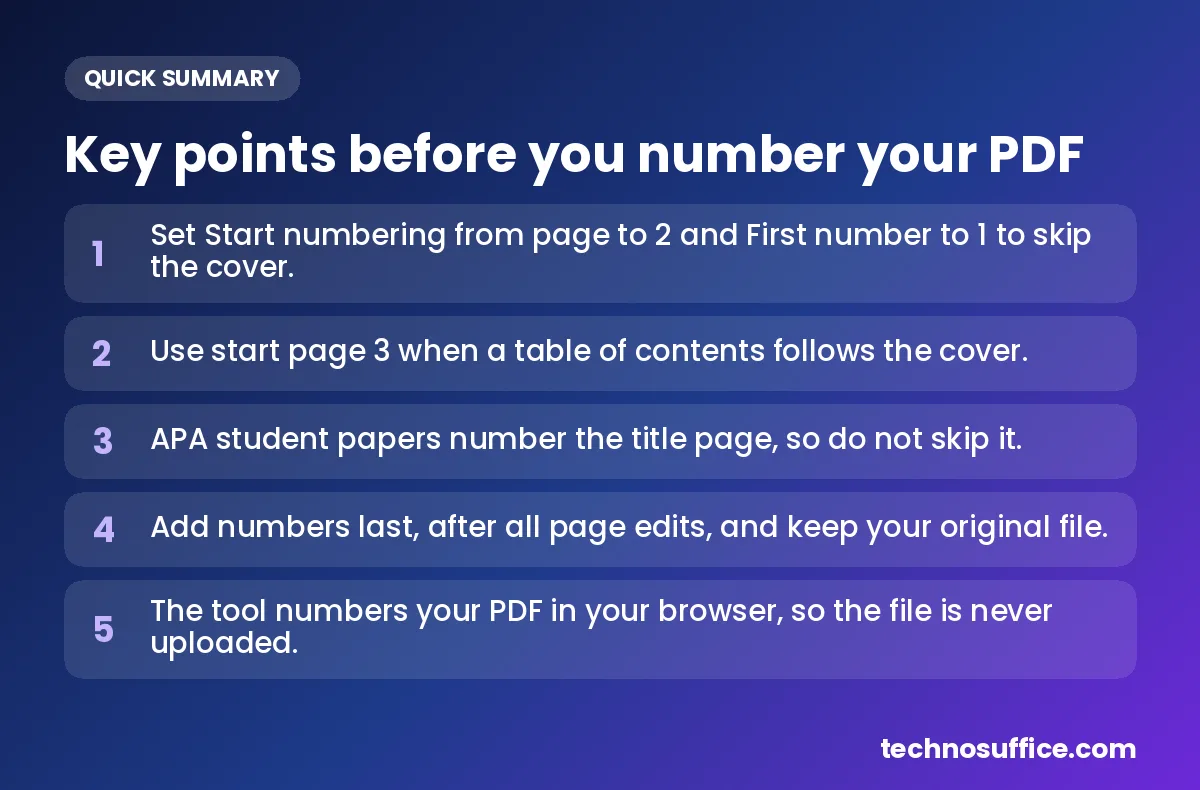
To add page numbers to a PDF and skip the cover page, set Start numbering from page to 2 and First number to 1. Your cover stays clean, and the second page shows the number 1. You can do this in our free Add Page Numbers to PDF tool, right in your browser.
You don't need Adobe Acrobat or an account for this. The tool runs on your own device, so your report, thesis or contract is never uploaded. Pick a position, pick a format, check the preview and download.
Here are the most common setups in one place:
| What you want | Start numbering from page | First number |
|---|---|---|
| No number on the cover, page 2 shows "1" | 2 | 1 |
| No number on the cover, page 2 shows "2" | 2 | 2 |
| Skip the cover and the table of contents | 3 | 1 |
| Number every page, cover included (APA papers) | 1 | 1 |
| This file continues one that ended on page 4 | 1 | 5 |
How to add page numbers to a PDF for free (step by step)
The whole job takes four steps. Each one below uses the real labels you'll see on the tool page.
Step 1: Drop your PDF
Open the free PDF page numbering tool. Drag your file onto the box that says "Drop a PDF here," or click browse to pick it from your folders. Use the final version of your document, because numbers should be the last thing you add.
Step 2: Pick a position and a format
Under Position, you get six choices: top or bottom, each with left, center or right. For most reports, bottom center is a safe pick. Under Format, choose one of these styles:
1— just the numberPage 1— the word "Page" plus the number1 / 10or1 of 10— the number and the total pagesPage 1 of 10— the full version, popular for contracts- 1 -— the number with dashes on each side, common in books
Step 3: Set the start page and first number
This is the step that skips your cover. Type 2 into Start numbering from page. Then type the number you want that page to show into First number. Most people want 1 here. Always type it in yourself instead of trusting the default, so you know exactly what you'll get.
While you're here, set the Font size, Color and Margin (pt). The margin is the space between the page edge and the number. "pt" means points, and 72 points make one inch. For Font, you can choose Helvetica, Helvetica Bold, Times or Courier.
Step 4: Preview, then download
Click Preview to see how the number looks on your first page. If the size or spot looks wrong, change it and preview again. When you're happy, click Add page numbers and the numbered PDF downloads.
[ADD: confirm whether Preview shows physical page 1 or the first numbered page when the cover is skipped. If it shows the cover, tell readers a blank cover in the preview is expected.]
Check the result before you send it
Open the downloaded file and take one minute to look it over:
- The cover has no number on it.
- The first numbered page shows the number you expected.
- The last page shows the right final number.
- No number sits on top of text, a logo or an old page number.
- The number is easy to read when you zoom in or print a test page.
Start page vs first number: how the two settings work
Most confusion comes from mixing up two different ideas. The physical page is where a page sits in the file: 1st, 2nd, 3rd. The displayed number is what gets printed on that page. They don't have to match.
Start numbering from page controls the physical page. It decides which page gets the first number. Every page before it stays blank. First number controls the displayed number. It decides what that first numbered page says. Every page after it counts up by one.
The tool adds the numbers on top of your existing pages. It doesn't rewrite your text or images. Once you download, though, the numbers are part of the new file. So keep your original. If you need to change something later, go back to the clean original and number it again.
Cover only: start on page 2
A small business proposal has a cover, then six pages of content. Set the start page to 2 and the first number to 1. The cover stays clean, and the content runs 1 to 6.
Cover and table of contents: start on page 3
An ebook has a cover on page 1 and a table of contents (the list of sections) on page 2. You want chapter one to be page 1. Set the start page to 3 and the first number to 1. Both front pages stay unnumbered.
Continuing another file: first number 5
Say your report is split into two PDFs, and part one ends on page 4. When you number part two, set the start page to 1 and the first number to 5. Part two then picks up right where part one stopped.
How "Page 1 of 10" counts the total
When you skip the cover, check the total in the "of" part. A 10-page file with an unnumbered cover has 9 numbered pages. Some tools still count the cover in the total, so the last page could read "9 of 10."
[ADD: confirm in the tool whether the total in "1 of 10" and "Page 1 of 10" counts pages before the start page, then state the result here.]
Where should page numbers go? A quick decision table
There's no single correct spot. The table below shows common practice for US documents, not strict rules. If your school, employer or client has a style guide, follow that instead.
| Document | Position | Format | Start page |
|---|---|---|---|
| Business report or proposal | Bottom center or bottom right | 1 or Page 1 | 2 |
| Printed and bound on the left | Bottom right | 1 | 2 |
| Contract or agreement | Bottom center | Page 1 of 10 | Check the agreement's own style |
| Ebook or guide with a contents page | Bottom center | 1 or - 1 - | 3 |
| APA student paper | Top right | 1 | 1 (title page is numbered) |
Bottom center
This is the most neutral choice. It works for reports, guides and ebooks, and it rarely collides with headings. If you're unsure, start here.
Bottom right for printed, left-bound pages
When pages are stapled or bound on the left, readers flip from the right edge. A number in the bottom right corner is easy to spot while flipping.
Top right, and why APA is different
The top right is the APA spot for student papers. Outside of APA, be careful with it. Many documents already have a header there, such as a logo, a date or a title. Your new number could land right on top of it.
Which format fits?
Use a plain 1 for clean, simple documents. Use Page 1 of 10 for contracts and forms, because the total shows the reader that no page is missing. The - 1 - style looks a bit more like a printed book.
Font, size, color and margin tips
- Match the font to your document. Times suits classic reports. Helvetica suits modern ones.
- Keep the number smaller than your body text, but large enough to read on a printed page.
- Use black or dark gray. Light colors can vanish when printed.
- Increase the margin if the number gets close to your text. Lower it if the number sits too far inside the page.
- On scanned pages (PDFs made from photos of paper), go a little bigger. Small numbers can get lost in a gray, grainy scan.
Skip the cover, but not always: APA and school rules
Skipping the cover is common for reports and ebooks. School papers often work differently. The APA Style page header rules say the page number goes in the top right of every page, and the title page is page 1. So if you're writing an APA student paper, don't skip the cover. Set the start page to 1, the first number to 1 and the position to top right.
APA student papers also don't need a running head, which is a short title in the header. The page number alone is enough. Other schools, theses and companies may have their own rules. Check your instructor's or employer's guide before you number anything. It takes two minutes and saves you a resubmission.
How to number PDF pages without Acrobat
The Acrobat way
Adobe Acrobat is paid desktop software. Per Adobe's page number help page, you open the PDF, choose Edit, then Header and footer, then Add. From there, Page Number and Date Format lets you set the format and the starting number. If the file already has a header or footer, Acrobat asks whether to replace it or add a new one. Adobe's own guidance says this feature needs Acrobat Pro in the desktop app.
Free browser tool vs paid desktop software
| Feature | Our free tool | Acrobat Pro |
|---|---|---|
| Cost | Free | Paid |
| Install or account | None, runs in your browser | Desktop app and subscription |
| Skip the cover | Yes, with Start numbering from page | Yes, with page range options |
| Page 1 of 10 format | Yes | Yes |
| Roman numerals (i, ii, iii) | No | Yes, through page labels |
| Bates numbering (legal page IDs) | No | Yes |
To be honest about it: if you need Bates numbering for legal files, our tool isn't built for that. Bates numbering is a page ID system with a prefix and a fixed number of digits. For normal page numbers on reports, papers and proposals, the free tool covers what most people need.
Page labels vs numbers printed on the page
A PDF viewer has a small box that shows the current page, like "3 / 12." That box can show page labels, which are names stored inside the file. The PDF Association's page labels guide explains that labels can use normal numbers, Roman numerals or letters. If a file has no labels, the viewer just counts pages from 1. The PDF Association also notes that ISO's own PDF standard uses Roman numerals for its front matter and normal numbers for the main text.
Labels and printed numbers are separate things. Labels only change what the viewer box shows. They don't print on paper. Our tool prints visible numbers on the page itself. The tool page doesn't mention page labels, so your viewer's page box will likely still count 1, 2, 3 from the cover.
Common mistakes and how to fix them
| Problem | Likely cause | Fix |
|---|---|---|
| Numbers are wrong after edits | Pages were added, deleted or moved after numbering | Number the clean original again after the final edits |
| Two numbers on each page | The PDF already had page numbers in that spot | Choose a different position, or number the original source file before export |
| Number covers header text | Top position used on a page with a header | Switch to a bottom position |
| Number cut off when printed | Margin too small | Raise the Margin (pt) value and preview again |
| Cover has a number | Start page left at 1 | Set Start numbering from page to 2 |
| Wrong first number | First number left at a value you didn't check | Type the number you want into First number |
| Some pages are sideways | Pages saved in the wrong orientation | Fix them with Rotate PDF first, then number |
A few habits prevent most of these:
- Add numbers last. Numbers don't update themselves when pages move.
- Keep an unnumbered copy of your file.
- Always click Preview before you download.
- Check the first and last page of the downloaded file.
Roman numerals for front matter: the workaround
Front matter means the pages before the main text, like a preface or contents page. Some books number them i, ii, iii. Our tool doesn't offer Roman numerals. The simplest fix is to leave front matter unnumbered and start the normal numbers on the first content page.
If you need different setups for different parts, use Split PDF to separate the front pages from the main body. Number each part with its own settings, then join them back together with Merge PDF. Just remember that the front pages still won't get Roman numerals from our tool.
Is your file safe? Privacy notes
The tool numbers your file inside your browser. In the tool page's own words, "your PDF is never uploaded." That matters for contracts, HR files, medical forms and unpublished theses. Your file stays on your device the whole time.
Your content stays the same, too. The numbers sit on top of your existing pages. Text stays selectable, and quality doesn't change.
Related PDF tools
- Merge PDF — join chapters or sections into one file before you number it.
- Split PDF — pull out pages or separate front matter.
- Rotate PDF — fix sideways pages so numbers land in the right spot.
- Compress PDF — make the finished file small enough to send. Our guide on how to compress a PDF for email walks through it.
Frequently Asked Questions
How do I skip the first page when numbering a PDF?
Set Start numbering from page to 2. The cover stays without a number. Then set First number to 1 if you want the second page to show "1," or to 2 if you want it to show "2."
How do I start page numbers on page 3 of a PDF?
Set the start page to 3 and the first number to 1. This is the usual setup when a cover is followed by a table of contents. Both front pages stay clean, and your first content page shows 1.
Will adding page numbers change my content?
No. The numbers are added on top of your existing pages. Your text stays selectable, and image quality stays the same. Still, keep your original file in case you want to renumber later.
Can I add page numbers to a scanned PDF?
A scanned PDF is made from photos of paper pages. Numbers are placed on top of each page, so a scan is handled like any other page. Use a slightly larger font and a dark color so the number stands out against the gray background. [ADD: confirm scanned PDF support in the tool before publishing.]
What if my PDF already has page numbers?
The tool doesn't remove old numbers. If you add new ones in the same spot, they'll overlap. Pick a different position, or go back to the source file (like your Word document), remove the old numbers there and export a fresh PDF.
Is the tool free and private?
Yes. It's completely free, with no sign-up and no watermark. Your PDF is numbered in your browser and never uploaded to a server.
Does an APA title page get a page number?
Yes. In APA style, the title page is page 1, and the number sits in the top right corner. So don't skip the cover for an APA paper. Leave the start page at 1.
Next step
Skipping the cover comes down to two boxes: the start page and the first number. Set them, preview the result and check the finished file before you send it. Try our free Add Page Numbers to PDF tool — no sign-up needed.
Tired of sending PDFs back and forth? We build simple online forms, portals and automations that replace paperwork for businesses worldwide. Every project gets a dedicated team, weekly demos and a fixed quote after a free discovery call, plus support after launch. See our web development services and Request a Free Quote.