To find a YouTube channel ID, look for a code that starts with UC. If you own the channel, it's in Settings > Advanced settings. For any other channel, copy it from the Share channel menu or paste the channel link into a free finder tool.
That's how to find YouTube channel ID codes in short. Why bother? Apps, feeds and the YouTube API look up channels by this code, not by your channel name or @handle.
The fastest route for most people is our free YouTube Channel ID Finder. Paste a channel link or @handle, and it looks up the UC code for you. It works in your browser and needs no sign-up.
Still, there are six ways to get the ID, and each one fits a different situation. Below we compare them side by side. Pick the one that matches what you have right now: your own login, an @handle, a channel link or just a video.
Where Is a YouTube Channel ID?
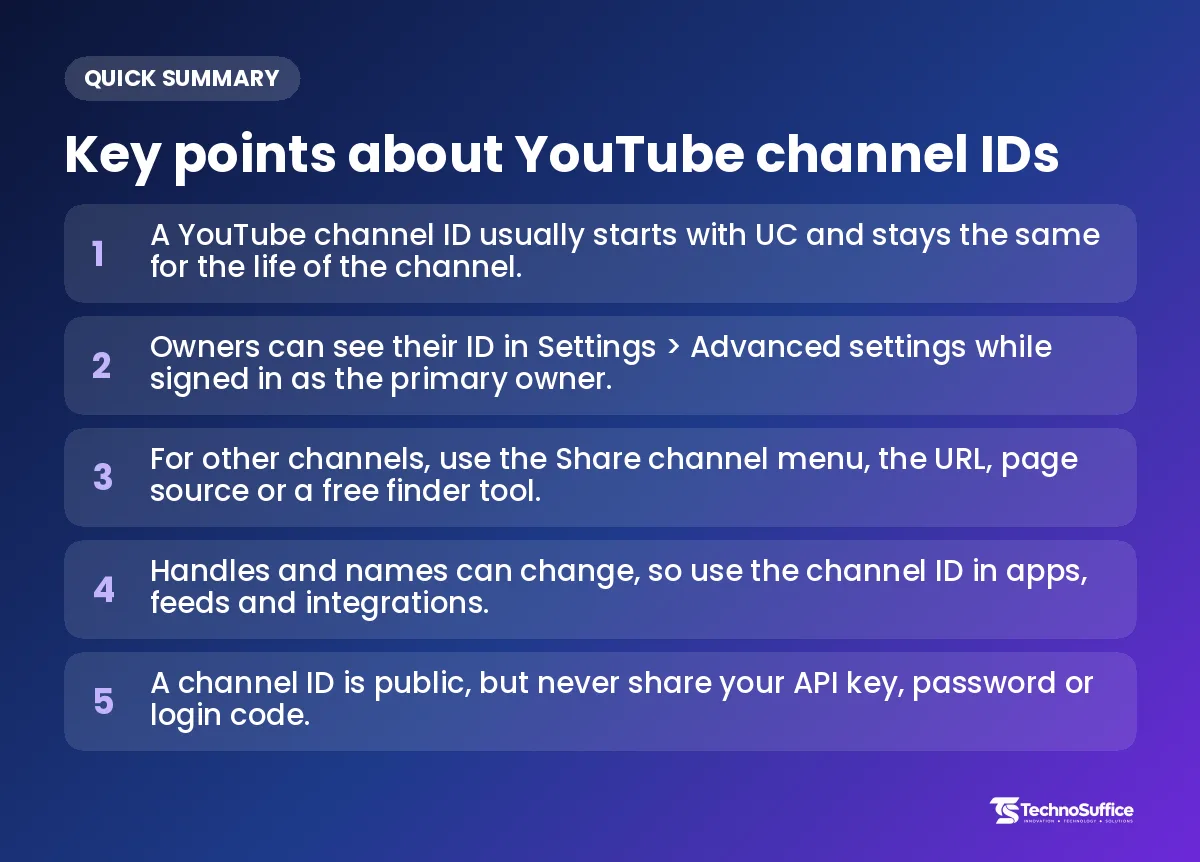
You'll find a channel ID in your Advanced settings, in some channel URLs, in the channel's Share menu and in the page's code. YouTube gives every channel one. According to YouTube Help, apps and services use it to refer to the channel.
What the ID looks like
A channel ID usually starts with UC and is 24 characters long. Here is a real one, from Google's official YouTube channel:
UCK8sQmJBp8GCxrOtXWBpyEA
Count it, and you'll get UC plus 22 more letters and numbers. Why does YouTube need a code like this at all? Picture a car's VIN, the serial number stamped on the frame. The paint and the license plate can change, but the VIN stays the same. A channel works the same way: the name and @handle can change, but the ID stays put.
Quick verdict
- Your own channel: use Settings > Advanced settings. It's the official route.
- Someone else's channel: use a free finder tool or the Share channel menu.
- You build apps: use the YouTube Data API.
Six Methods Compared Side by Side
All six methods are free. What sets them apart is whether you need to log in, how many clicks they take and how well they work on a phone.
| Method | Works for | Login needed? | Cost | Works on phone? | Best for |
|---|---|---|---|---|---|
| Advanced settings | Your own channel only | Yes, as primary owner | Free | Yes, in a mobile browser | Owners who want the official answer |
| Read the URL | Any channel with a /channel/UC... link | No | Free | Yes | The quickest check when the link already shows it |
| Share channel > Copy channel ID | Any channel | No | Free | Sometimes (menus vary) | Finding any channel's ID without extra tools |
| Free finder tool | Any channel | No | Free | Yes | Pasting an @handle or channel link |
| View page source | Any channel or video | No | Free | Hard on phones | Backup when menus change |
| YouTube Data API | Any channel | API key (sign-in for your own) | Free, with usage limits | Not really | Developers and bulk lookups |
How to Find YouTube Channel ID for Your Own Channel
Sign in, open your profile picture, then go to Settings > Advanced settings. Your channel ID and user ID are both listed there.
Method 1: Settings > Advanced settings
- Go to youtube.com and sign in.
- Click your profile picture in the top right corner.
- Click Settings.
- In the left menu, click Advanced settings.
- Click Copy next to your channel ID.
YouTube's official help page on user and channel IDs says you must be signed in as the channel's primary owner. That's the main account that owns the channel, not a manager or editor. The same page says this works in a computer or mobile browser.
Pros: official, exact, and you can't pick the wrong channel. Cons: owners only, and you'll see the wrong ID (or none) if you're signed in to the wrong account.
The YouTube Studio route
YouTube Studio is the dashboard where creators upload videos and manage their channel. It's where you change your channel name and handle, under Customization > Profile. For the ID itself, YouTube Help points to the Settings page on youtube.com, so Method 1 is the safer bet.
Can't see Advanced settings or your ID?
Two common reasons cause this.
- You're not the primary owner. YouTube says only the primary owner can use this page. A manager can run the channel day to day, so ask the owner to copy the ID for you.
- You're on the wrong account. Many channels live on a Brand Account, a channel account a team can share that sits apart from your personal Google login. Click your profile picture, choose Switch account and pick the channel. Then open Advanced settings again.
How to Find the Channel ID of Any Other Channel
For a channel you don't own, read the URL, use the Share channel menu, paste the link into a finder tool or search the page source. None of these need a login.
Method 2: Find the channel ID from the URL
Open the channel and look at the address bar. If the link looks like youtube.com/channel/UC..., the part after /channel/ is the ID. Copy it and you're done.
Most channels now show an @handle link instead, like youtube.com/@name. Older ones may show /c/Name (a custom URL) or /user/name (a legacy username from early YouTube accounts). These links are like a street nickname for a building: handy for people, but the official address is the UC code behind them. To see that code, you need one of the other methods.
Pros: instant. Cons: only works when the link already shows /channel/.
Method 3: Share channel > Copy channel ID
- Open the channel page.
- Click the channel description or the "more" link to open the About panel.
- Scroll down and click Share channel.
- Choose Copy channel ID.
Help pages from tools such as IFTTT describe this menu. YouTube's own help page doesn't list it, so the labels may change over time.
Pros: built into YouTube, no extra tools. Cons: the menu can move between updates and devices.
Method 4: Use a YouTube channel ID finder
A YouTube channel ID finder turns an @handle or channel link into the UC code. It's the easiest way to get a YouTube channel ID from a handle, because you skip the menus completely.
- Copy the channel link or the @handle. If you only have a video, click the channel name under it first and copy that link.
- Open the free YouTube Channel ID Finder.
- Paste the link or handle into the box.
- Start the lookup.
- Check that the channel name in the result is the one you meant, then copy the ID.
Pros: fast, mobile-friendly and happy with messy links. Cons: a typo in a handle can return a different channel, so always check the name in the result.
Method 5: View page source
Page source is the raw code behind a web page, a bit like looking under the hood of a car. Open the channel or one of its videos on a computer. In Chrome, press Ctrl+U on Windows or Cmd+Option+U on a Mac.
Next, press Ctrl+F (or Cmd+F) and search for channelId or externalId. The UC code usually appears right after it.
This also solves the video case. If all you have is a video link, its page source holds the uploader's channel ID. Or simply click the channel name under the video and use Method 3 or 4.
Pros: keeps working when menus change. Cons: a wall of code on screen, and it's awkward on a phone.
How to Find a YouTube Channel ID on Mobile
On a phone, a browser works best. Use Advanced settings for your own channel, or a finder tool for any channel. The app can work too, but its menus vary.
Phone browser with desktop site
Open Chrome or Safari, go to youtube.com and sign in. If you can't find the settings menu, turn on desktop site mode, which shows the full computer version of a site. In Chrome on Android, it's in the three-dot menu. In Safari on iPhone, it's in the page menu in the address bar.
Then follow Method 1. YouTube Help confirms that the Advanced settings route works in a mobile browser.
YouTube app and Studio app
The YouTube app doesn't always show a channel ID option. On some versions, you can open a channel, tap the description or "more" and find a Share option. Labels differ between Android and iPhone and change with updates, which is why we suggest the browser route first.
Copy a share link and paste it into a lookup
This is the most reliable way to get a YouTube channel ID on mobile for any channel. In the YouTube app, open the channel, tap Share, then tap Copy link. Open a finder tool in your browser and paste it. The steps are the same on Android and iPhone.
Channel ID vs Handle vs User ID: What's the Difference?
The channel ID is the fixed code that apps use. The handle, name and custom URL are public labels: some can change, and some don't point to one exact channel.
| Identifier | Example format | Can it change? | Use it in apps? |
|---|---|---|---|
| Channel ID | Usually UC + 22 characters | No | Yes, this is the one |
| Handle | @name | Yes | Only if the tool asks for it |
| Custom URL | /c/Name | Older format | No |
| Legacy username | /user/name | Older format | Only in the API's forUsername option |
| Channel name | The title people see | Yes | No, names aren't unique |
| User ID | Shown in Advanced settings | No | Rarely |
Why handles change but the ID stays
The YouTube Help page on managing your channel profile says you can change your channel name and your handle twice each within a 14-day period. Both live in YouTube Studio > Customization > Profile. The same page warns that changing your channel name removes your verification badge.
So why does this matter for your tools? A label that can change twice in two weeks is a poor anchor for an automation. It's like mailing letters to someone's nickname instead of their address. The ID never moves, so feeds built on it keep working after a rebrand.
YouTube user ID vs channel ID
Advanced settings shows two codes: a user ID and a channel ID. They are different fields. Almost every tool, feed and form asks for the channel ID, the one that starts with UC. If a form rejects your code, check that you didn't copy the user ID by mistake.
Where Do You Use a YouTube Channel ID?
You paste a channel ID into tools that need to follow or show one exact channel. That includes feeds, automations, website embeds, music forms and the YouTube API.
RSS and automation tools
An RSS feed is a web feed that lists new videos so other apps can follow a channel. YouTube builds it from the channel ID, like this: youtube.com/feeds/videos.xml?channel_id=UC.... Automation services such as IFTTT ask for the ID too. For example, a creator in Texas could send every new upload to a Discord server or a newsletter without lifting a finger.
Embeds and WordPress feeds
A small business might want its latest videos on its homepage. WordPress video-feed plugins usually ask for the channel ID to know which channel to pull from. For single videos, our YouTube Embed Code Generator creates the embed code for you.
Official Artist Channel and analytics
Musicians may be asked for the ID when they request an Official Artist Channel, often through their music distributor. Analytics dashboards and sponsorship platforms can ask for it too, so they match the right channel and not a lookalike.
YouTube Data API
An API is a way for one app to ask another for data, a bit like ordering at a counter. The YouTube Data API is Google's counter for YouTube data, and it identifies channels only by ID. The YouTube Data API channels.list docs describe a forHandle parameter that turns a handle into channel data, and the value can start with @.
The id field in the result holds the channel ID. A request looks like this:
GET https://www.googleapis.com/youtube/v3/channels?part=id&forHandle=@GoogleDevelopers&key=YOUR_API_KEY
The same method offers forUsername for legacy usernames and mine=true for the signed-in user's own channel. Use only one of these filters per request, because the docs say mixing them returns an error. An API key is a secret code that lets your app talk to the API, so keep it out of public code.
Which Method Should You Choose?
Start with what you already have in hand, then pick the matching method.
- You own the channel and can sign in: use Advanced settings.
- The link shows /channel/UC...: copy the end of the URL.
- You have an @handle, /c/ or /user/ link: use a finder tool or the Share channel menu.
- You only have a video link: open the channel from the video, then use a finder or the Share menu.
- You're on a phone: copy the share link, then paste it into a finder in your browser.
- You need hundreds of IDs: use the API with forHandle.
- Nothing else works: search the page source for channelId.
Common Mistakes and Safety Tips
Most problems come from copying the wrong code or checking the wrong channel. A quick check before you paste catches almost all of them.
Wrong ID or wrong channel
- Copying the name or @handle instead of the UC code. If it doesn't start with UC, it's probably not the channel ID.
- Picking a lookalike channel. Fan pages and reupload channels often use similar names.
- Checking your personal account instead of the Brand Account. Switch to the channel first.
- Extra spaces or missing characters. Pasting can add a space at the end or cut off a letter.
- Mixing up the user ID and the channel ID. Most forms want the UC one.
To test an ID, type youtube.com/channel/ followed by the code into your browser. If the right channel opens, the ID is correct.
Public ID vs private API key and login
A channel ID is public. It shows up in channel links and feeds, so sharing it carries little risk. Your password, login codes and API key are different, and you should never share them.
Be wary of any finder that asks you to sign in with Google just to look up a public channel. A lookup doesn't need access to your account. For stronger account protection, read our guide on how long a password should be.
Save the ID so you don't redo it
Store the ID in a note or spreadsheet next to the channel name. Use the ID, not the handle, in every integration so a rebrand won't break it. After a handle change, open youtube.com/channel/ plus the ID once to confirm everything still points to the right place.
Next Step for Creators: Estimate Your Earnings
Once your channel is hooked up to feeds and tools, a common next question is what it might earn. Our free YouTube Money Calculator gives a quick estimate from views and RPM. For the formula behind it, see how much YouTube pays per 1,000 views.
If you want your videos on a fast-loading website that brings in leads, that's where we come in. Our web development team builds sites with SEO and page speed set up from day one. You get a dedicated project manager, weekly demos and post-launch support and maintenance.
We work with clients worldwide. Every project starts with a free discovery call and a fixed quote, with no hidden costs.
Frequently Asked Questions
How do I find a YouTube channel ID on mobile?
For your own channel, open youtube.com in your phone's browser and go to Settings > Advanced settings. For someone else's channel, copy the channel's share link from the app and paste it into a finder tool.
How do I find the YouTube channel ID of others?
Open their channel and use Share channel > Copy channel ID, or paste their link into a finder. If their URL already shows /channel/UC..., the ID is right there.
How do I find a YouTube channel ID without logging in?
Every method except Advanced settings works without a login. That includes the URL, the Share menu, a finder tool and page source. You only need to sign in to see your own ID in settings.
How do I find a YouTube channel ID on PC?
On a computer, use Advanced settings for your own channel. For other channels, a finder tool or the Ctrl+U page source trick is the quickest route.
Can a YouTube channel ID change?
No, the channel ID stays the same for the life of the channel. Names and handles can change, but the UC code doesn't.
Is the user ID the same as the channel ID?
No, they're two separate codes shown in Advanced settings. Most apps and forms want the channel ID that starts with UC.
Is my YouTube channel ID private or safe to share?
Your channel ID is public, so sharing it is generally safe. Keep your password, login codes and any API keys private.
Conclusion
Finding a channel ID is quick once you know where to look. Owners should use Advanced settings. For anyone else's channel, the Share menu or a finder does the job, and the API suits developers.
Before you paste the code anywhere, check that it starts with UC and opens the right channel. The fastest option is our free YouTube Channel ID Finder, so give it a try with your next lookup.
Want a website that shows off your videos and loads fast? Request a Free Quote, and our team will reply within one business day.