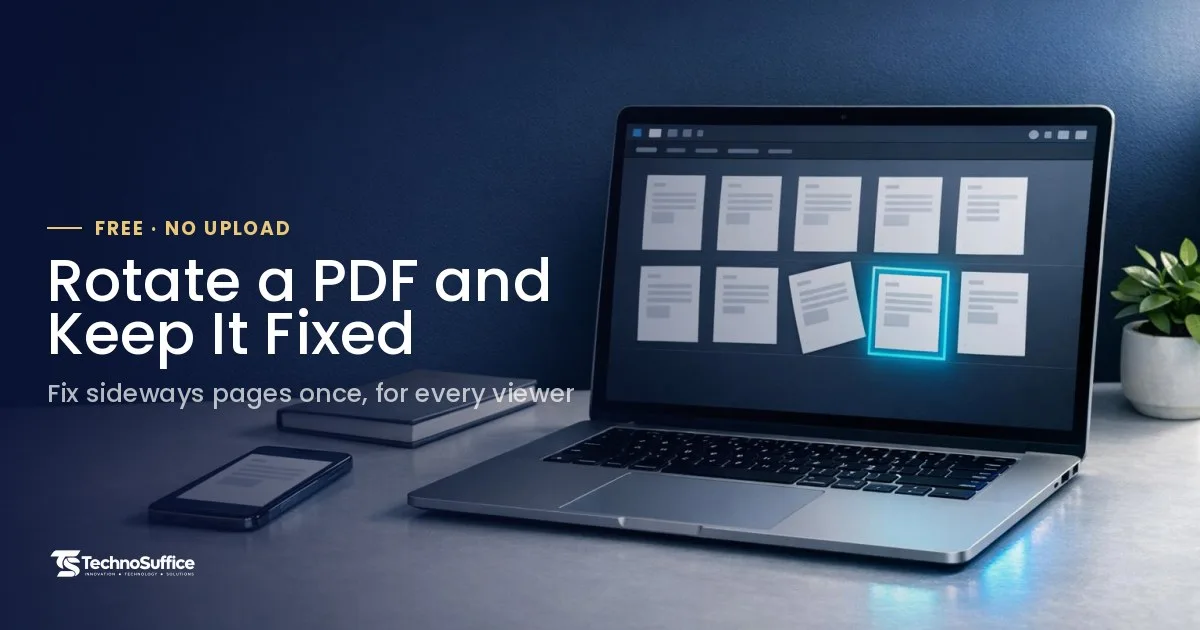
To rotate PDF pages and save them permanently, you have to change the file itself, not just your screen view. Open it in a tool that writes the new angle into the PDF, rotate the pages, then save a new copy. A fix that only lives on your screen disappears when you close the file, and the person you email still gets a sideways page.
The fastest free option is our Rotate PDF tool. It works in your browser, needs no sign-up, and your PDF is never uploaded. Run through the checklist below every time a scan, form or receipt comes out the wrong way.
Quick answer: how to rotate a PDF and save it permanently
Add the PDF, rotate the pages that need it, then click Save rotated PDF. The downloaded file keeps the new angle in any app.
- Add the PDF. Open the Rotate PDF tool and drop your file onto the page, or browse for it. A small preview of every page appears.
- Rotate pages. Use All left, All right or 180° to fix every page at once. To fix a single page, use the arrows under that page's preview.
- Save. Click Save rotated PDF. Then close the new file, reopen it, and check that every page is upright.
Why does my PDF save sideways again?
You most likely rotated the view, not the pages. A view rotation only changes what you see right now, and it's gone when you close the file.
View rotation vs saved rotation
Many PDF apps offer two kinds of rotate. "Rotate view" is like tilting your head, while "rotate pages" changes the file. Chrome's built-in PDF viewer, for example, only turns the display. Rotate there and download, and the file keeps its old direction.
The free Adobe Acrobat Reader behaves the same way. According to Adobe's guide to rotating PDF pages, Reader can rotate the view, but you can't make a change that saves in the document itself.
What "saved inside the PDF" means
The official PDF rulebook is a standard called ISO 32000. It lets each page carry a small instruction, called the /Rotate entry, that tells every app how far to turn the page when it displays it. The allowed values are 0, 90, 180 and 270 degrees, always clockwise (the direction clock hands move). You can read more about how the PDF /Rotate entry works.
When a tool writes that instruction into the file, the rotation travels with the PDF. That's what "permanent" really means. A 90° turn also swaps width and height. For example, a US Letter page (8.5 x 11 inches, tall or "portrait") becomes 11 x 8.5 inches, which is wide, like a TV screen.
Before you rotate: the prep checklist
A minute of prep prevents most mistakes. The worst one is losing your original file.
- Keep the original. Save the fixed file under a new name, like
lease-signed-rotated.pdf. Never overwrite your only copy. - Find the bad pages. Scroll through and note which pages are sideways or upside down. Is it every page, or just a few?
- Remove any password. If the PDF asks for a password to open, remove it in your PDF reader first. You'll need to know the password to do this.
- Check the angle. Is the page turned a full quarter, or just slightly crooked? Rotate tools only fix 90° steps. A tilted scan needs a "deskew" tool, which straightens crooked pages.
- Think about privacy. Scans often hold IDs, tax forms like a W-9, or signed contracts. Pick a tool that doesn't upload them.
During: rotate the right pages
First decide whether the whole file is wrong or only some pages. That one choice tells you which buttons to use.
Rotate all pages at once
If a whole scan came out sideways, press All left or All right once. If every page is upside down, press 180°. It's the quickest fix for a stack that went into the scanner the wrong way.
How to rotate one page in a PDF
Find the page in the thumbnails, which are the small previews of each page. Click the arrows under it. Only that page turns, and the rest stay as they were.
This is the right move for mixed documents. Scans often come out turned 90 or 180 degrees depending on how each sheet went into the scanner, so one flipped page in a stack is common. A job application might also include one wide chart among tall text pages. Fix those pages and leave the others alone.
Which button should you press?
| What you see | Button to press | Notes |
|---|---|---|
| Whole scan is sideways, top of text points left | All right | Turns every page a quarter turn clockwise |
| Whole scan is sideways, top of text points right | All left | Turns every page a quarter turn counterclockwise |
| Every page is upside down | 180° | A half turn fixes it in one click |
| One or two pages are wrong | Arrows under those pages | Leaves the correct pages untouched |
| Phone photo of a receipt turned into a PDF sideways | Left or right arrow on that page | Check the preview before saving |
| Page turned the wrong way | Reset | Start over, then press the other direction |
Mixed up left and right? That's an easy slip. Rotations add up, so two 90° turns make 180°. If a page ends up worse, press Reset and try the other button instead of clicking and guessing.
After you save: the check-before-you-send checklist
Don't trust the preview alone. Reopen the saved file in a different app to prove the fix stuck.
- Close and reopen. Open the downloaded file fresh. Are the pages still upright?
- Try a second app. If you checked in your browser, also open it in Preview, Acrobat Reader or your phone's file app.
- Email it to yourself. Open the attachment. That's exactly what your landlord, teacher or HR team will see.
- Check the page count. It should match the original.
- Select some text. If the original had selectable text, it should still be selectable.
- Name it clearly. A clear file name stops you from sending the old version by mistake.
What to check, why it matters, and red flags
Use this table as your final pass. Spot a red flag? Go back one step before you send anything.
| What to check | Why it matters | Red flag |
|---|---|---|
| Rotation survives reopening | Proves the angle is saved in the file | Page goes back to sideways after you close it |
| Looks right in a second app | Your reader may use a different app | Correct in one app, wrong in another |
| Only the right pages turned | Mixed scans need page-by-page fixes | A page that was fine is now sideways |
| Text is still sharp | Rotation should not lower quality | Blurry text or text you can no longer select |
| Original file still exists | You can start over if needed | Only one copy, and it has the wrong rotation |
| File name is clear | Stops you from sending the wrong version | Two files with almost the same name |
Does the rotation save? A quick table by app
Some apps write the rotation into the file. Others only change your screen. Here's what to expect from the common ones.
| Where you rotated | Does it save into the file? | What to do |
|---|---|---|
| Chrome built-in PDF viewer | No, display only | Use a rotate tool that saves a new file |
| Adobe Acrobat Reader (free) | No, view only | Use a rotate tool or full Acrobat |
| Microsoft Edge | Only through a print workaround | Use Print, then Microsoft Print to PDF |
| Mac Preview | Yes, after you save | Rotate, then File > Save |
| Adobe Acrobat (paid) | Yes, after you save | Use Organize Pages, then save |
| Our Rotate PDF tool | Yes | Click Save rotated PDF |
Other ways to rotate and save
Already have Preview on a Mac or paid Acrobat? Both work. On Windows without Acrobat, there's a print workaround.
Mac Preview
Open the PDF in Preview, Apple's free app for PDFs and images. Click Rotate Left in the toolbar, or hold the Option key and click to rotate right. To turn several pages, choose View > Thumbnails or Contact Sheet, select the pages, then rotate. These steps come from Apple's Preview help page. Finish with File > Save (or Command+S) so the change is written into the PDF.
Adobe Acrobat desktop
Go to Tools > Organize Pages and click a page thumbnail. Hold Ctrl (Windows) or Command (Mac) to pick several, or press Ctrl+A or Command+A to select all. Click Rotate Left or Rotate Right, then save the file. Adobe's steps for rotating PDFs on a PC say the pages stay as you left them the next time you open the file. On a PC, Shift+Ctrl+Plus turns pages clockwise and Shift+Ctrl+Minus turns them counterclockwise.
Windows: Edge plus Print to PDF
Open the PDF in Microsoft Edge and rotate it. Then choose Print and pick Microsoft Print to PDF as the printer. This "prints" a brand-new PDF in the rotated direction.
It works, but it's a workaround. You get a fresh copy instead of an edited file, so check the result closely. Our honest view: if you just want to rotate a PDF online for free, a proper rotate tool is simpler and cleaner.
Will rotating change quality or expose my file?
No to both, with our tool. Pages are rotated, not re-compressed, and the work happens on your own device.
Text stays sharp and selectable
Rotation only updates the /Rotate instruction, so the page content itself isn't touched. That makes it "lossless," meaning nothing gets worse. Our tool doesn't re-compress pages, so text and images stay exactly as they were, and selectable text stays selectable.
Processed in your browser, never uploaded
Many online tools send your file to a server. Adobe's online rotate tool, for example, uploads files to Adobe and asks you to sign in. Ours runs in your browser, and your PDF never leaves your device. That suits a lease, a tax form, a school paper or a contract you'd rather keep to yourself.
Password-protected PDFs
Remove the password in your PDF reader first, then rotate. You can add protection back afterward if you need it.
Common mistakes to avoid
Almost every failed fix comes down to one of these. Each one is easy to avoid once you know it.
- Rotating the view only. Chrome and Acrobat Reader turn your screen, not the file.
- Forgetting to save. In Preview or Acrobat, the change isn't kept until you save.
- Overwriting the original. Always save a new copy.
- Rotating the wrong page. Look at each preview before you click its arrows.
- Rotating twice by accident. Two quarter turns make a half turn. Press Reset if you're unsure.
- Expecting 45° turns. PDF rotation only works in 90° steps. Crooked scans need deskew.
- Ignoring the source. If your scanner keeps flipping pages, check how you load the paper and review the scanner's settings.
After rotating: what to do next
Once the pages face the right way, you can tidy, combine or shrink the file. Each job has its own free online tool.
- Reorder, delete or copy pages with Organize PDF Pages.
- Join the fixed file with other documents using Merge PDF.
- Too big to attach? Follow our guide on how to compress a PDF for email.
Still have a sideways file open? Go back to the free Rotate PDF tool and fix it now.
Printable checklist summary
Copy this list and keep it near your scanner or desk.
- Keep the original file. Save the fix under a new name.
- Remove the password first, if there is one.
- Whole file wrong? Use All left, All right or 180°.
- Some pages wrong? Use the arrows under those pages.
- Wrong direction? Press Reset and try the other button.
- Click Save rotated PDF.
- Close, reopen and check in a second app.
- Email it to yourself before sending it to anyone else.
Frequently Asked Questions
How do I rotate a PDF file and save it permanently?
Use a tool that changes the file, not the view. Add your PDF to our Rotate PDF tool, turn all pages or single pages, then click Save rotated PDF. The new file keeps the rotation in every app.
How do I rotate a PDF file and save it permanently in Adobe Reader?
You can't with the free Reader. Adobe says Reader can rotate the view but can't save that change into the document. Use Organize Pages in full Acrobat, or a free tool like ours.
How do I rotate a PDF file and save it permanently online for free?
Open our free Rotate PDF tool in any browser. Drop in the file, rotate the pages, and click Save rotated PDF. There's no sign-up, and the file is never uploaded.
Can I rotate only one page?
Yes. Use the rotate arrows under that page's preview. The other pages stay as they are.
Will the quality change after rotating?
No. Pages are rotated without re-compressing, so text and images stay exactly the same, and selectable text stays selectable.
Is it safe to rotate a confidential PDF?
Yes, with our tool. The PDF is rotated inside your browser and never leaves your device.
Can I rotate a PDF by 45 degrees?
No. PDF rotation only works in steps of 90 degrees: 90, 180 or 270. A slightly crooked scan needs a deskew tool instead.
Need more than a free tool? Request a Free Quote
If your team rotates, scans and emails PDFs every week, the paperwork itself may be the real problem. We build simple online forms, client portals and automations that replace paper PDFs and manual steps. See our web development service for what that can look like.
We serve clients worldwide. Every project gets a dedicated team and project manager, weekly demos and clear, honest updates. SEO and performance are built in from day one, and our post-launch support and maintenance plans cover you after go-live. It all starts with a free discovery call and a fixed quote with milestones, with no hidden costs. Our team replies within one business day.
Request a Free Quote and tell us which paper process you'd like to retire first.